Manual one
HR Administrator Manual
For the organisation admin and HR team · Version 1.5 · 03 September 2026
1. About this manual
This manual is for the person who sets up and runs XcodeFix HRMS on behalf of a company — usually the HR manager, the founder, or whoever holds the Organisation admin login. It covers the whole lifecycle: signing the company up, deciding what data you need before anyone is onboarded, running the setup wizard, adding people, and then administering leave, attendance, helpdesk, documents and engagement day to day.
A separate Employee Manual covers the same portal from the employee's side. Send that one to your staff; keep this one for yourself.
What the portal is made of
XcodeFix HRMS is organised into modules. Each one can be switched on or off for your company, and anything switched off disappears completely — it leaves no empty menu item behind.
| Module | What it does | Always on? |
|---|---|---|
| Core HR | Employee records, org structure, profiles, company settings | Yes |
| Approvals & To Do | One inbox for everything awaiting your decision | Yes |
| Leave | Leave types, policies, balances, applications, calendars | Optional |
| Attendance | Sign in/out, daily rollup, shifts, regularisation | Optional |
| Helpdesk | Employee tickets with categories, priorities and owners | Optional |
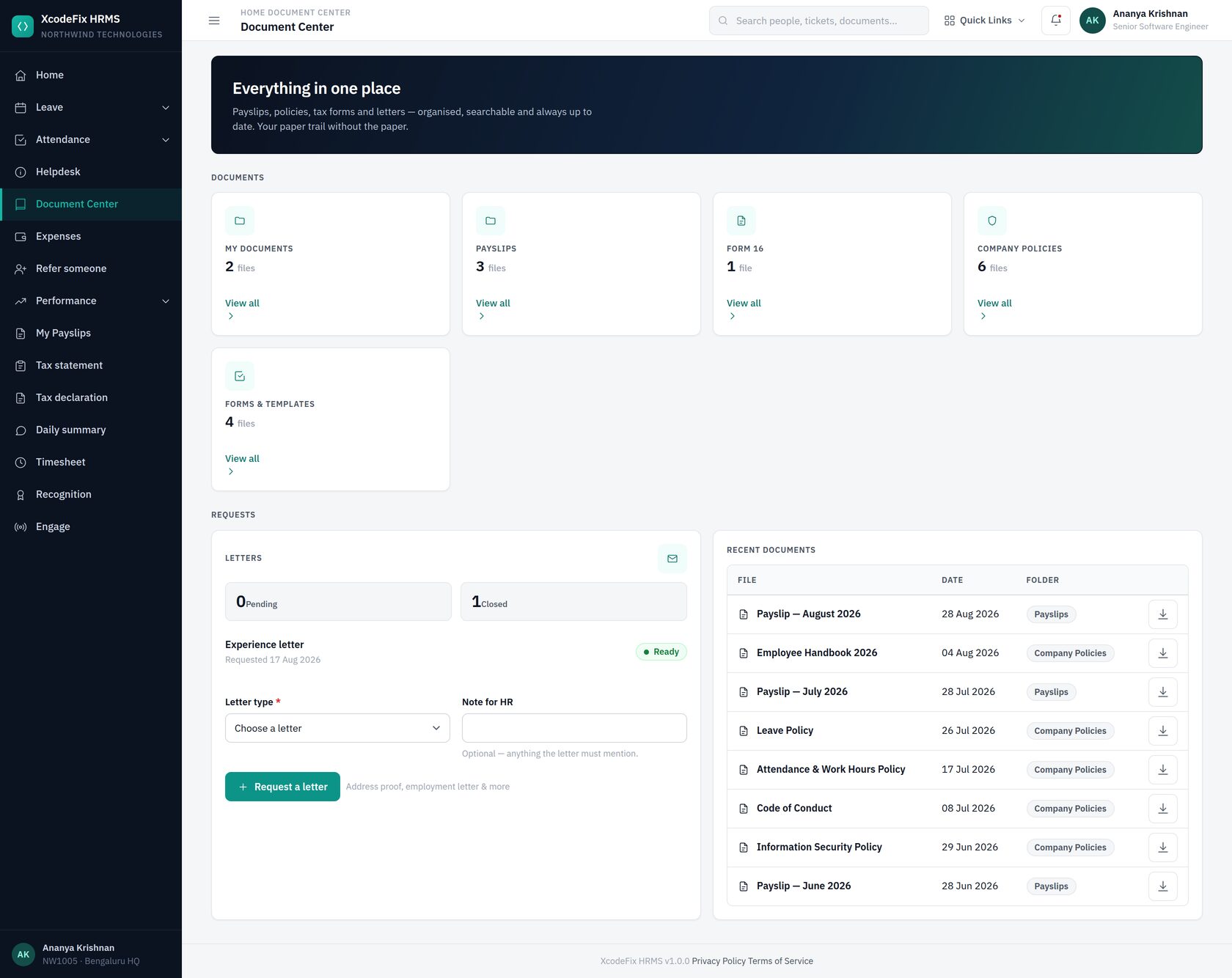
| Document Center | Payslips, Form 16, policies, forms, letter requests | Optional |
| Expenses | Expense claims with receipts, approval and payment tracking | Optional |
| Recruitment | Job openings, an applicant pipeline, interviews and offers | Optional |
| Engage | Company feed: announcements, kudos, celebrations | Optional |
Who can do what
Every person with a login has exactly one role. Roles are fixed — you assign them, you do not design them — which keeps access predictable.
| Role | Typical holder | Reach |
|---|---|---|
| Organisation admin | HR head, founder | Everything inside your company, including company settings, modules, roles and the audit trail |
| HR manager | HR executive, HR business partner | Employees, leave, attendance, holidays, helpdesk, documents, letters, engage — but not company settings, modules or roles |
| Manager | Anyone with direct reports | Their own portal, plus approving leave and attendance corrections for their reports |
| Employee | Everyone else | Their own record, leave, attendance, tickets, documents and the feed |
2. Before you onboard: the data to have ready
This is the chapter to read first. Setting the portal up takes about thirty minutes if the information below is already decided and to hand. If it is not, the wizard will stall at whichever step you have not thought about, and half-finished structure is much harder to correct once people are in the system.
Collect the following before you sign up.
2.1 Company information
| Item | Required | Notes |
|---|---|---|
| Company name (trading name) | Yes | Appears in the sidebar and on every email your team receives |
| Registered legal name | Recommended | Used on letters and statutory documents — e.g. "Northwind Technologies Private Limited" |
| Portal address (subdomain) | Yes | Short, lowercase, permanent-feeling. Chosen at signup |
| Registered address, city, state, PIN | Recommended | Printed on employment and address-proof letters |
| Contact phone and website | Optional | |
| Country, time zone, currency, date format | Yes | Defaults are India / Asia Kolkata / INR / d M Y |
| Company logo | Recommended | PNG, JPG, WEBP or SVG, up to 1 MB. Square or wide both work |
| Brand colour | Optional | A single hex colour used for buttons, highlights and email headers |
| Administrator name, work email, password | Yes | The email must be reachable — signup is confirmed by a verification link |
2.2 Organisation structure
Three lists, and the earlier they are right the less rework later. Every one of them can be edited afterwards, but employees are attached to them, so renaming is easy and deleting is not.
- Grades — seniority bands. Optional, but they are what lets leave entitlement differ by seniority later without editing everyone one at a time.
- Departments — the functional groups people belong to. Give each a short code if you use one (ENG, SLS, HR). Decide who heads each department; you can set the head once the people exist.
- Designations — job titles, with an optional seniority level. Keep the list tight: one title per real job, not one per person.
- Locations — offices, plus a "Remote" entry if you have home-based staff. Address, city and state are worth filling in.
2.3 Leave policy decisions
For each kind of leave you offer, decide these before you start. The wizard suggests a sensible Indian default set (Privilege, Sick, Casual, Comp Off, Loss of Pay) which you can accept and then adjust.
| Decision | Example |
|---|---|
| Short code and name | PL — Privilege Leave |
| Annual quota (days) | 18 |
| How it accrues | Monthly, quarterly, yearly, or not at all |
| Carry-forward cap | Up to 12 days into next year |
| Paid or unpaid | Paid (Loss of Pay is the unpaid one) |
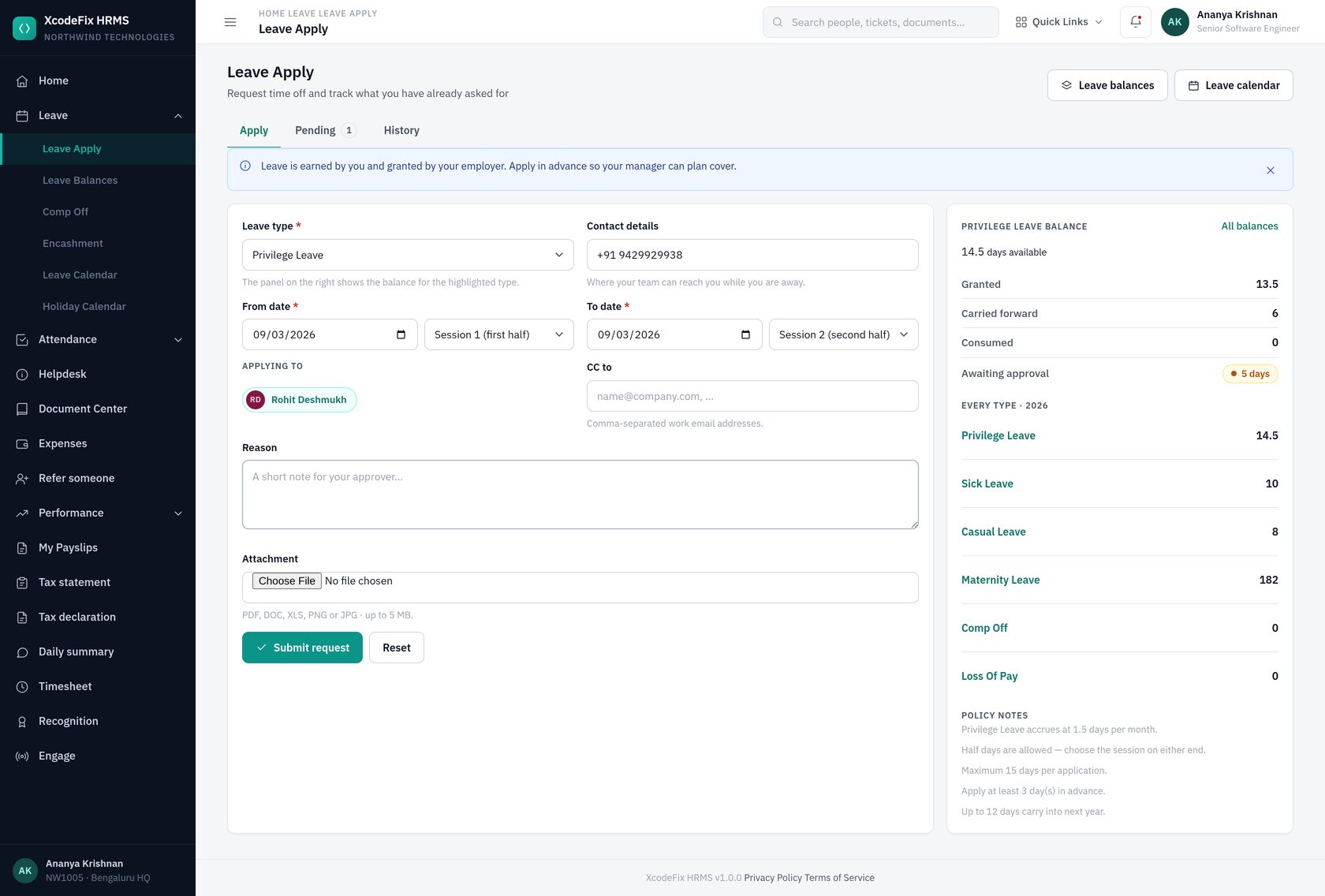
| Half days allowed? | Yes — the application then asks for a session on each end |
| Attachment required? | Sick Leave over N days often needs a certificate |
| Minimum service before it can be used | 0 months for most, 6 months for Maternity |
| Maximum consecutive days | 15 |
| Notice required | 3 days for planned leave, 0 for sick |
| Restricted to a gender? | Maternity — female; Paternity — male |
| Calendar colour | Used across the leave calendar |
2.4 Working hours and shifts
- Shift code and name, e.g. GEN — General Shift
- Start and end time, and the unpaid break in minutes
- Grace minutes — how late someone may arrive and still count as on time (15 is typical)
- Half-day minutes and full-day minutes — the work thresholds that decide how a day is marked (240 and 480 are typical)
- Weekly offs for that shift, e.g. Saturday and Sunday
- Which shift is the default for new joiners
- Regularisation window — how many days back an employee may ask for a correction (14 is typical)
2.5 Holiday calendar
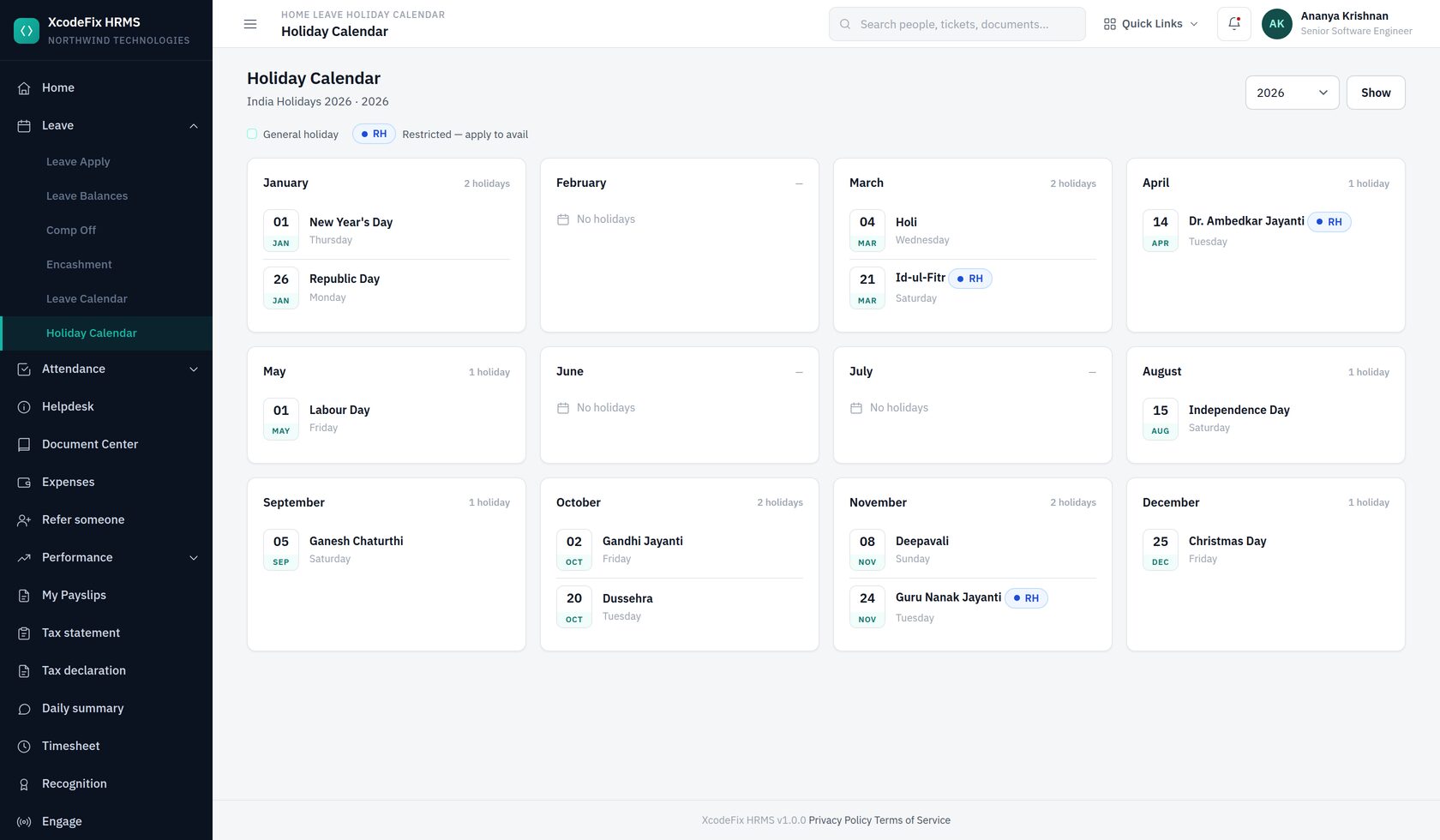
A list of holidays for the current calendar year: date, name, and whether it is restricted (an optional holiday the employee chooses rather than one everybody gets). The wizard offers a suggested Indian list you can edit. If different offices observe different days, create more than one holiday calendar and attach each employee to the right one.
2.6 Employee master data
This is the big one. For each person you are onboarding, the portal distinguishes between what it needs to create the record and what makes the record genuinely useful.
| Field | Status | Why it matters |
|---|---|---|
| First name | Mandatory | Identity throughout the portal |
| Work email | Mandatory | This is the sign-in identity and where every notification goes. It must be unique in your company and reachable |
| Joining date | Mandatory | Drives leave accrual, probation and service length |
| Gender, marital status | Mandatory (may be "Prefer not to say") | Gender gates gender-specific leave types |
| Employment type, status | Mandatory | Full time / part time / contract / intern; active / on notice / resigned / exited |
| Employee code | Auto-filled | The next code in sequence is proposed; overwrite it to match your existing numbering |
| Last name | Strongly recommended | Needed for letters and for telling people apart |
| Grade | Recommended | Lets leave policies be granted by band rather than person by person |
| Department, designation, location | Strongly recommended | Filters, org charts and reporting all lean on these |
| Reports to | Strongly recommended | This is the approver for leave and attendance corrections. Without it, requests have nowhere to go and land on HR |
| Shift | Strongly recommended | Decides how attendance is judged; falls back to the organisation default |
| Holiday calendar | Recommended | Falls back to the organisation default |
| Personal email, phone, date of birth | Recommended | DOB drives birthday posts in Engage |
| Probation end date | Recommended | Surfaces "confirmations due" on the HR home screen |
| Exit date | Only at exit | Leave blank while the person is employed |
2.7 Statutory, payroll and personal details
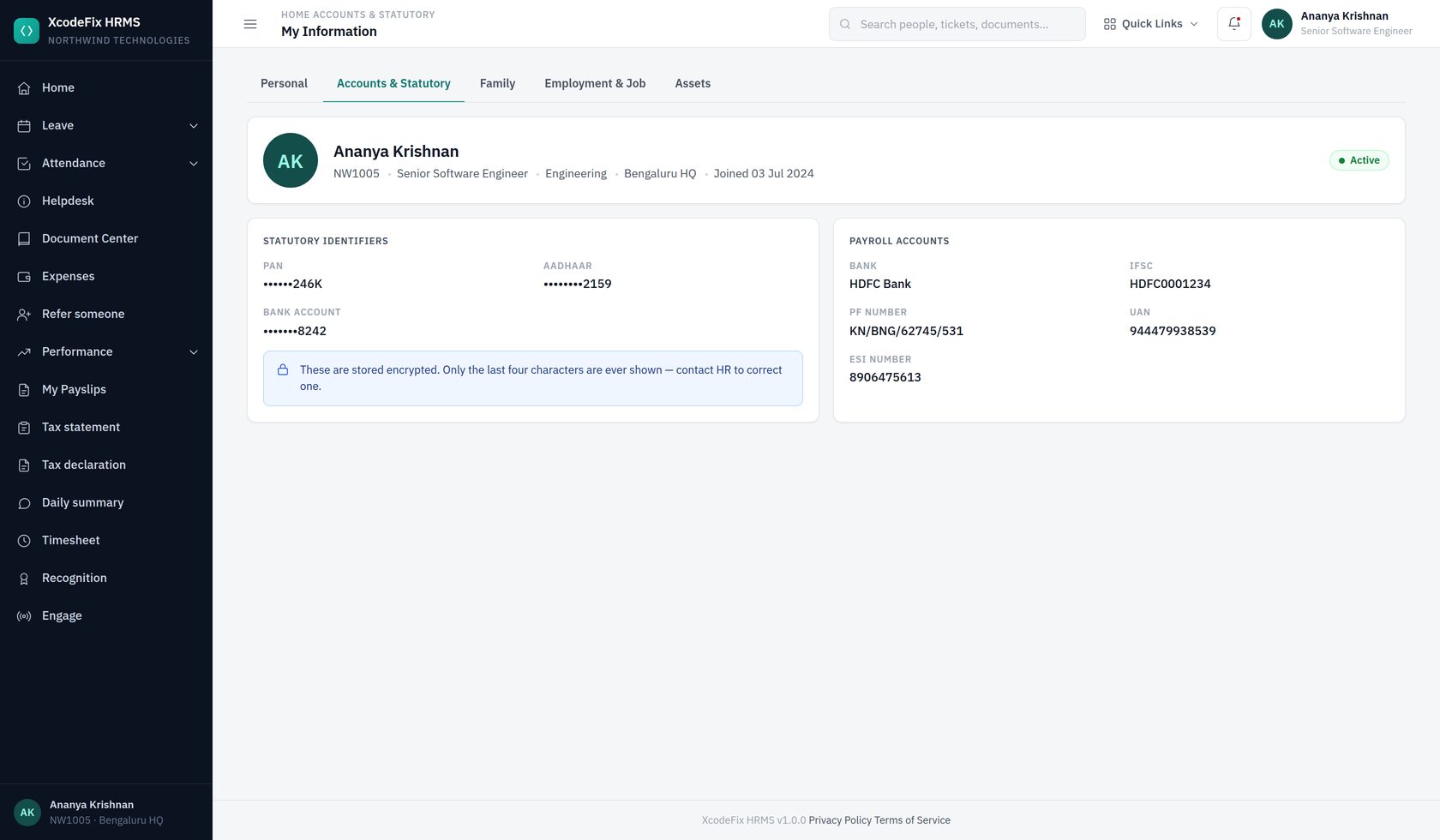
These are not needed to create the record and are not part of the bulk import. Collect them on or just after day one — most companies gather them with a joining form. Statutory identifiers are encrypted at rest and only ever displayed as the last four characters.
Statutory
- PAN
- Aadhaar
- UAN and PF number
- ESI number, where applicable
Payroll
- Bank name
- Bank account number
- IFSC code
Personal
- Residential address, city, state, PIN
- Blood group
- Emergency contact: name, relationship, phone
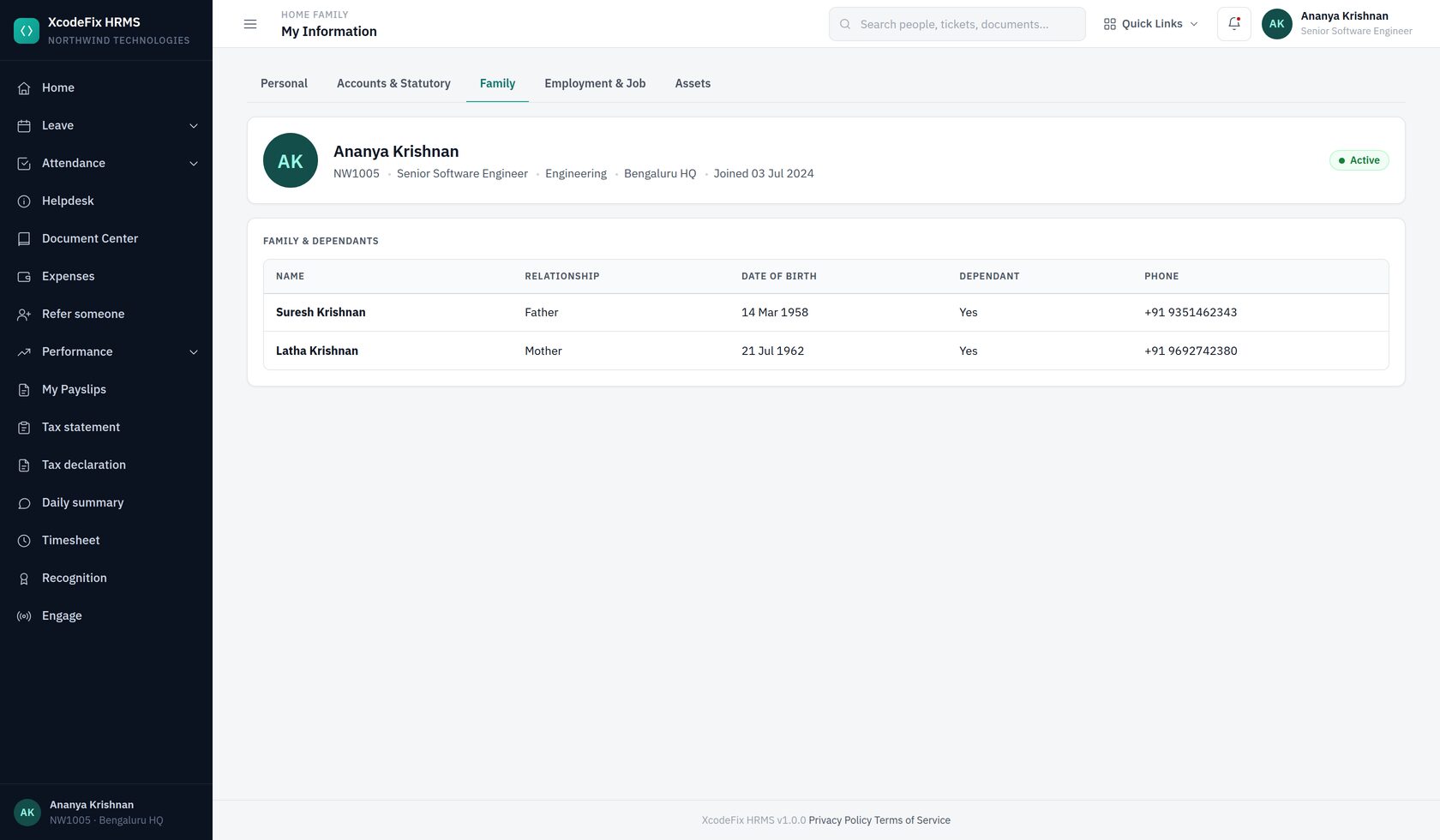
- Family members and dependants, with dates of birth
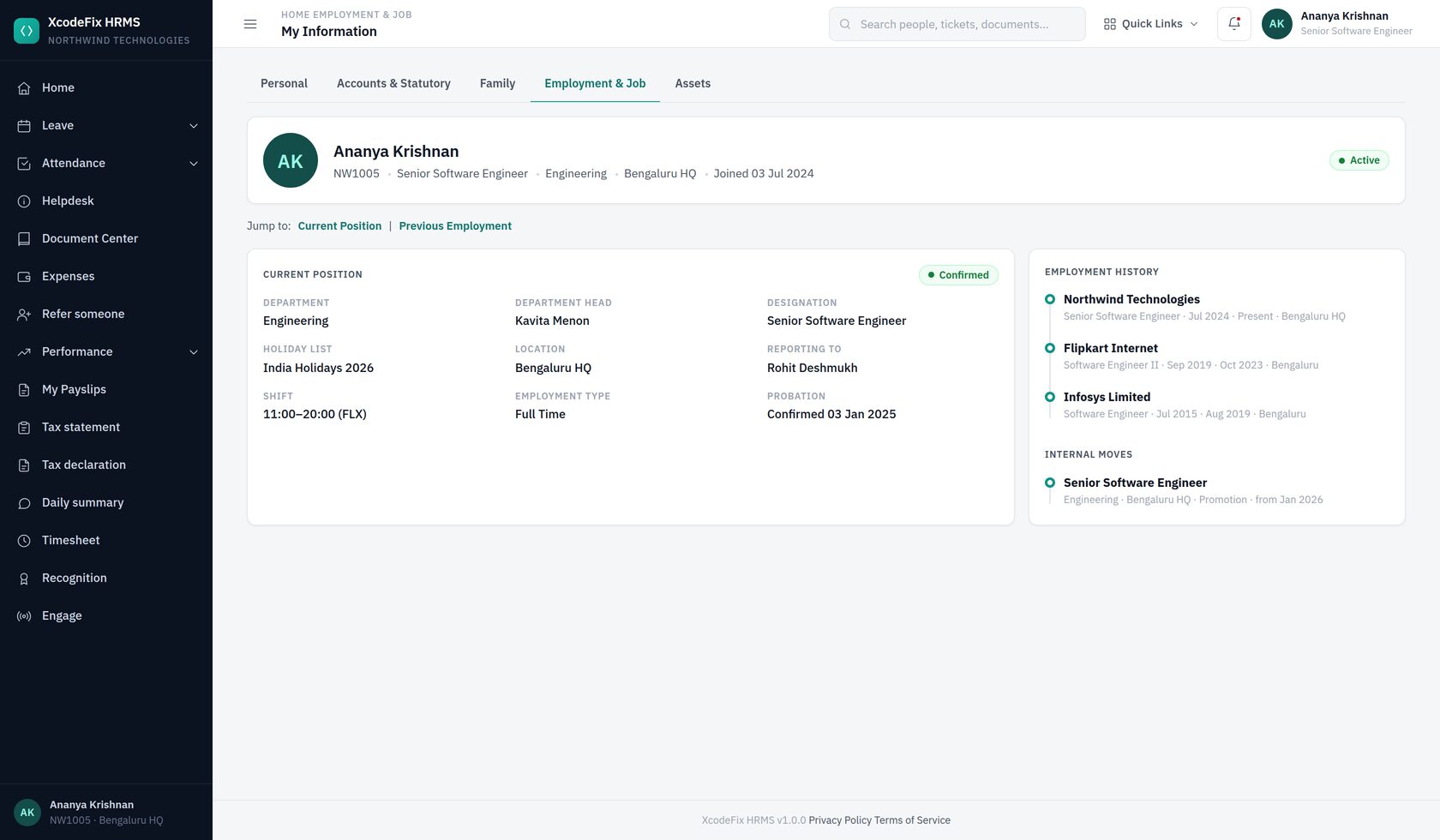
- Previous employment history
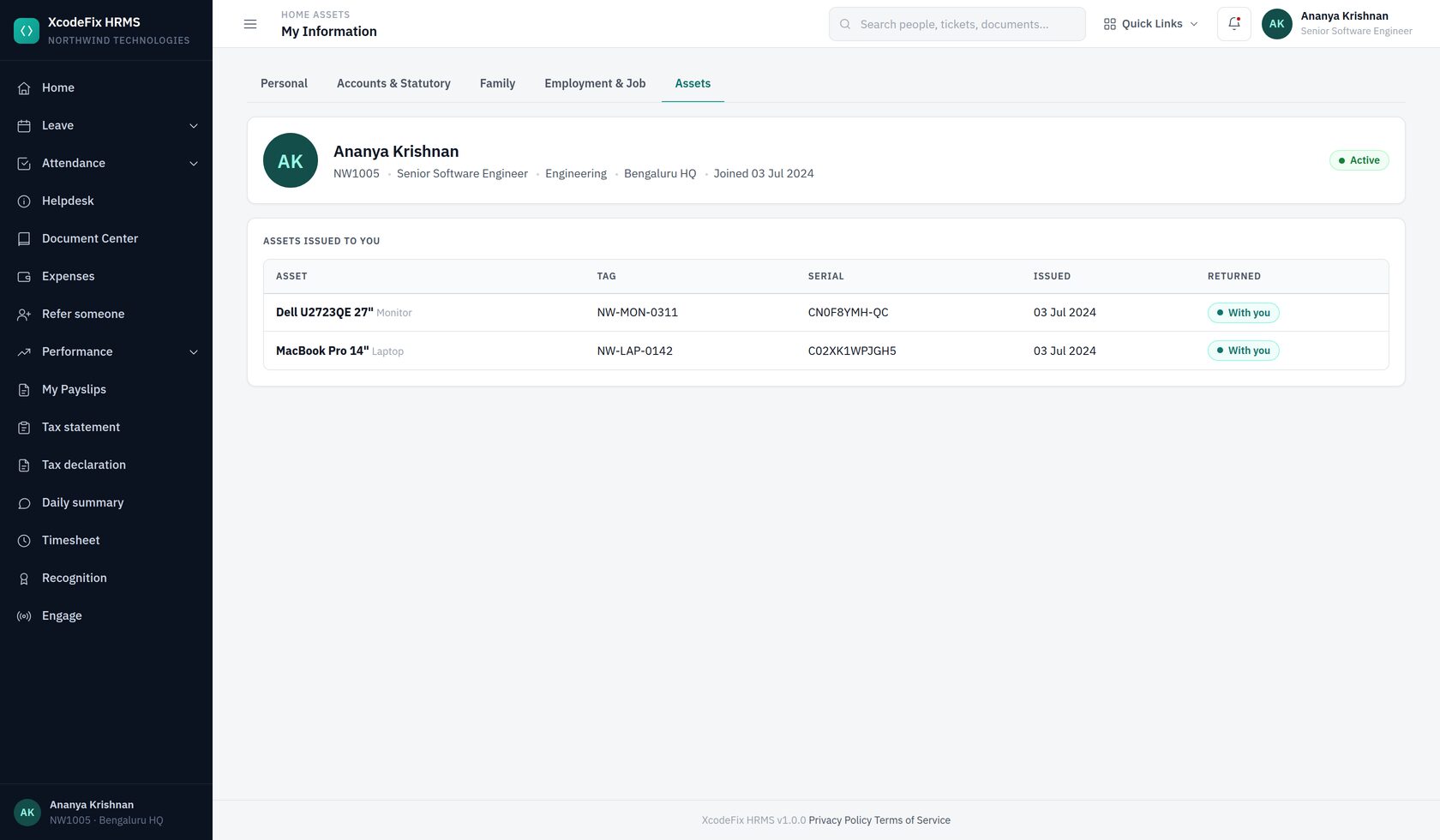
- Assets issued: laptop, phone, access card, asset tag and serial
2.8 Documents to collect before day one
The Document Center holds two kinds of file: company-wide documents everyone can see, and personal documents visible only to that employee. A typical joining pack:
From the employee
- Signed offer letter
- Photo ID and address proof
- PAN card
- Educational certificates
- Relieving and experience letters from the previous employer
- Last three salary slips, if you ask for them
- Cancelled cheque or bank passbook page
- Passport-size photograph
Published by you
- Employee handbook
- Leave policy
- Attendance and work-hours policy
- Code of conduct
- Information security policy
- POSH policy and committee details
- Reimbursement, travel and investment declaration forms
2.9 Readiness checklist
Do not start the wizard until you can tick every line.
| Ready | |
|---|---|
| Company name, legal name, address and logo | |
| An administrator email address you can receive mail on right now | |
| Department list | |
| Designation list | |
| Location list | |
| Grade list, if entitlement or reporting will follow seniority | |
| Leave types with quota, accrual, carry-forward and notice rules | |
| Decision on which leave types may be cashed in, and any yearly cap | |
| Decision on whether comp off is offered, and which type it credits | |
| Shift timings, grace and half/full-day thresholds, weekly offs | |
| Holiday calendar for the current year | |
| Employee list with work email, joining date, department, designation, location and manager | |
| Decision on who gets which role (admin / HR manager / manager / employee) | |
| Policy documents ready to upload | |
| Decision on whether to send invitations immediately or on a chosen day |
3. Signing your company up
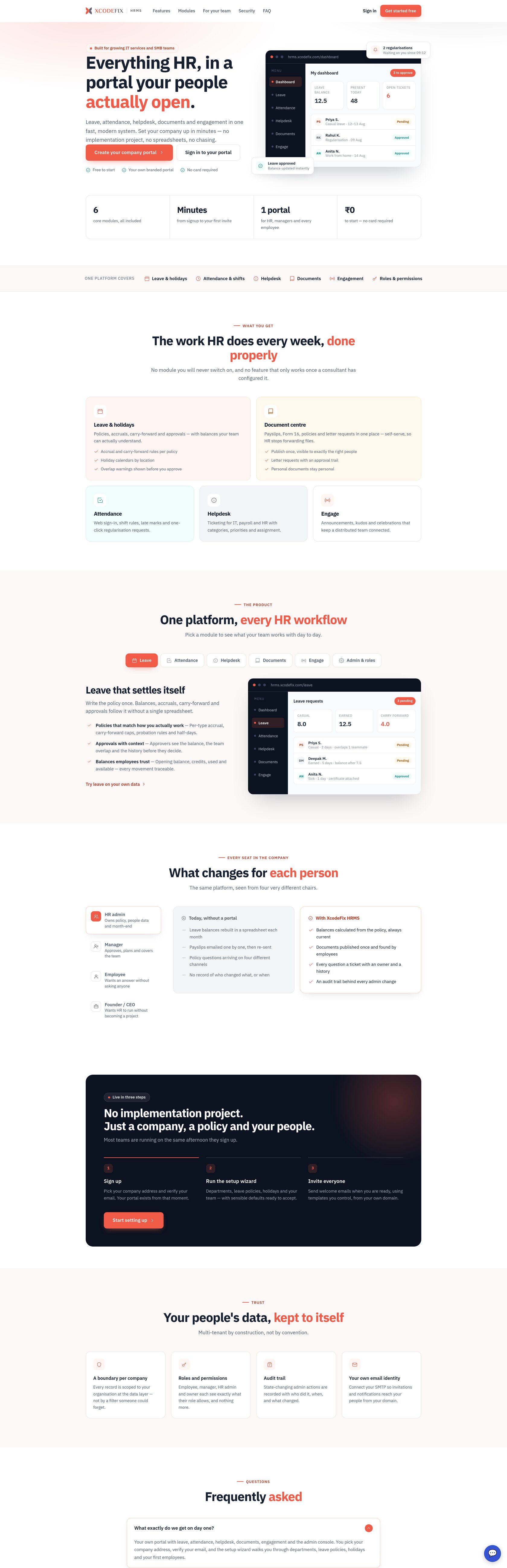
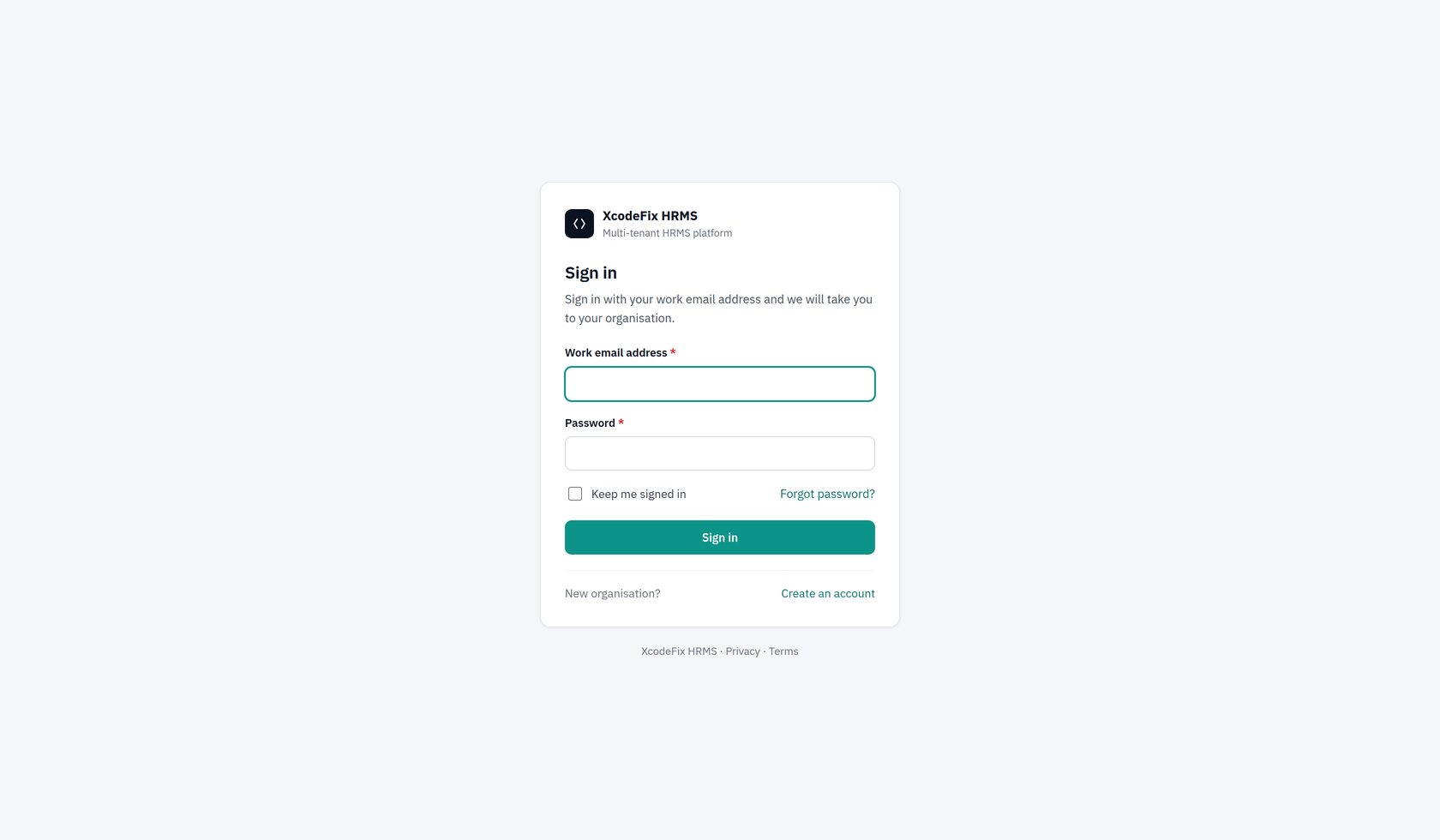
Go to hrms.xcodefix.com and choose Get started.
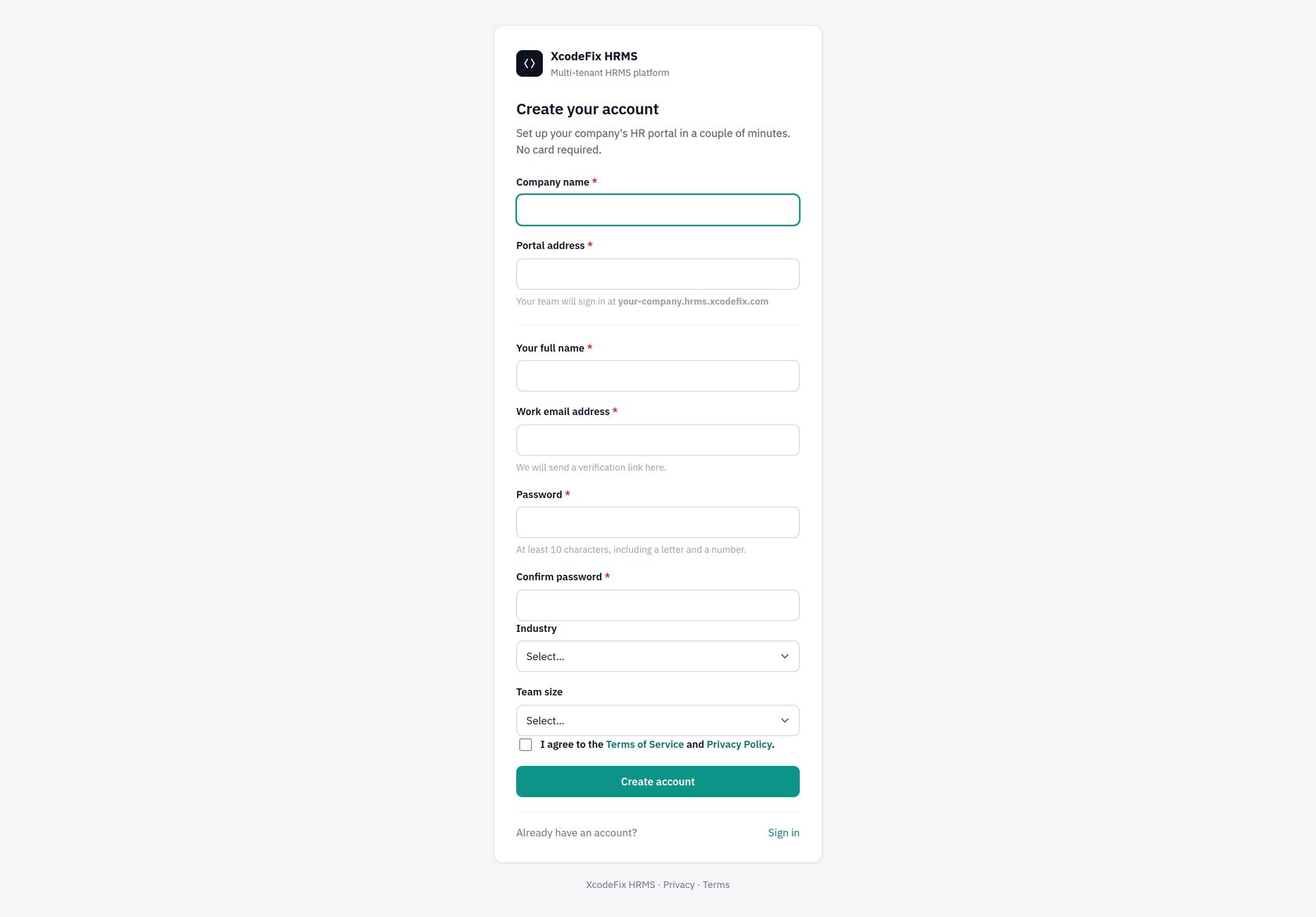
- Enter the company name. A portal address is suggested from it; edit it if you want something shorter. The address is checked for availability as you type.
- Enter the administrator's name, work email and password. This account becomes the first organisation admin.
- Pick your industry and company size, accept the terms, and submit.
- Check the administrator's inbox for the verification email and click the link. The organisation stays pending until you do.
- Sign in. You land straight in the setup wizard.
4. The setup wizard, step by step
Seven steps. You can go back to any step you have already passed, and everything you set here stays editable afterwards from Administration in the sidebar — the wizard is a fast start, not a one-time commitment.
Step 1 — Company
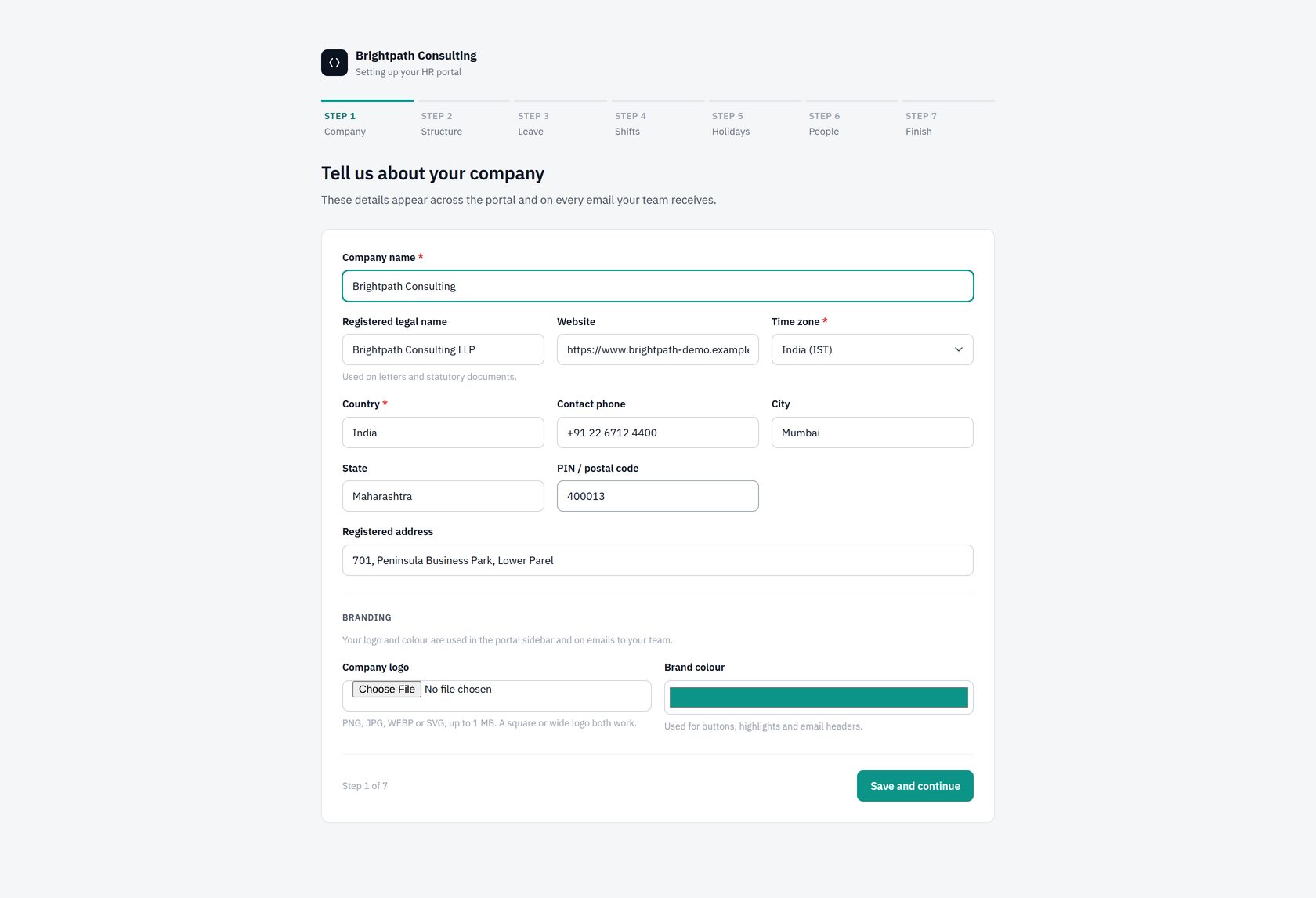
Fill in the legal name, address and contact details, then upload your logo and set the brand colour. These details appear across the portal and on every email your team receives, so it is worth doing properly now rather than later.
Step 2 — Structure
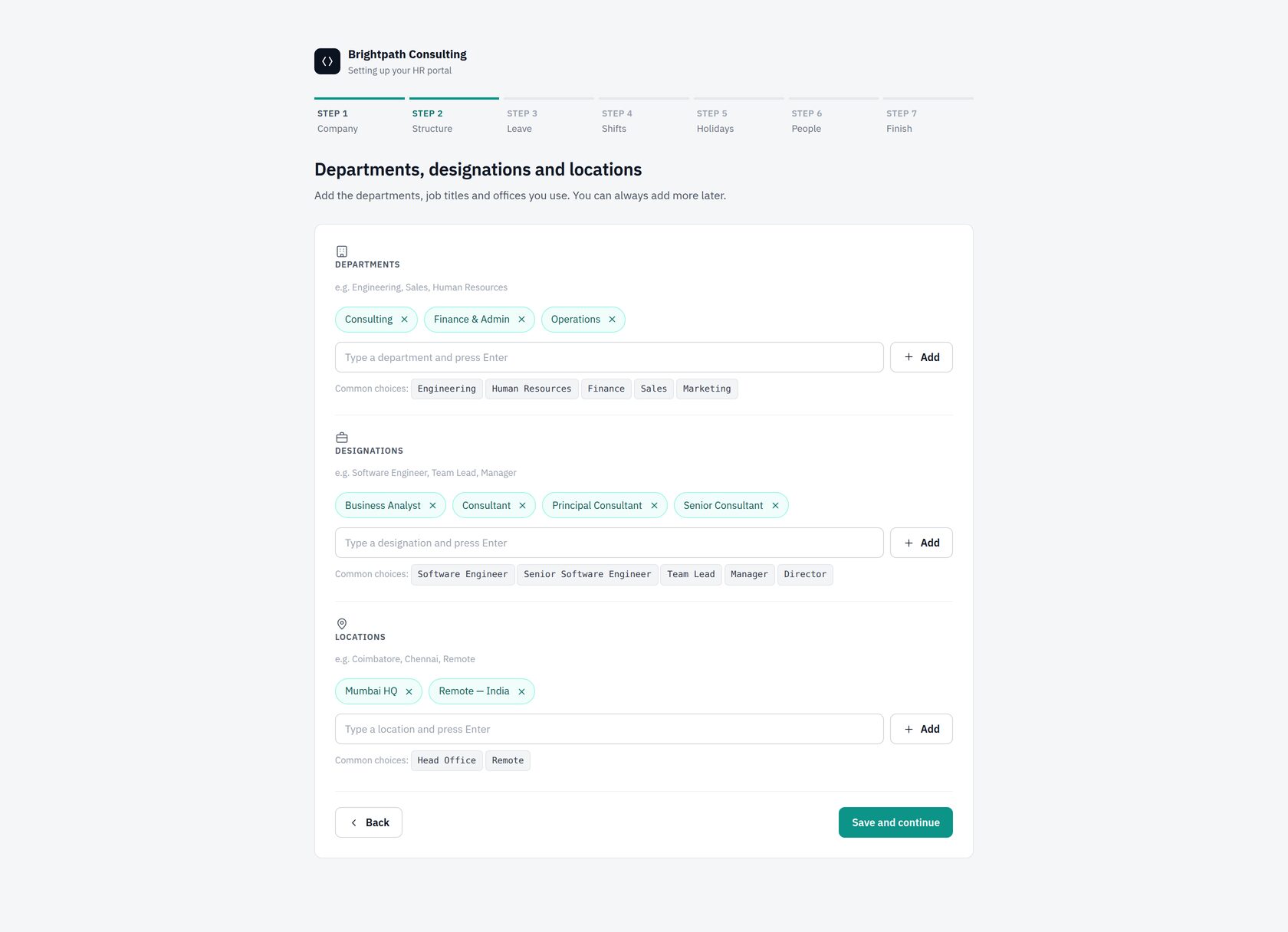
Add your departments, designations and locations. Suggestions are offered for a company of your size and industry; click one to add it, or type your own. Nothing here is permanent — you can add more from Administration at any time.
Step 3 — Leave
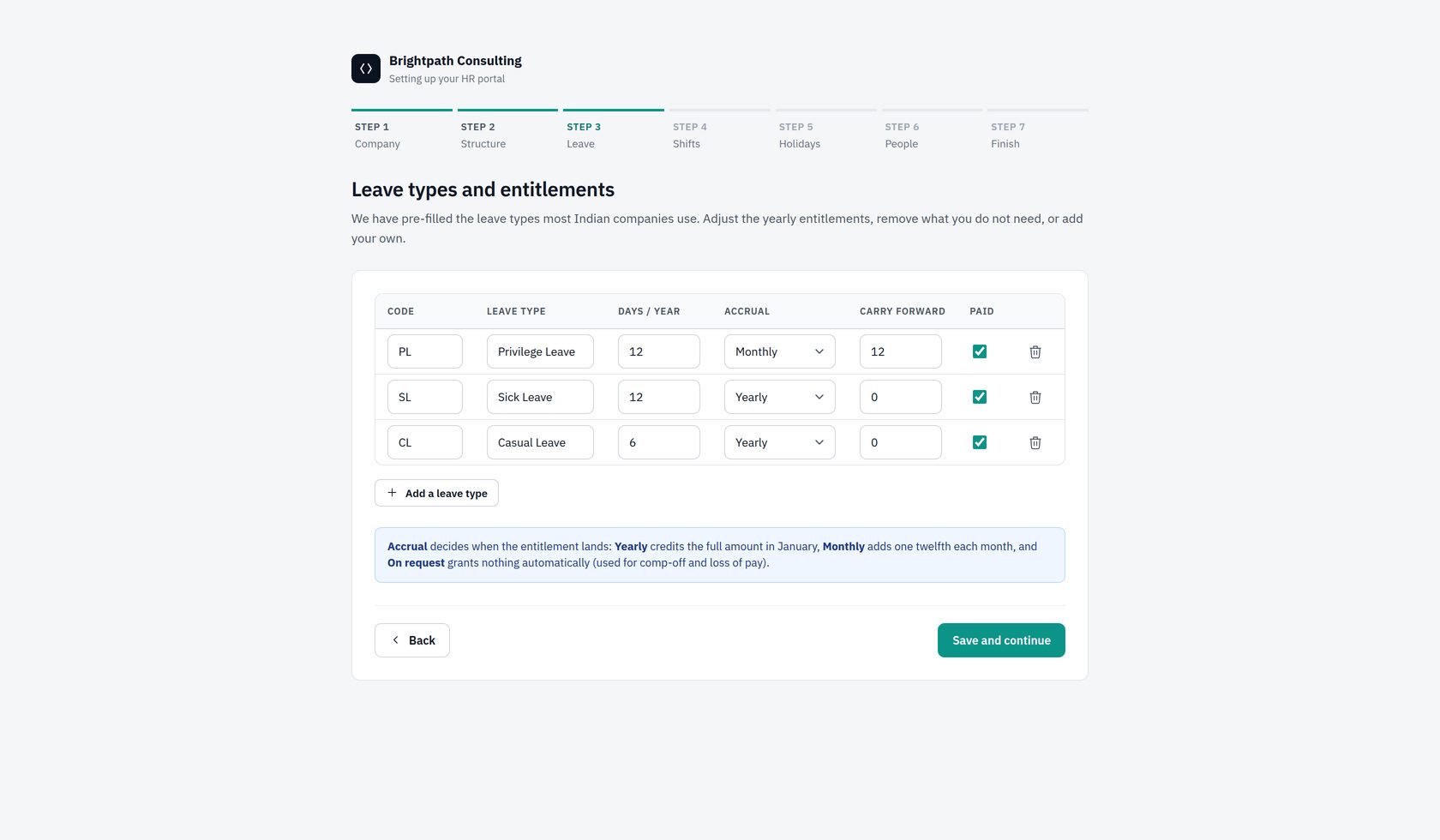
A default Indian set is proposed. For each type set the annual quota, how it accrues and the carry-forward cap. Detailed policy rules — notice days, maximum consecutive days, minimum service, gender restriction, attachment requirement — are set afterwards under Administration → Leave types & policies.
Step 4 — Shifts
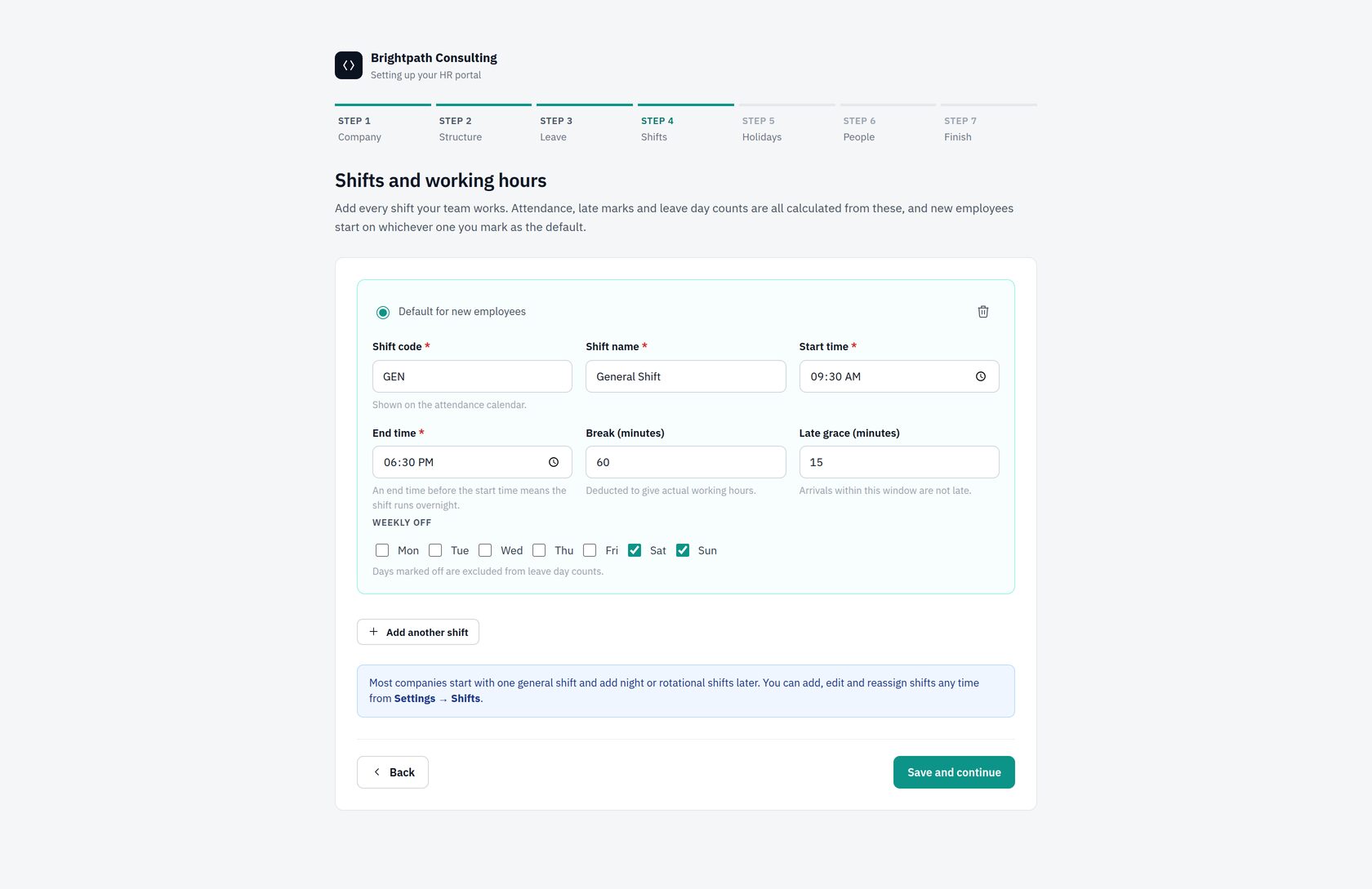
Define at least one shift and mark it the default. Grace, half-day and full-day minutes decide how each day is judged when attendance rolls up overnight.
Step 5 — Holidays
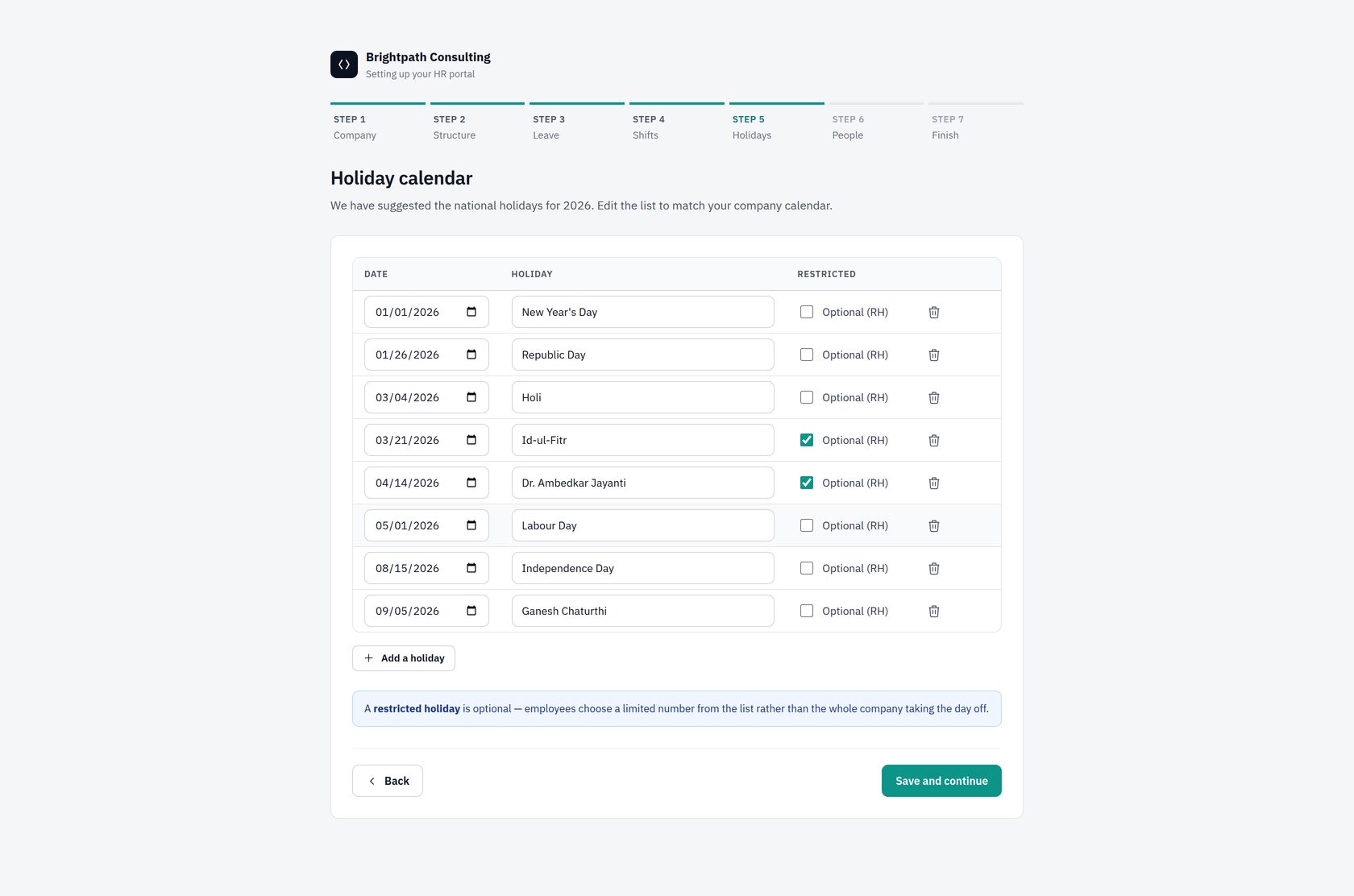
Mark any optional holidays as restricted. Employees then apply for the one they want, and the request goes through approval like a leave application.
Step 6 — People
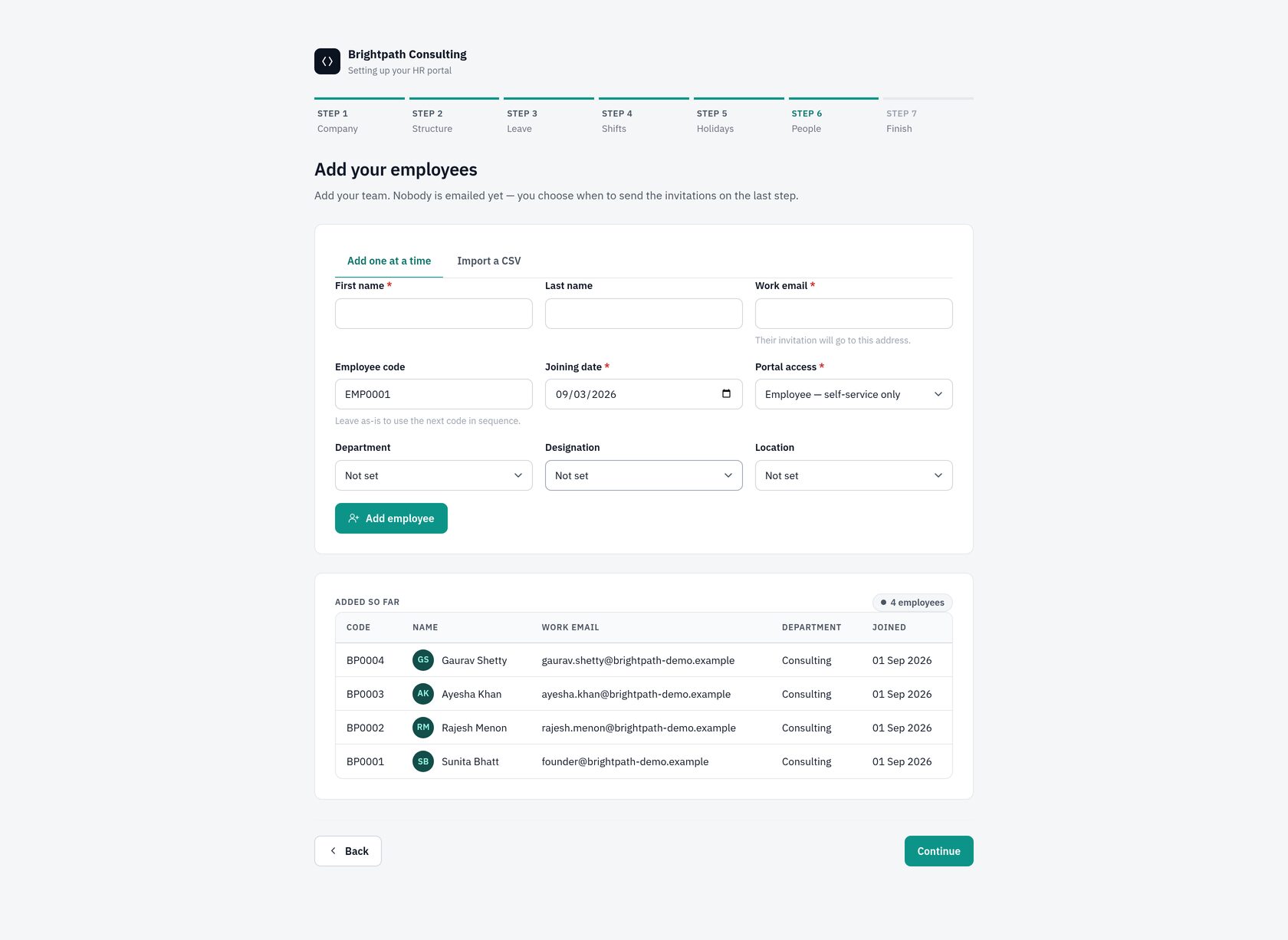
Add your employees here or import them from a spreadsheet. Everyone you add is created with a pending invitation that has not been sent — sending is a deliberate separate action, so you can build the register quietly and go live when you are ready.
Step 7 — Finish
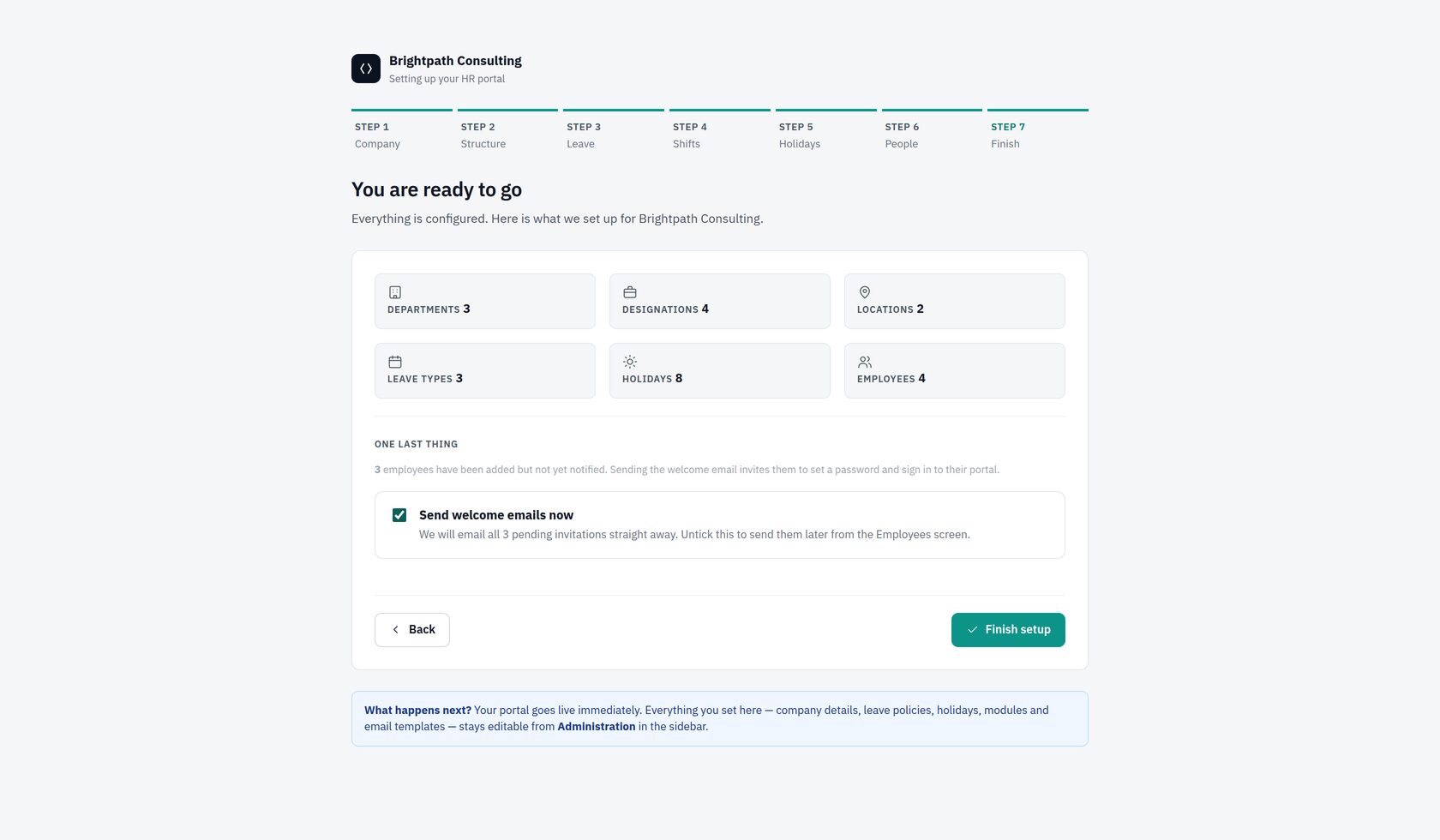
Review the counts. Leave Send welcome emails now ticked to invite everyone immediately, or untick it and send them later from the Employees screen. Then choose Finish setup — your portal goes live at once.
5. Adding people
5.1 The employee register
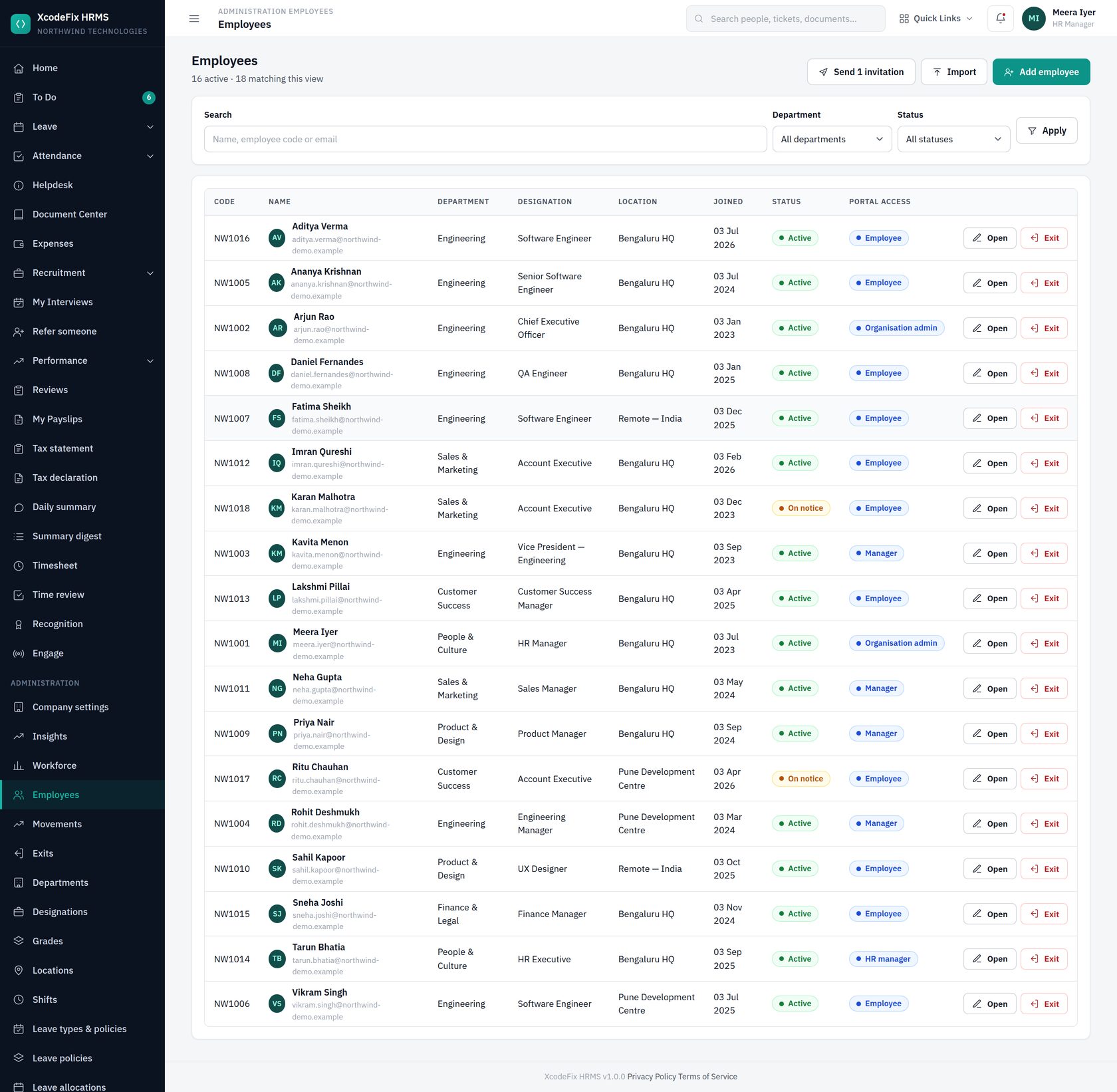
The register lists everyone, current and past. The Portal access column shows each person's role, or that they have no login yet. The header shows how many invitations are still unsent — Send N invitations despatches all of them in one action.
5.2 Adding one person
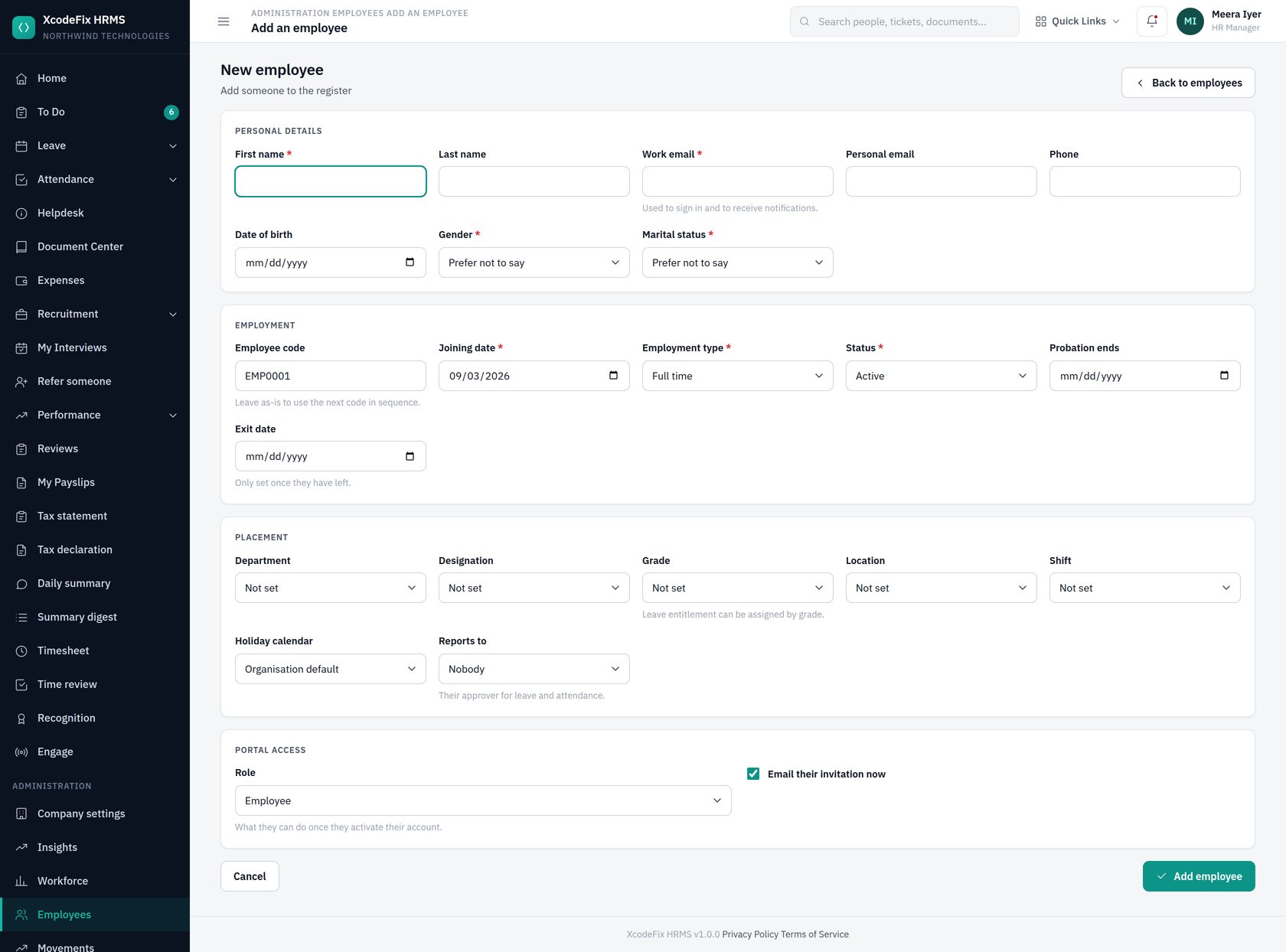
- Personal details — first and last name, work email, personal email, phone, date of birth, gender and marital status. Work email is the sign-in identity.
- Employment — employee code (pre-filled with the next in sequence), joining date, employment type, status, probation end date. Leave exit date blank.
- Placement — department, designation, location, shift, holiday calendar and, most importantly, Reports to. That person becomes the approver for this employee's leave and attendance corrections.
- Portal access — pick the role, and decide whether to email the invitation immediately.
5.3 Importing a team from a spreadsheet
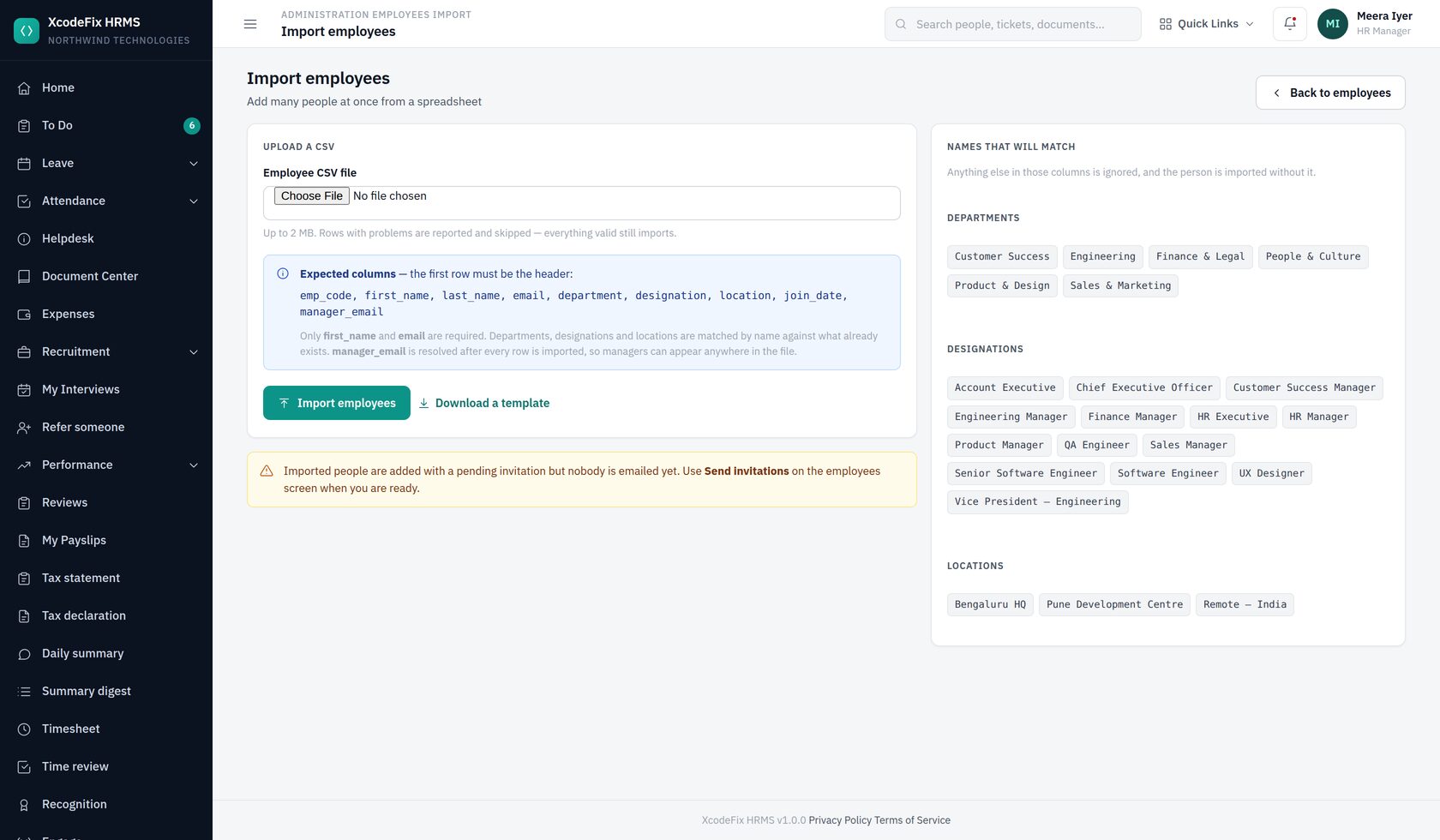
The import expects a header row with these columns. Column order does not matter; capitalisation and spaces in the header are ignored.
| Column | Required | Notes |
|---|---|---|
| first_name | Yes | |
| Yes | Must be a valid address, unique in the file and not already on the register | |
| last_name | No | |
| emp_code | No | Left blank, the next code in sequence is allocated |
| join_date | No | Any recognisable date. Blank means today |
| department | No | Matched by name against your department list |
| designation | No | Matched by name |
| location | No | Matched by name |
| manager_email | No | The manager's work email; linked after all rows are created, so managers may appear anywhere in the file |
A bad row never aborts the run. The file is parsed first, every problem is reported line by line, and everything valid still lands. Duplicates and rows with an invalid email are skipped and named in the result. As with the wizard, imported people are created with an unsent invitation.
5.4 Invitations and activation
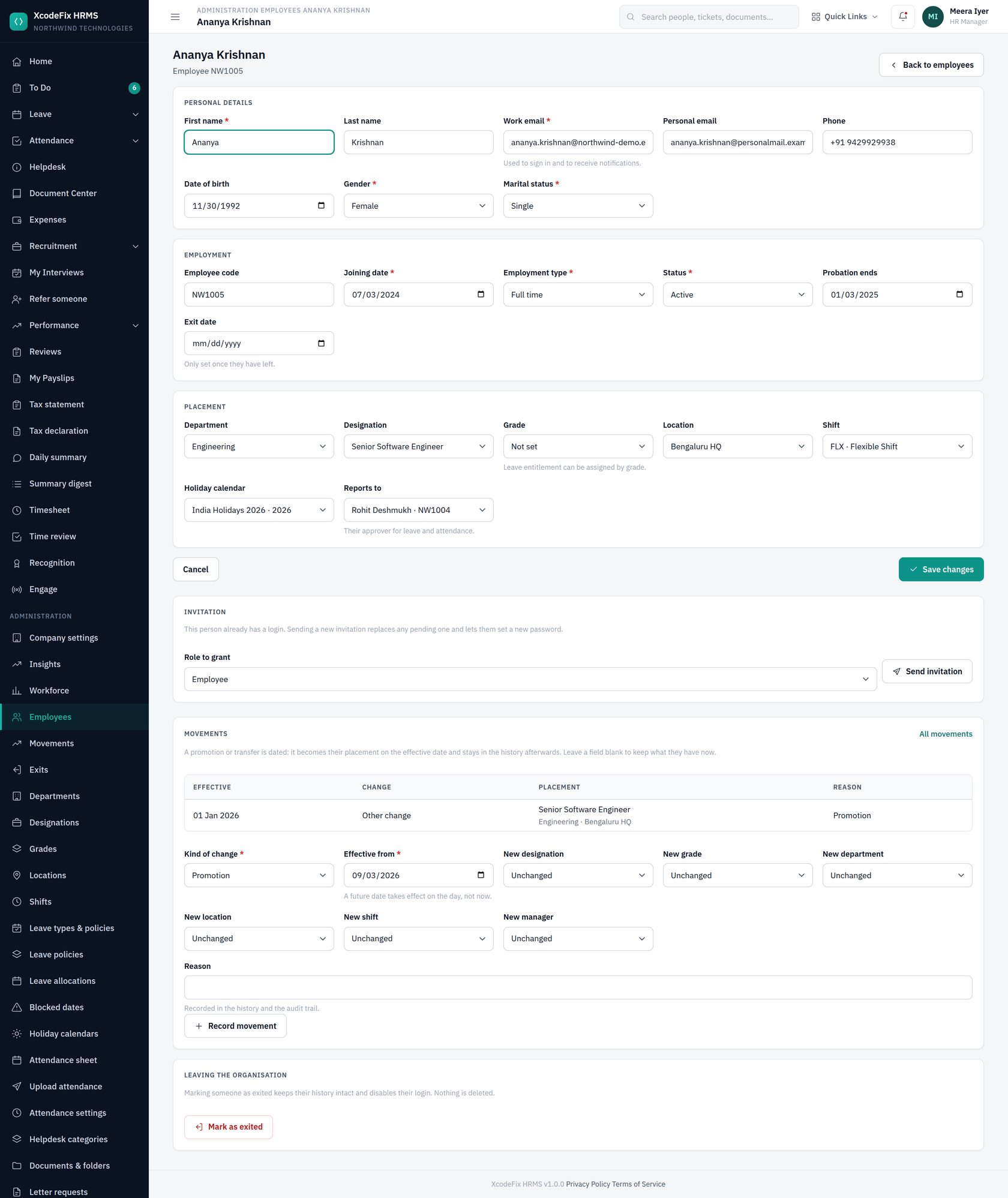
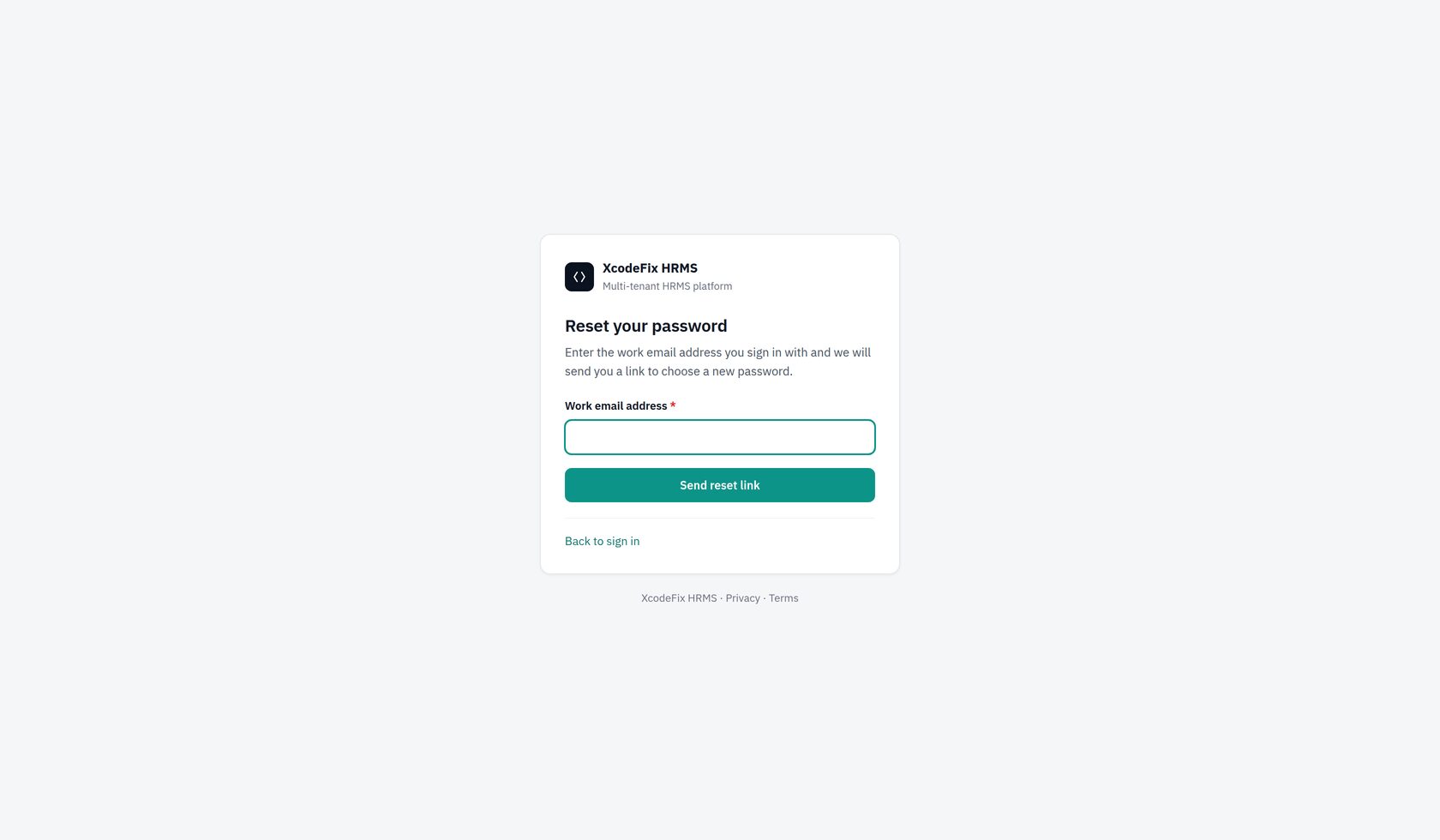
An invitation is a single-use, time-limited link. The employee clicks it, sets their own password, and their account activates — you never see or set anyone's password. Re-sending an invitation replaces any pending one, which is also how you help someone who never received the first.
5.5 A new-joiner runbook
| When | Do this |
|---|---|
| Offer accepted | Collect the joining-form data listed in §2.6 and §2.7, and the documents in §2.8 |
| A week before | Create the employee record with joining date, department, designation, location, shift and Reports to. Do not send the invitation yet |
| Day one, morning | Send the invitation. Upload their signed offer letter and personal documents to their My Documents folder |
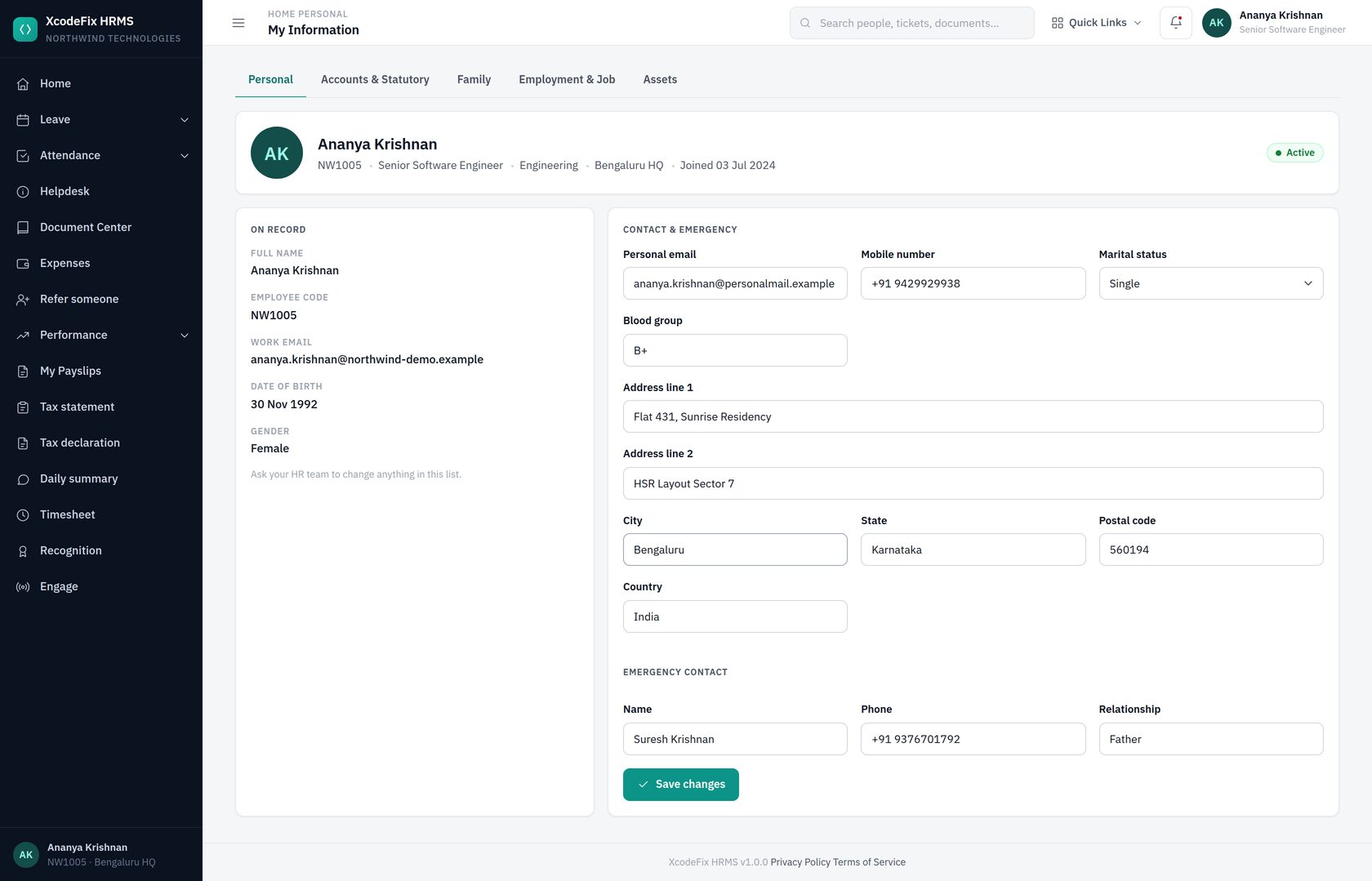
| Day one | Ask them to complete My Information — address, emergency contact, family — and confirm their statutory details |
| First week | Record issued assets (laptop, phone, access card) on their record. Check their leave balances look right for a mid-year joiner |
| First month | Confirm attendance is being marked correctly for their shift; correct anything odd before the first payroll cut-off |
| Probation end | The HR home screen flags confirmations due in the next 30 days. Confirm them, or extend the probation date |
6. Company and structure administration
6.1 Company settings
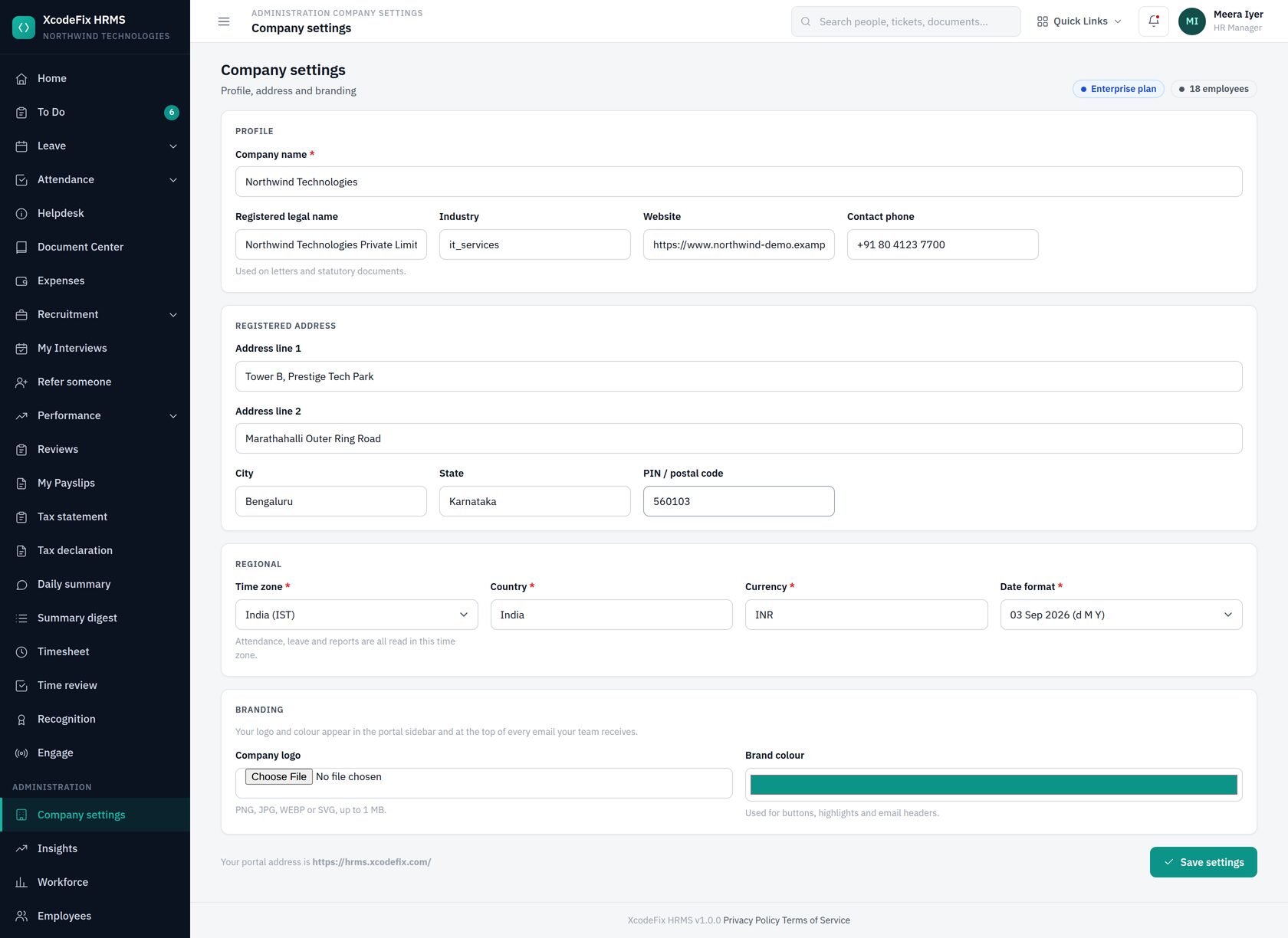
Everything from wizard step 1, permanently editable. Changing the logo or brand colour updates the portal and future emails immediately; mail already sent is untouched.
6.2 Departments, designations, locations and shifts
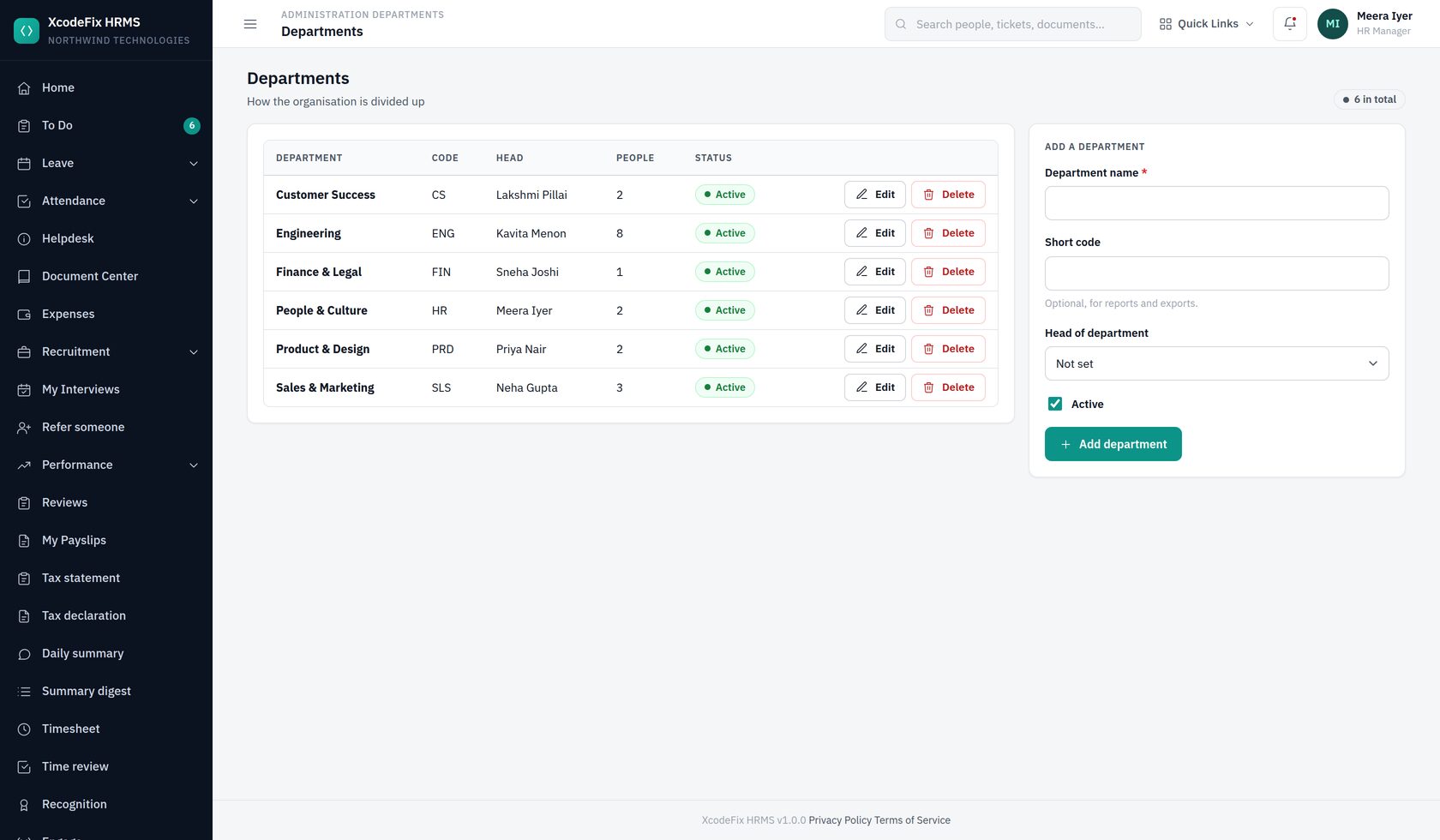
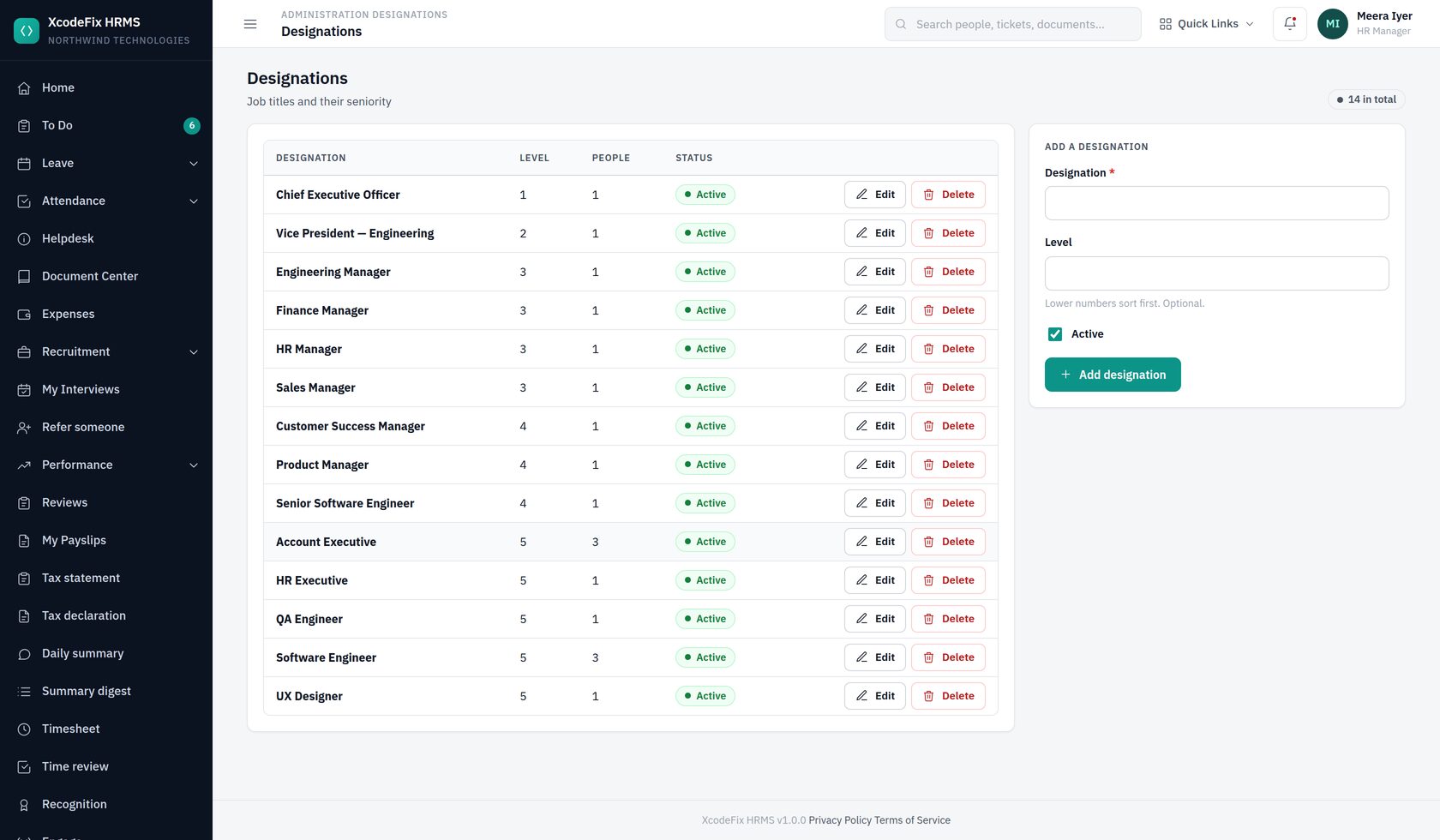
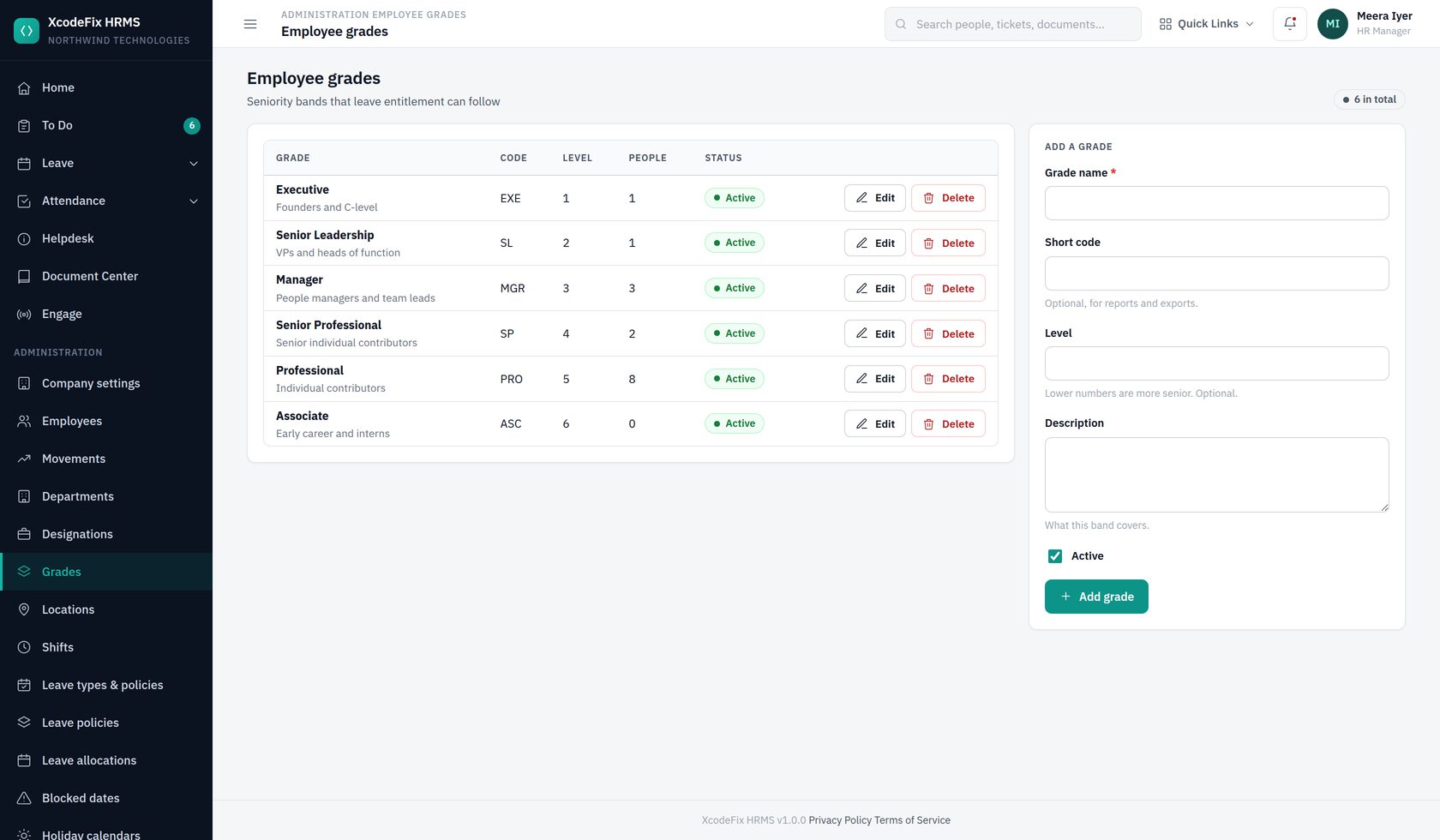
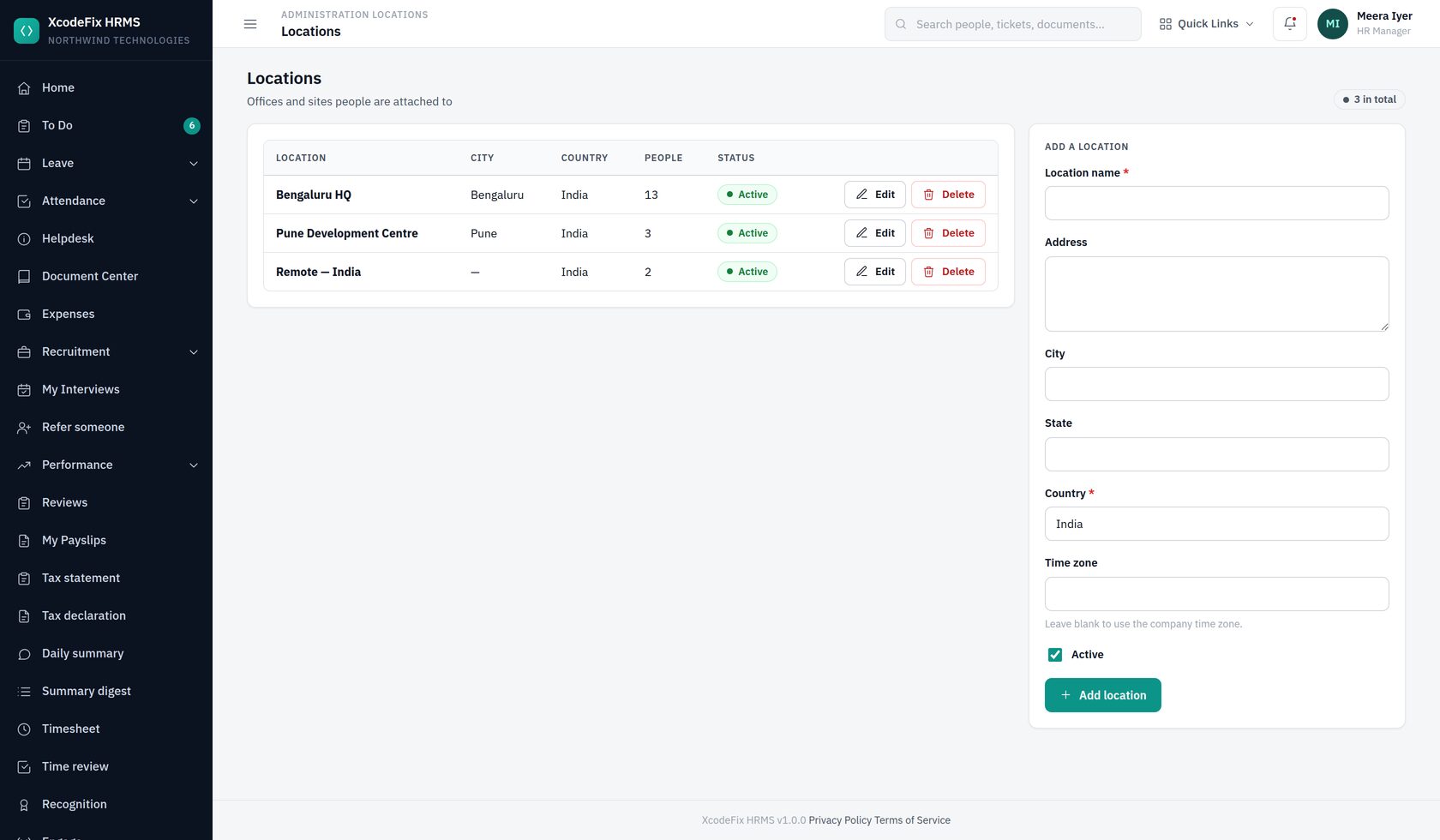
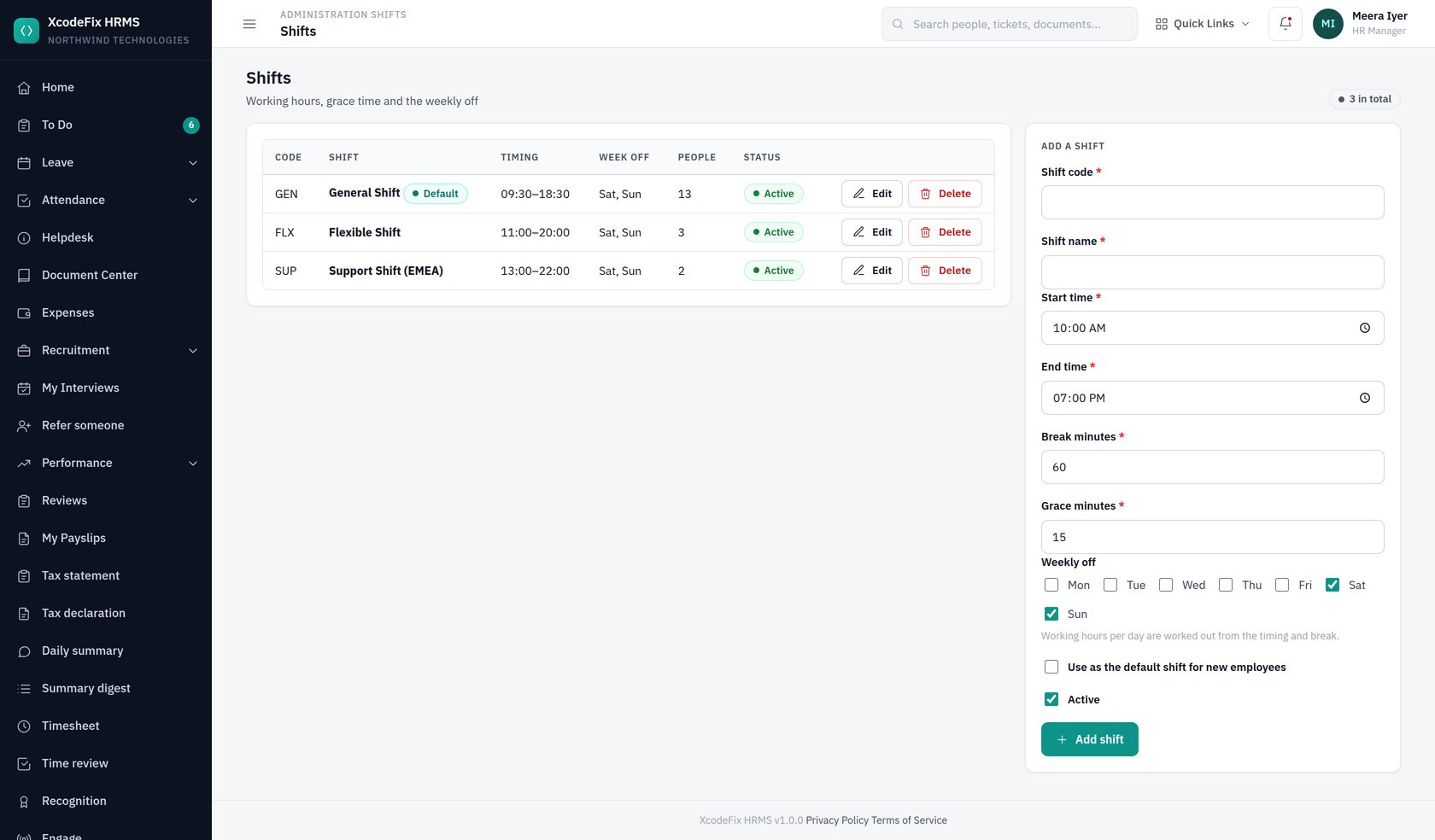
Prefer deactivating to deleting. A deactivated entry stops appearing in dropdowns for new records but keeps the history of everyone already attached to it intact.
6.3 Movements: promotions and transfers
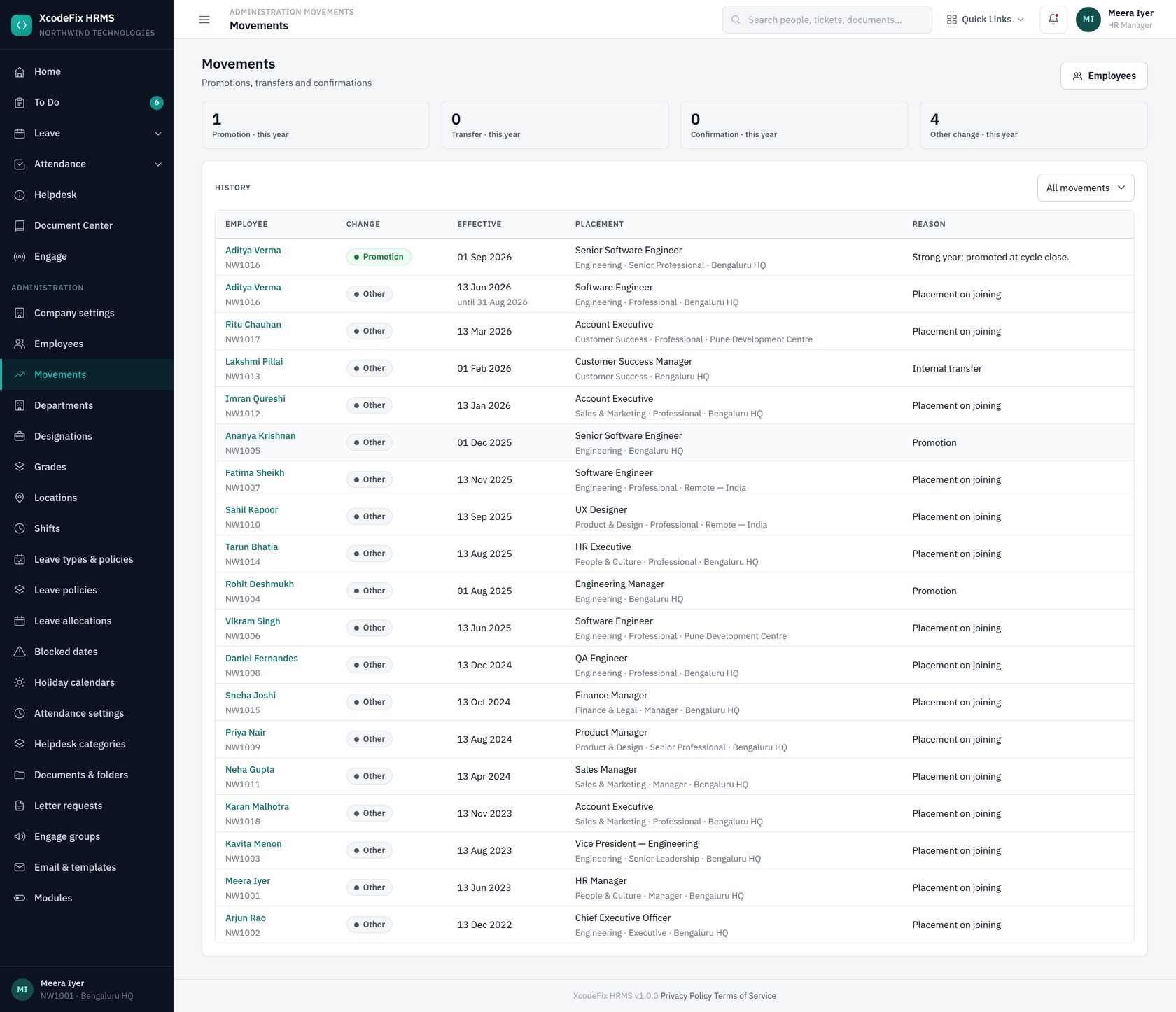
A movement is recorded on the person's own record, under Movements, and appears here afterwards. Fill in only what changes — a blank field keeps what they have now.
| Field | What it does |
|---|---|
| Kind of change | Promotion, transfer, confirmation or other — it is what the movement is filed under |
| Effective from | The date it takes effect. A future date is stored as scheduled and does not change the record until that morning |
| New designation, grade, department, location, shift, manager | Leave any of them blank to keep the current value |
| Reason | Kept in the history and the audit trail |
Editing an employee's placement directly on their record is treated as a correction to the current placement rather than a new movement, so the history does not fill up with edits.
6.4 Users and roles
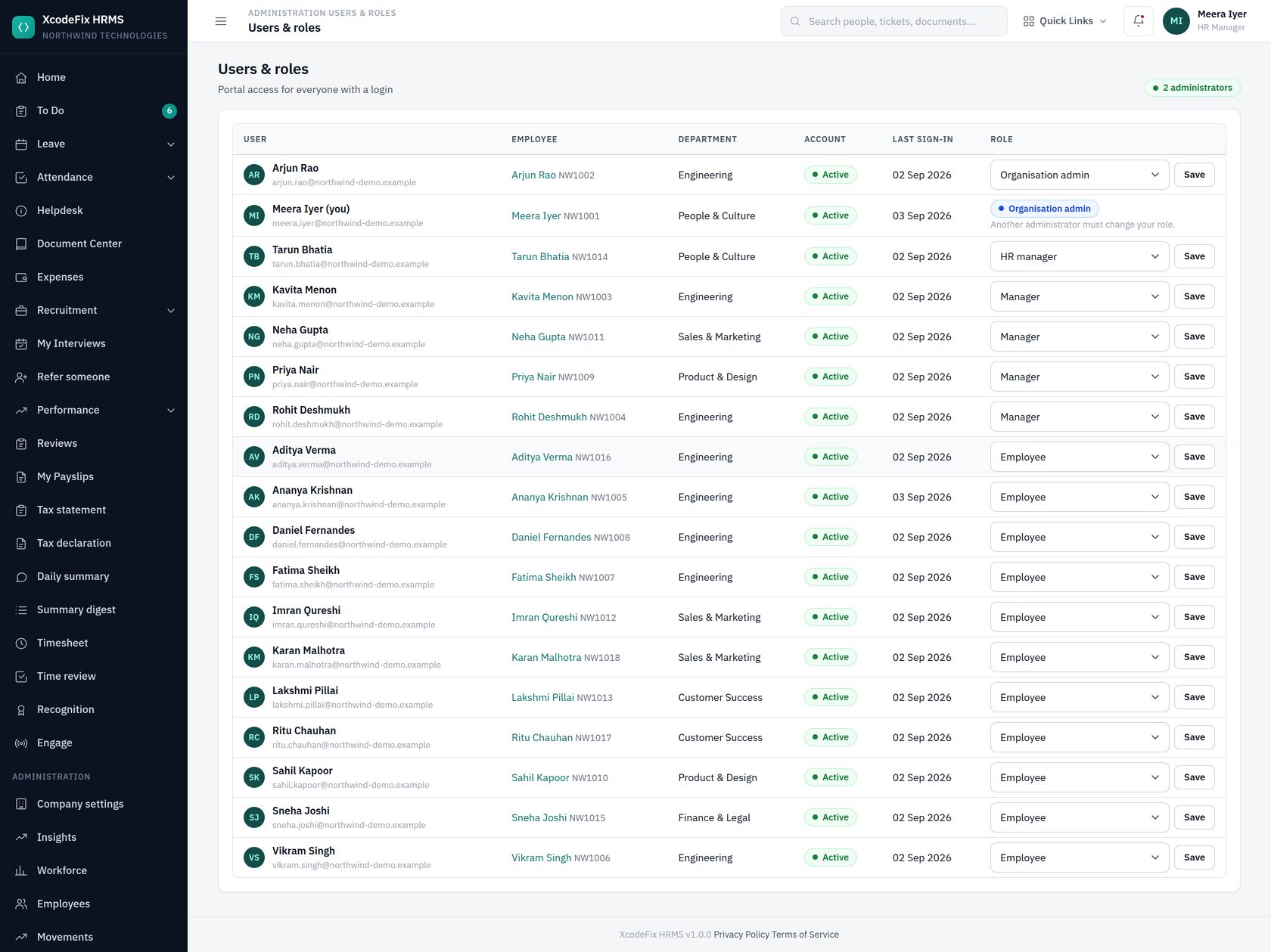
Change someone's role by picking a new one and choosing Save on that row. The count of administrators is shown at the top; you cannot change your own role, and the portal will not let you remove the last administrator.
6.5 Modules
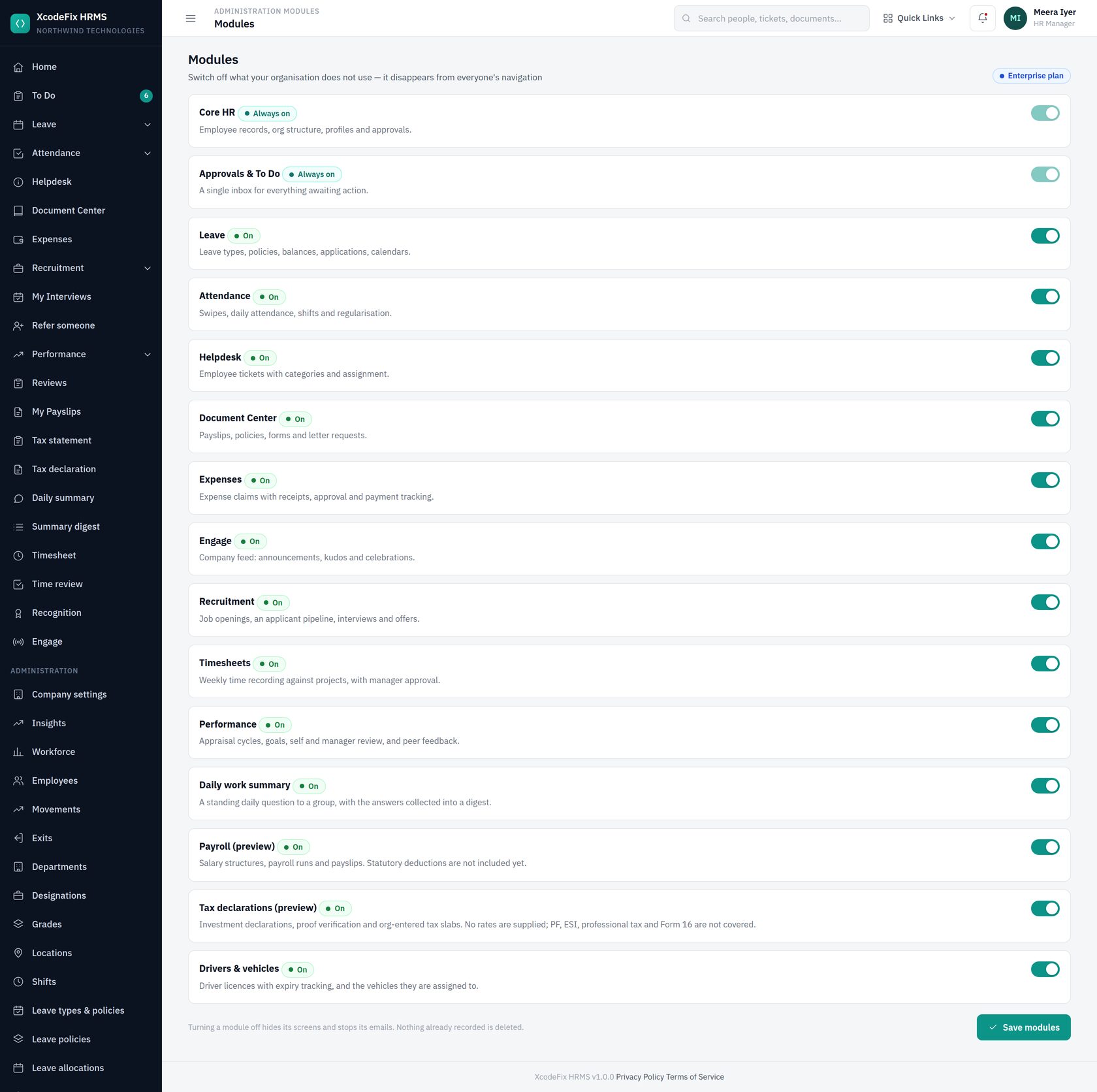
A module is usable when it is both entitled to your plan and enabled by you. Switching one off hides it from everybody instantly and hides its navigation entirely. Data is not deleted — switching it back on restores everything.
6.6 Audit trail
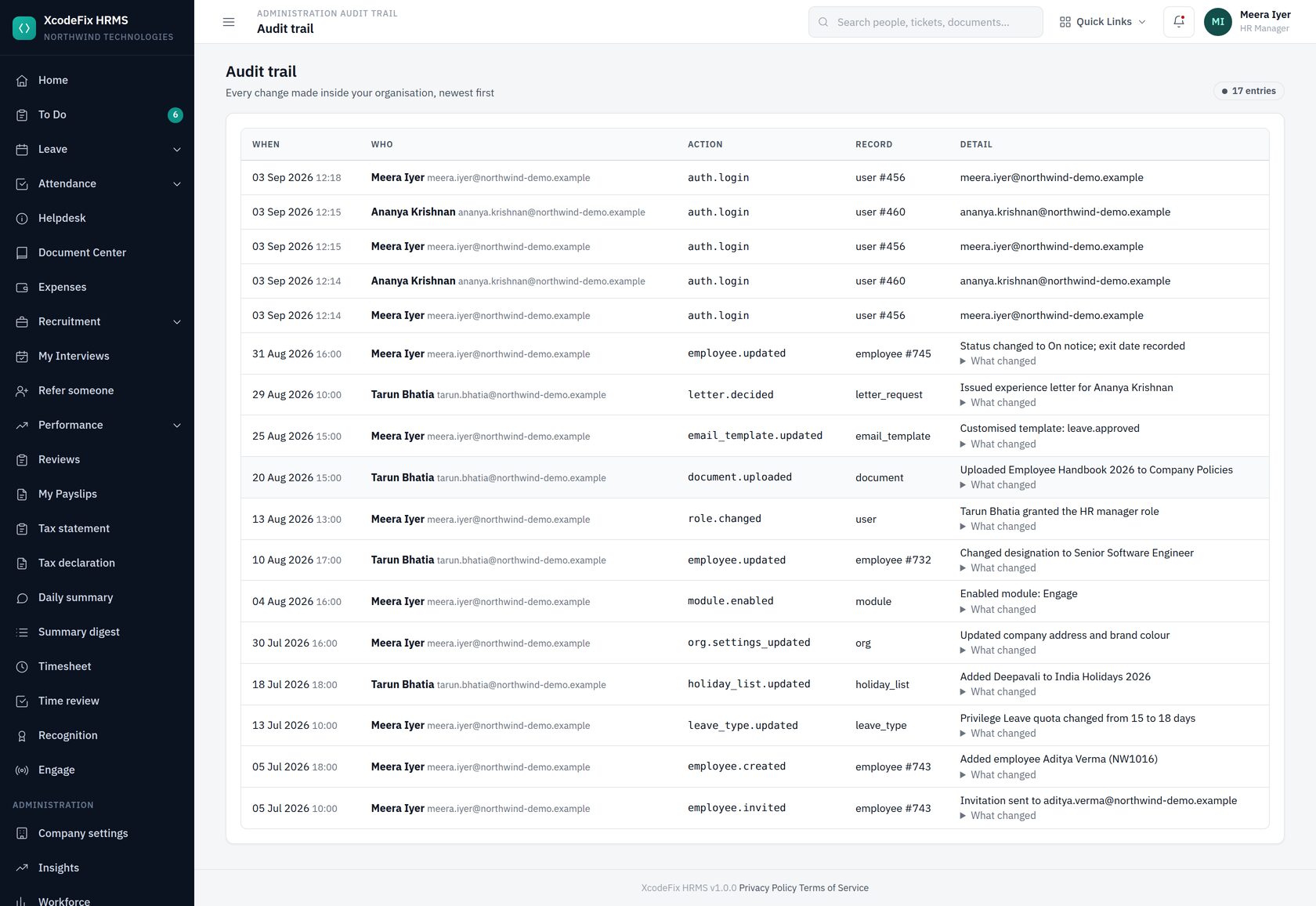
Administrative actions are recorded here permanently — role changes, policy edits, employee updates, document uploads, letter decisions. If a support engineer ever signs in as your organisation, that is recorded too, along with the real person behind the session. Credentials are never written to the trail.
7. Leave administration
7.1 Leave types and policies
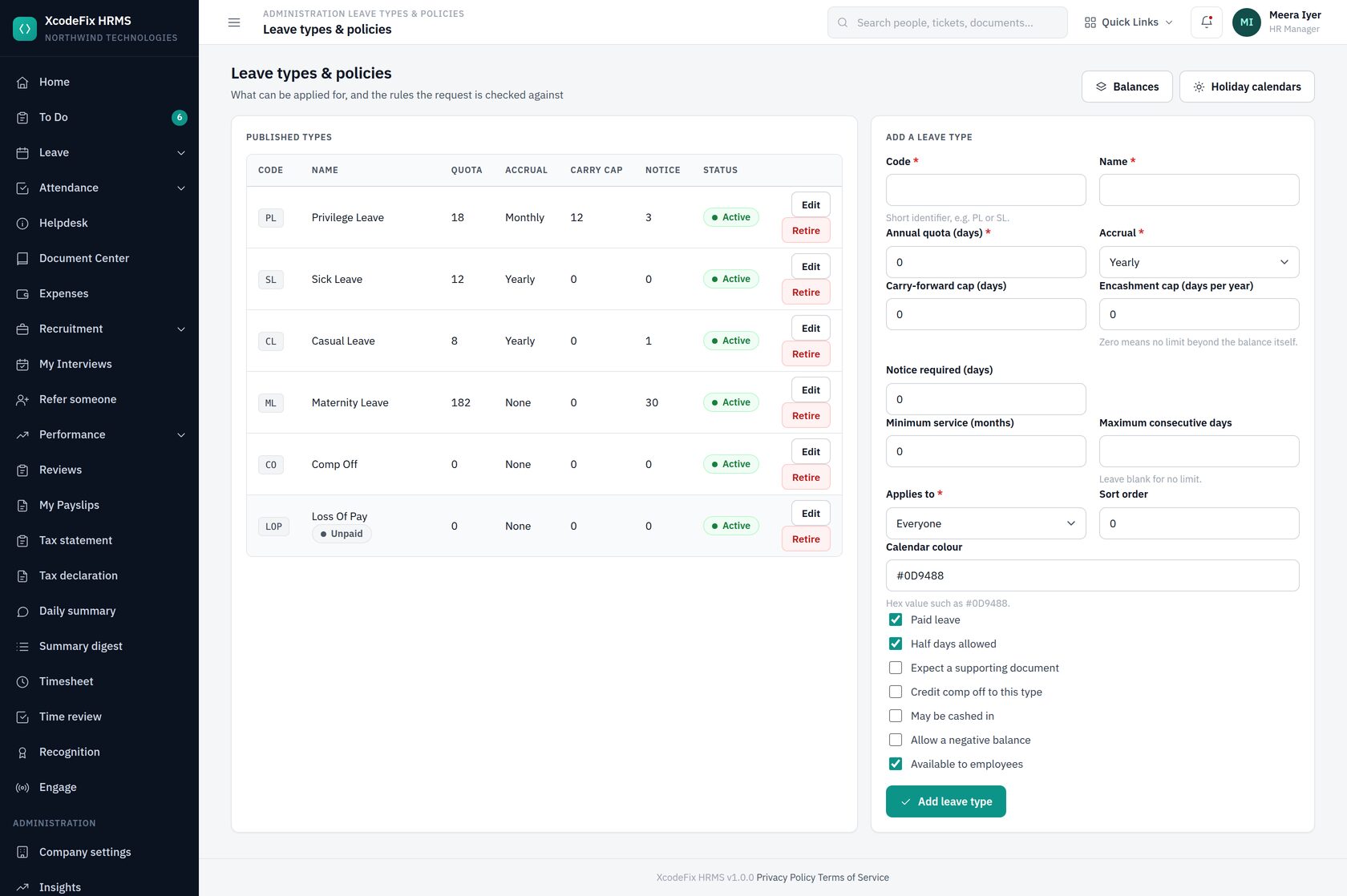
Each type carries its policy: annual quota, accrual frequency, carry-forward cap, minimum service, maximum consecutive days, notice days, whether negative balances are allowed, and any gender restriction. The rules are enforced when an employee applies, and the reasoning is shown to them on the apply screen — so a rejected application is rarely a surprise.
7.2 Entitlement bands and allocations
The quota on a leave type applies to everybody. When seniority earns more, a leave policy grants the extra days on top, and an allocation decides who gets it.
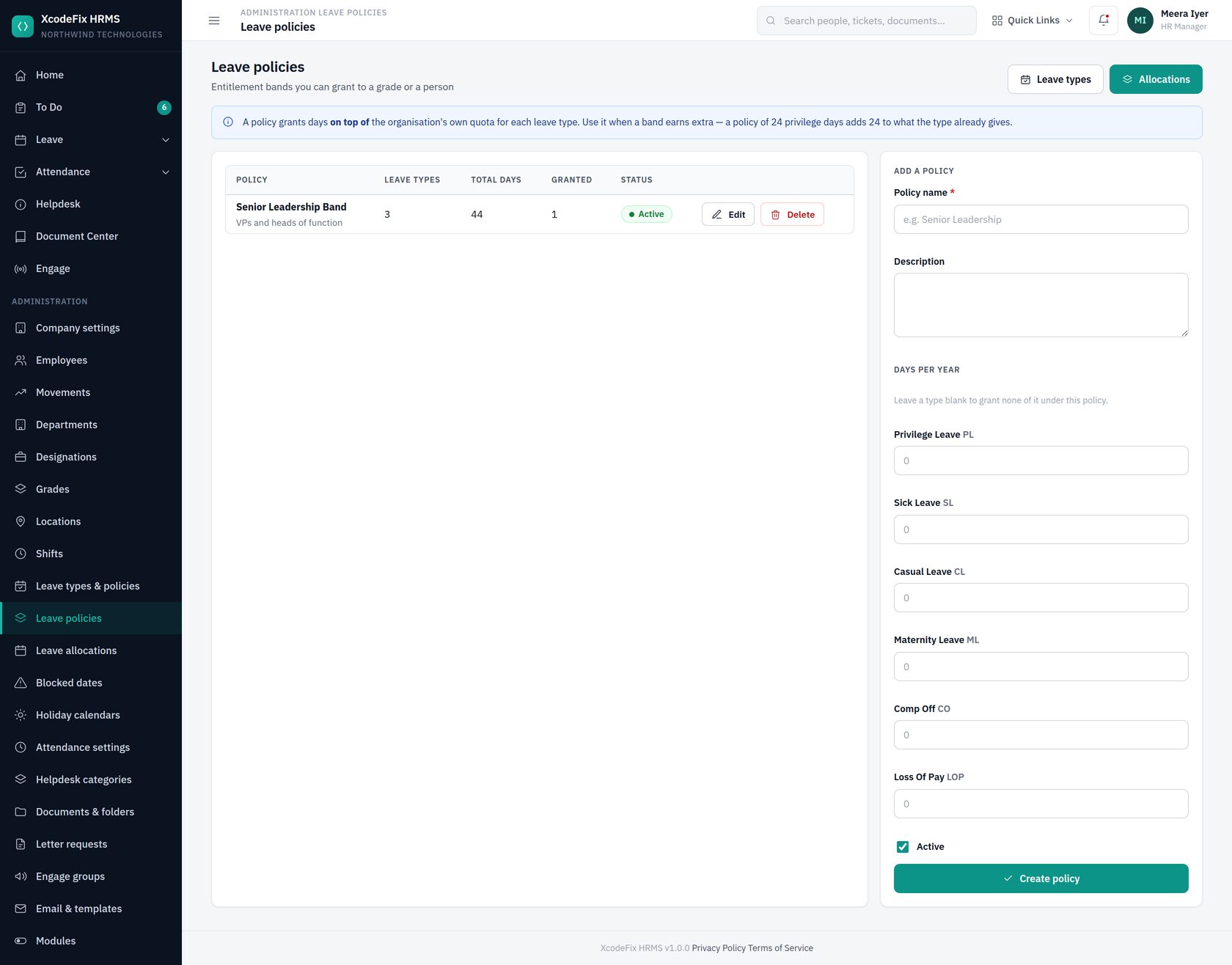
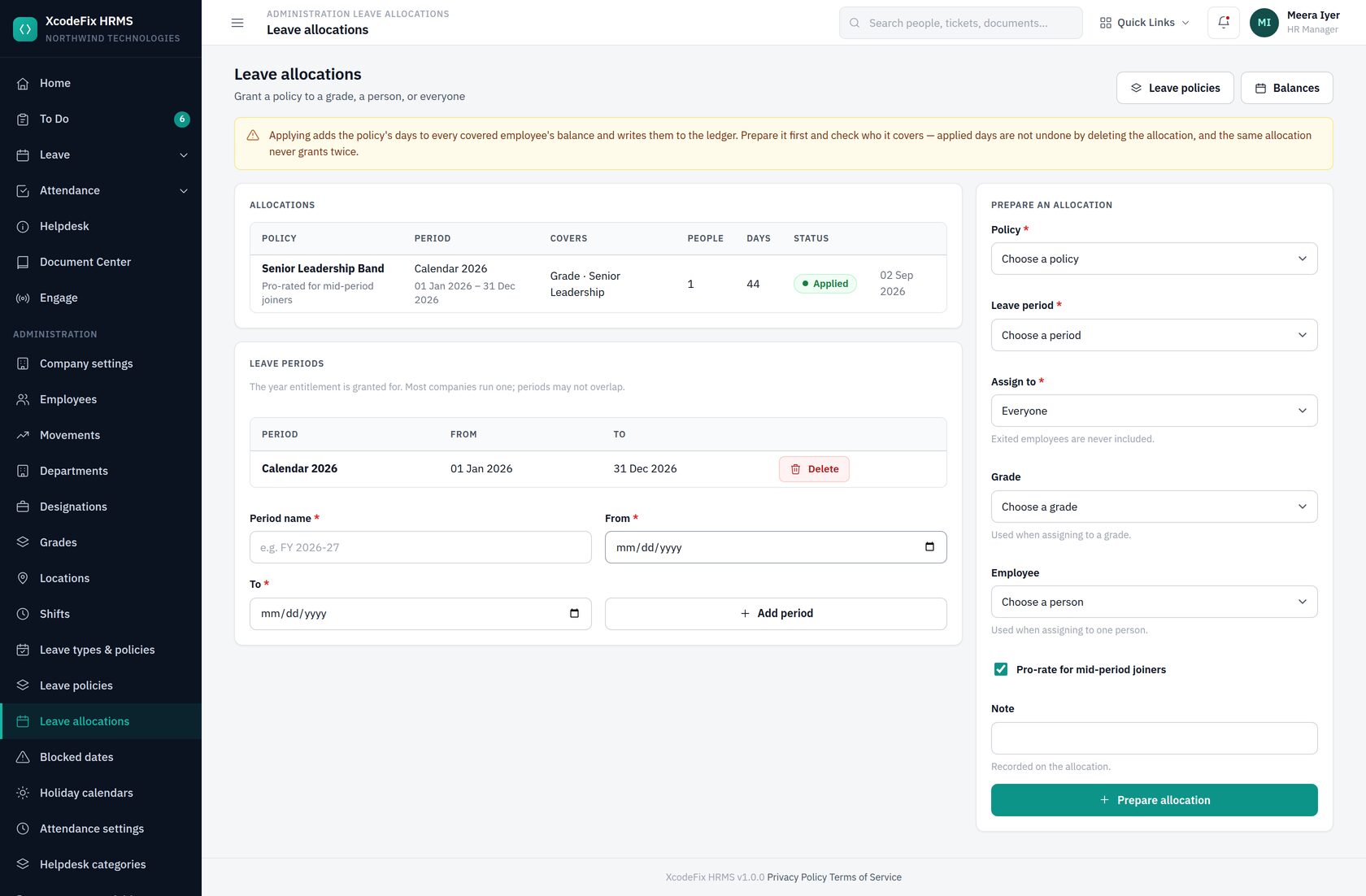
- Create a leave period — the year entitlement is granted for. Periods may not overlap.
- Create a policy with the days each leave type is worth under that band.
- Prepare an allocation: choose the policy, the period, and whether it covers everyone, a grade, or one person. Tick pro-rating so a mid-year joiner earns a share rather than the lot.
- Review the draft, then Apply. The days are written into every covered person's balance.
Exited employees are never included, whichever target you choose.
7.3 Blocking dates
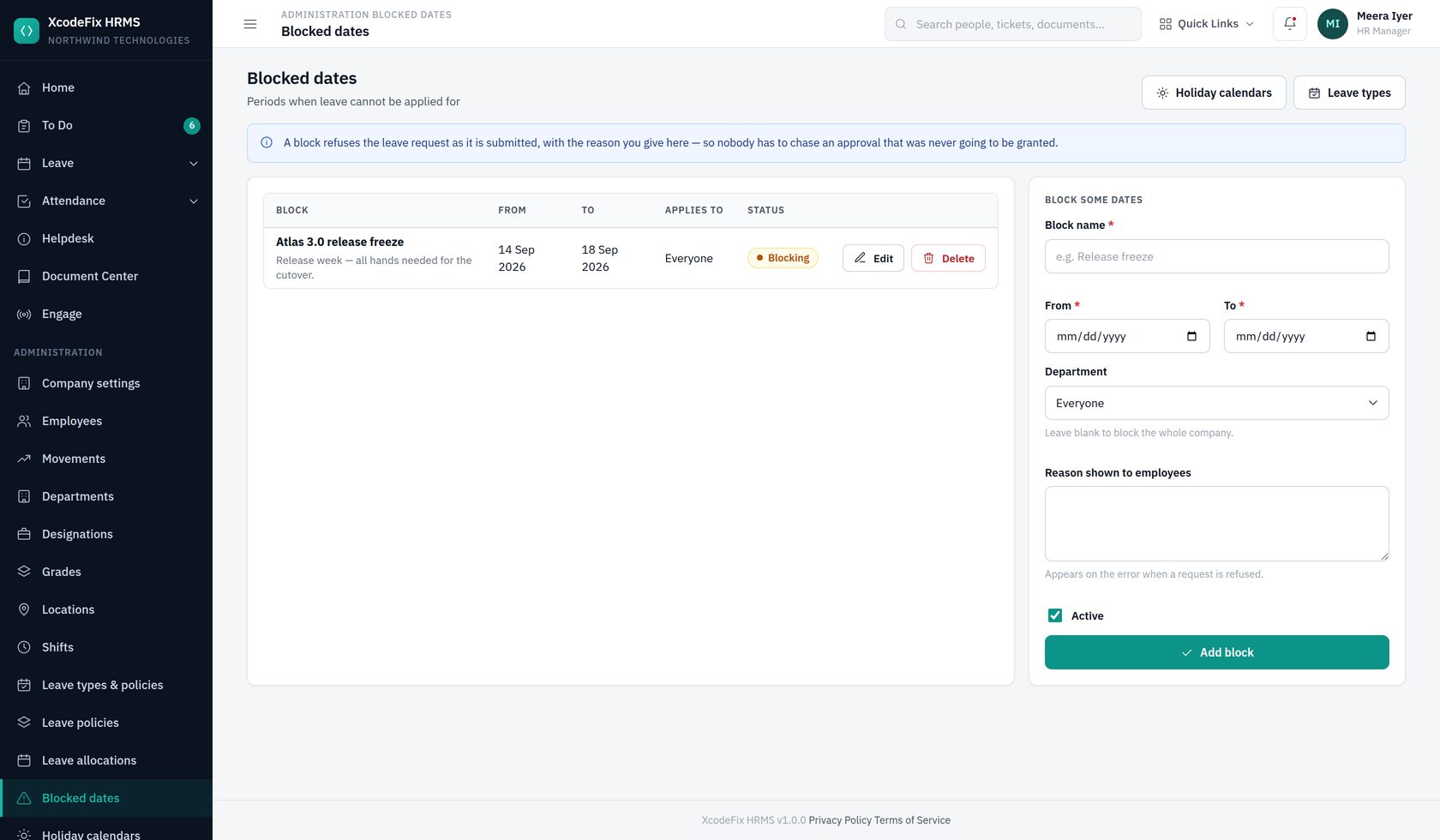
A block refuses the leave request as it is submitted, quoting the reason you wrote — so nobody chases an approval that was never going to be granted. Scope it to one department, or leave it blank for the whole company.
7.4 Balances across the organisation
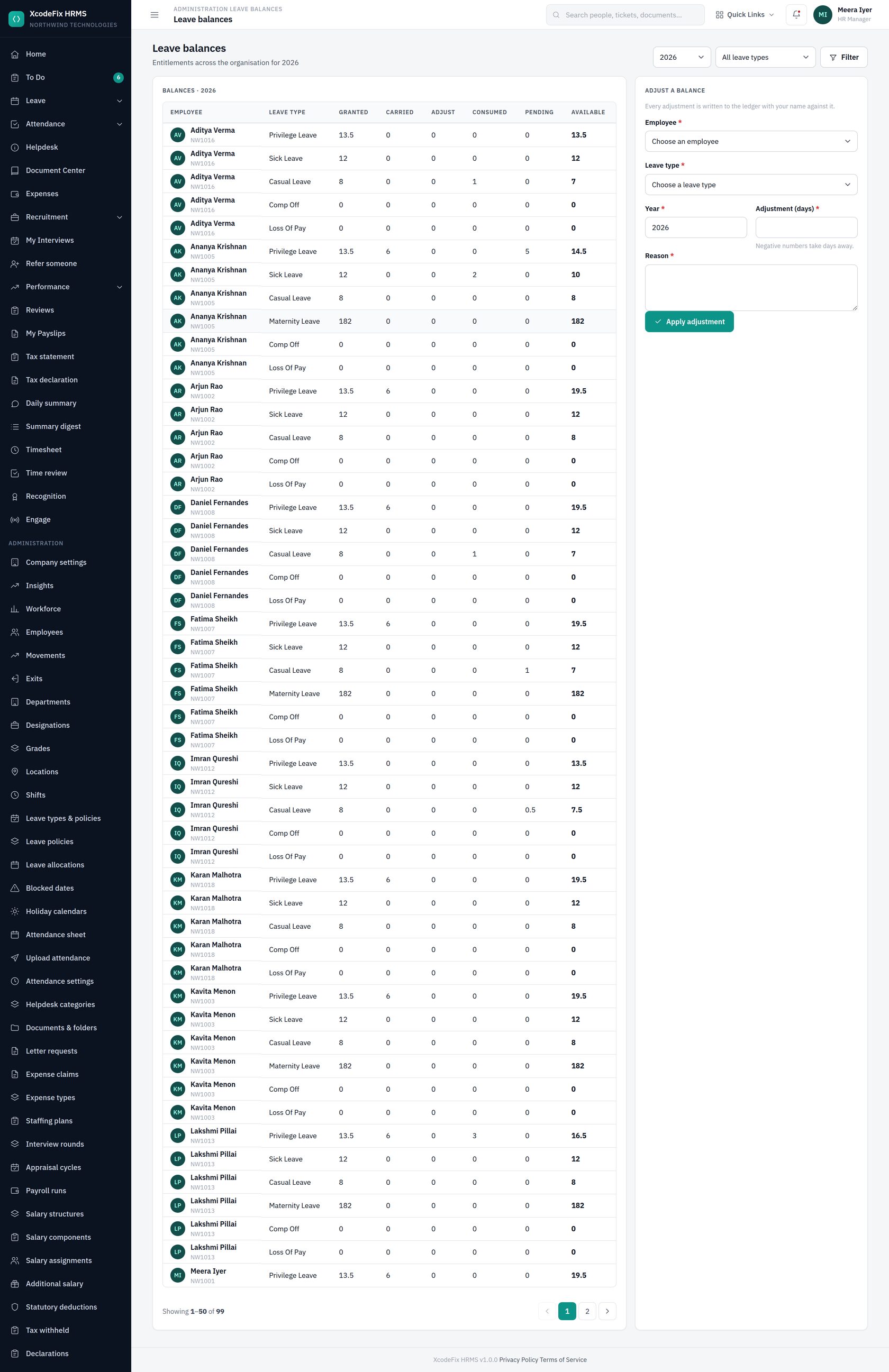
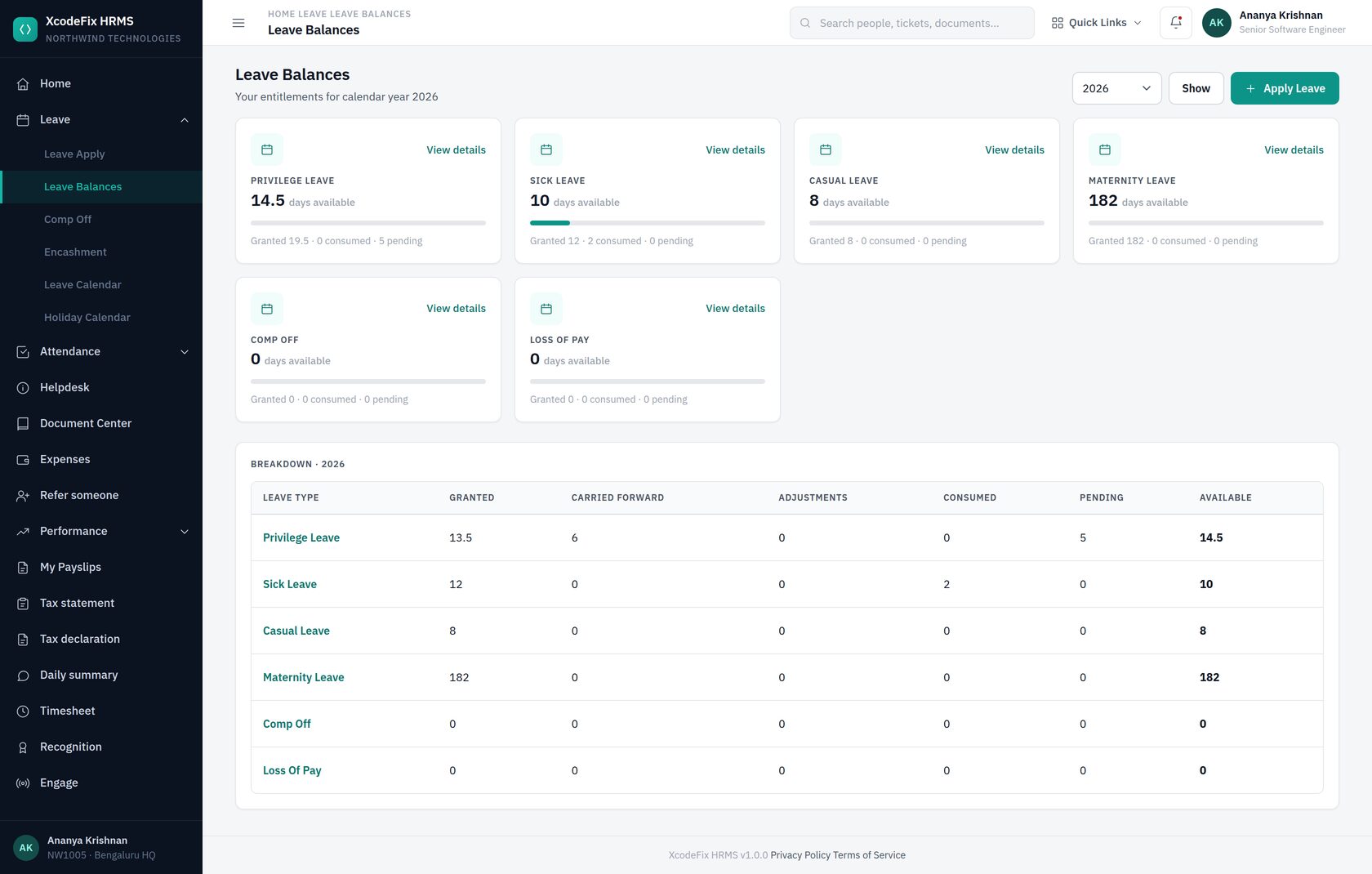
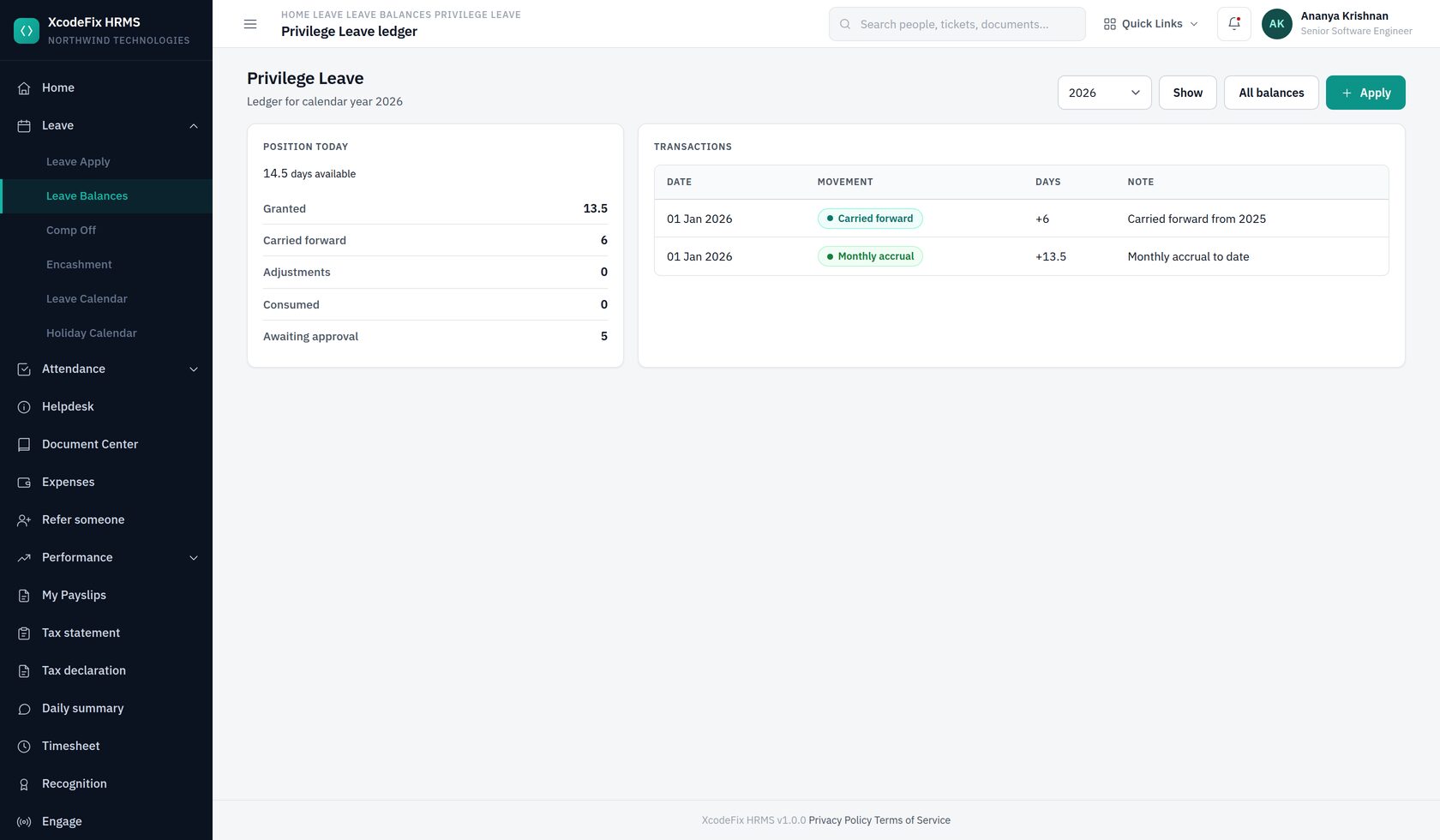
Use this to sanity-check a policy change, to answer "how much do I have left?" without opening a record, and to make manual adjustments where a balance needs correcting. Adjustments are written to the same ledger as accruals and consumption, so the arithmetic always reconciles.
7.5 Holiday calendars
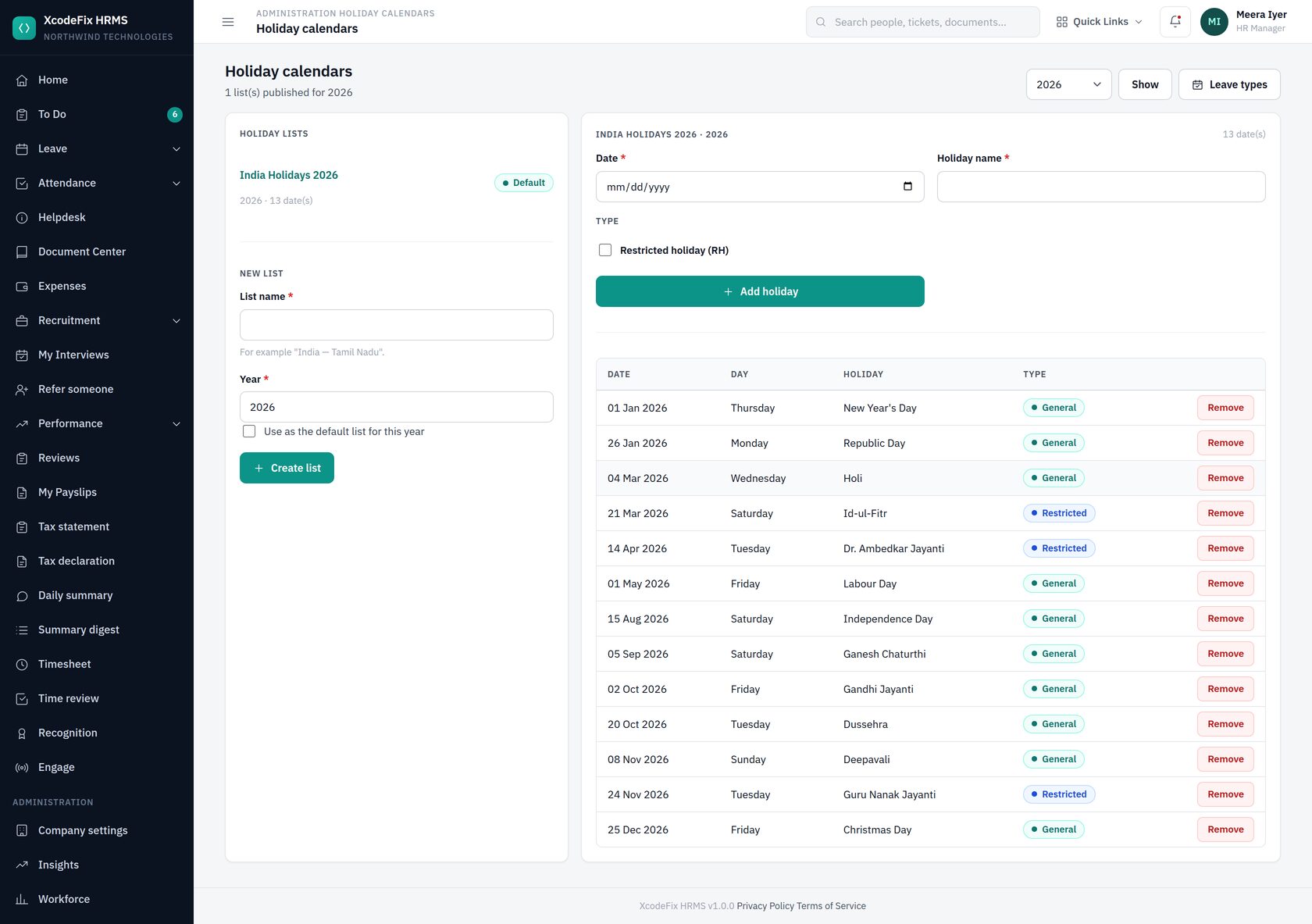
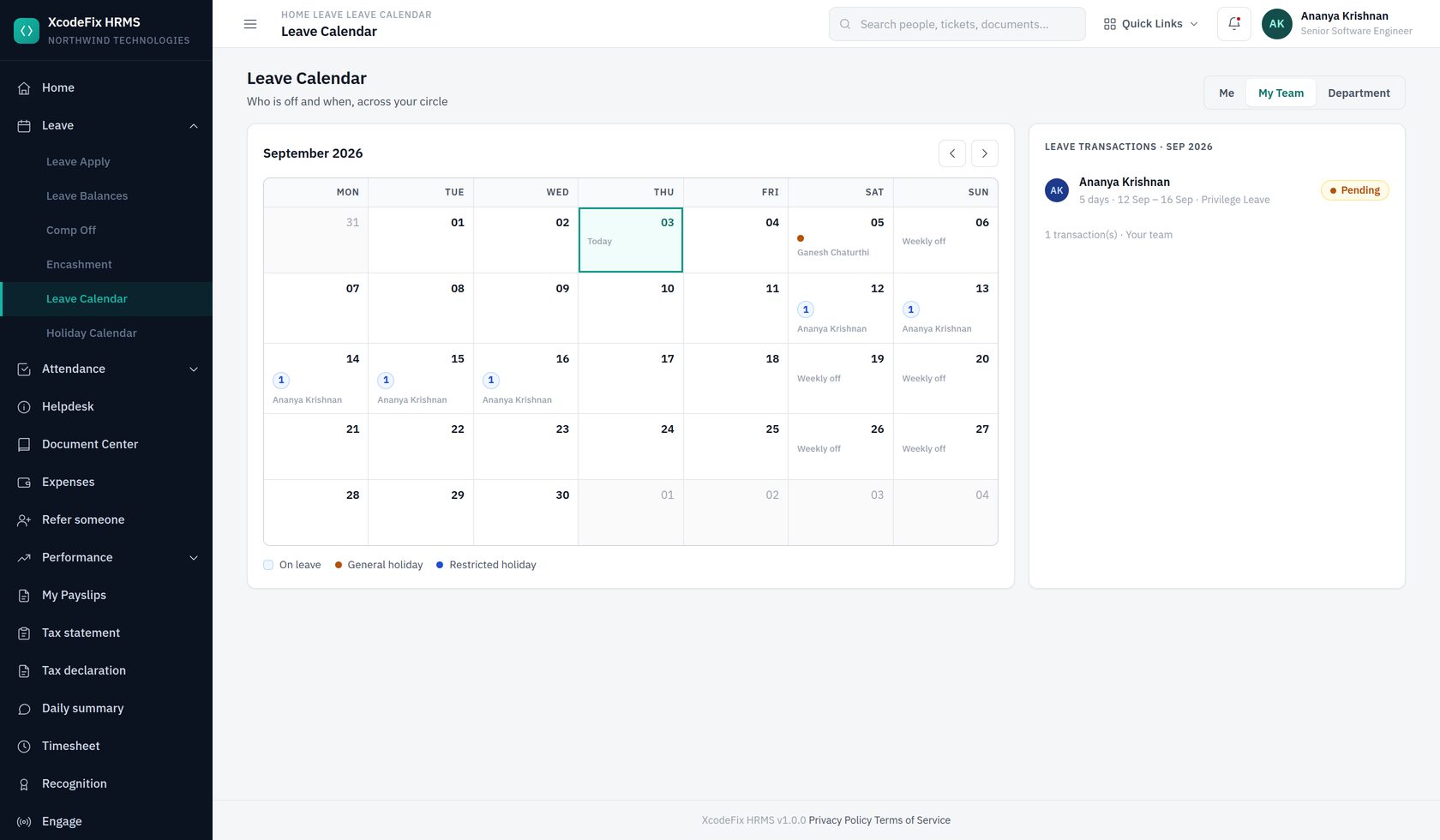
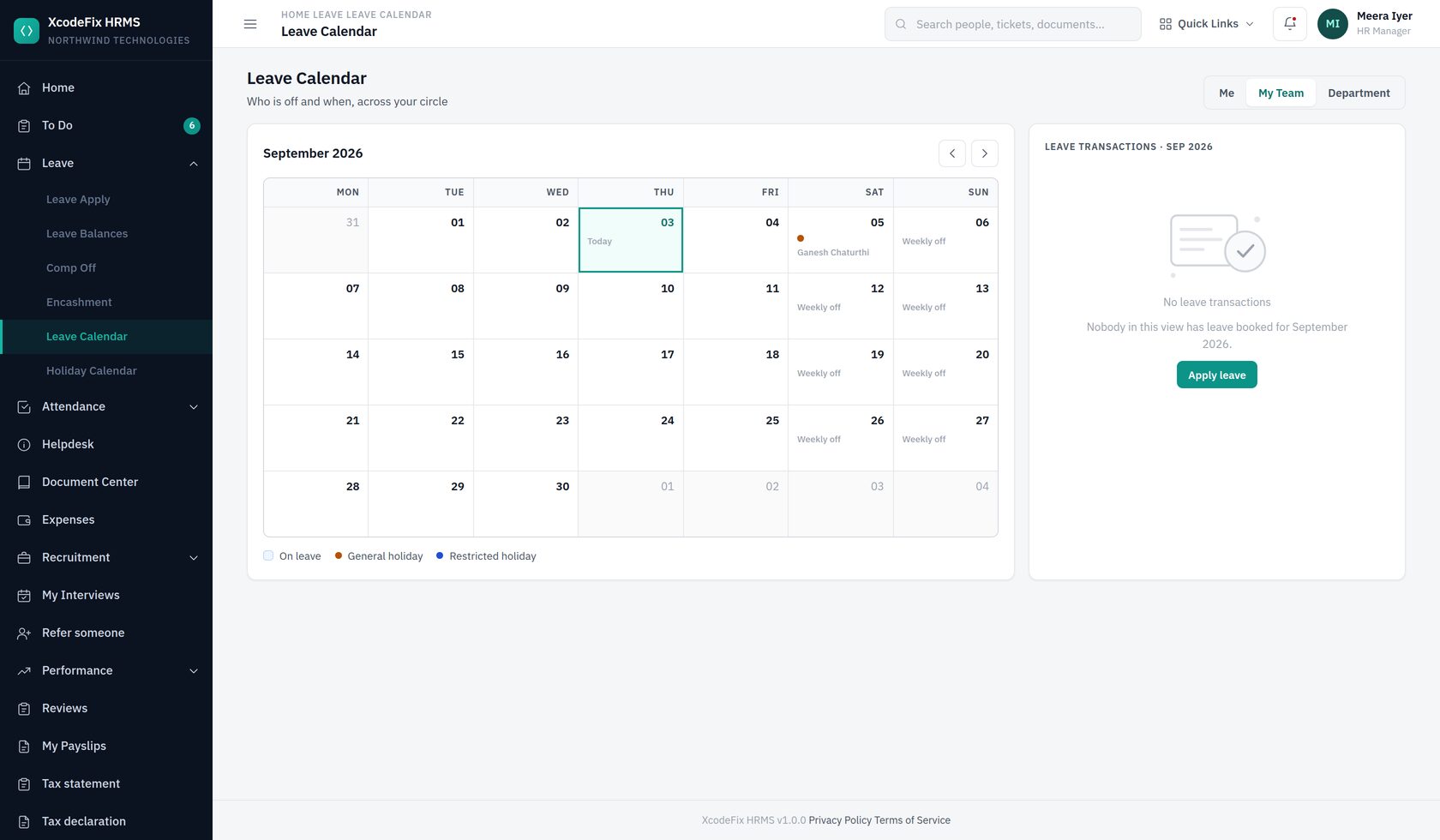
Create one calendar per year, or several if offices differ. Mark optional days as restricted. Employees see their own calendar under Leave → Holiday Calendar, and attendance marks those days as holidays automatically.
7.6 The leave calendar
7.7 Approving leave
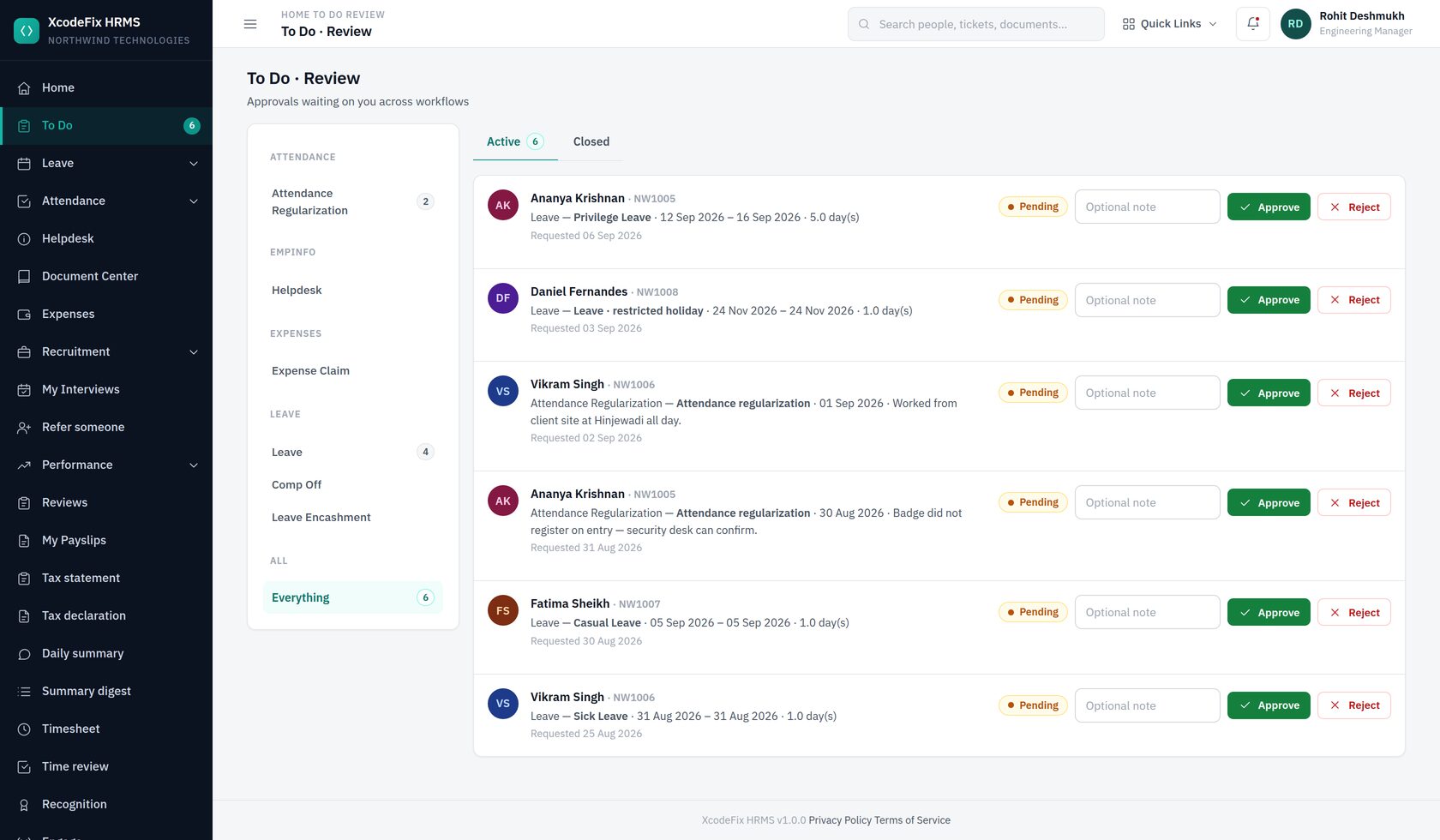
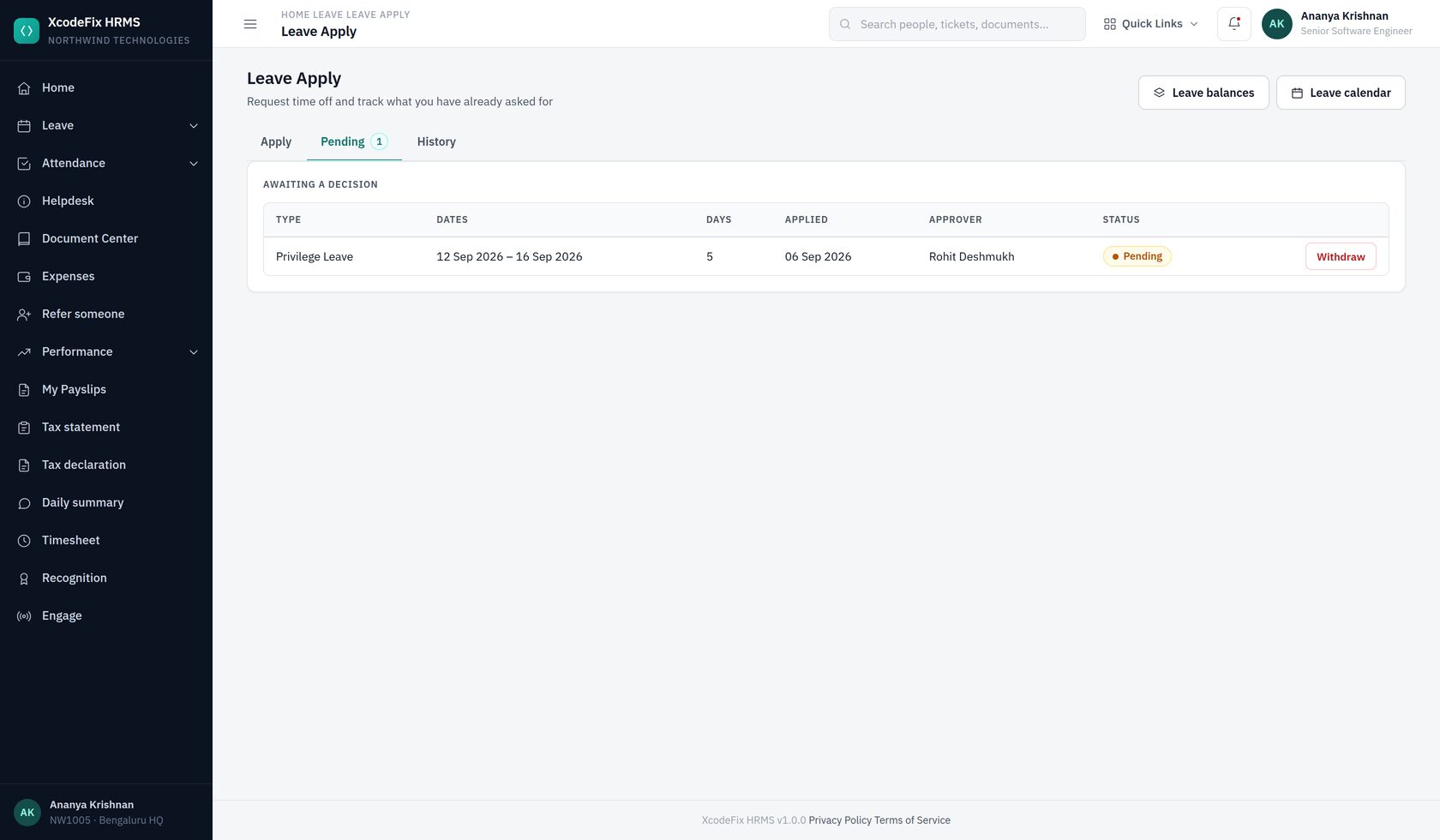
Leave goes to the applicant's manager — the person named in Reports to. Approve or reject directly from the inbox, with an optional note that is emailed to the employee. Both outcomes notify the employee and update their balance immediately: an approval converts pending days to consumed, a rejection releases them.
7.8 Comp off and encashment
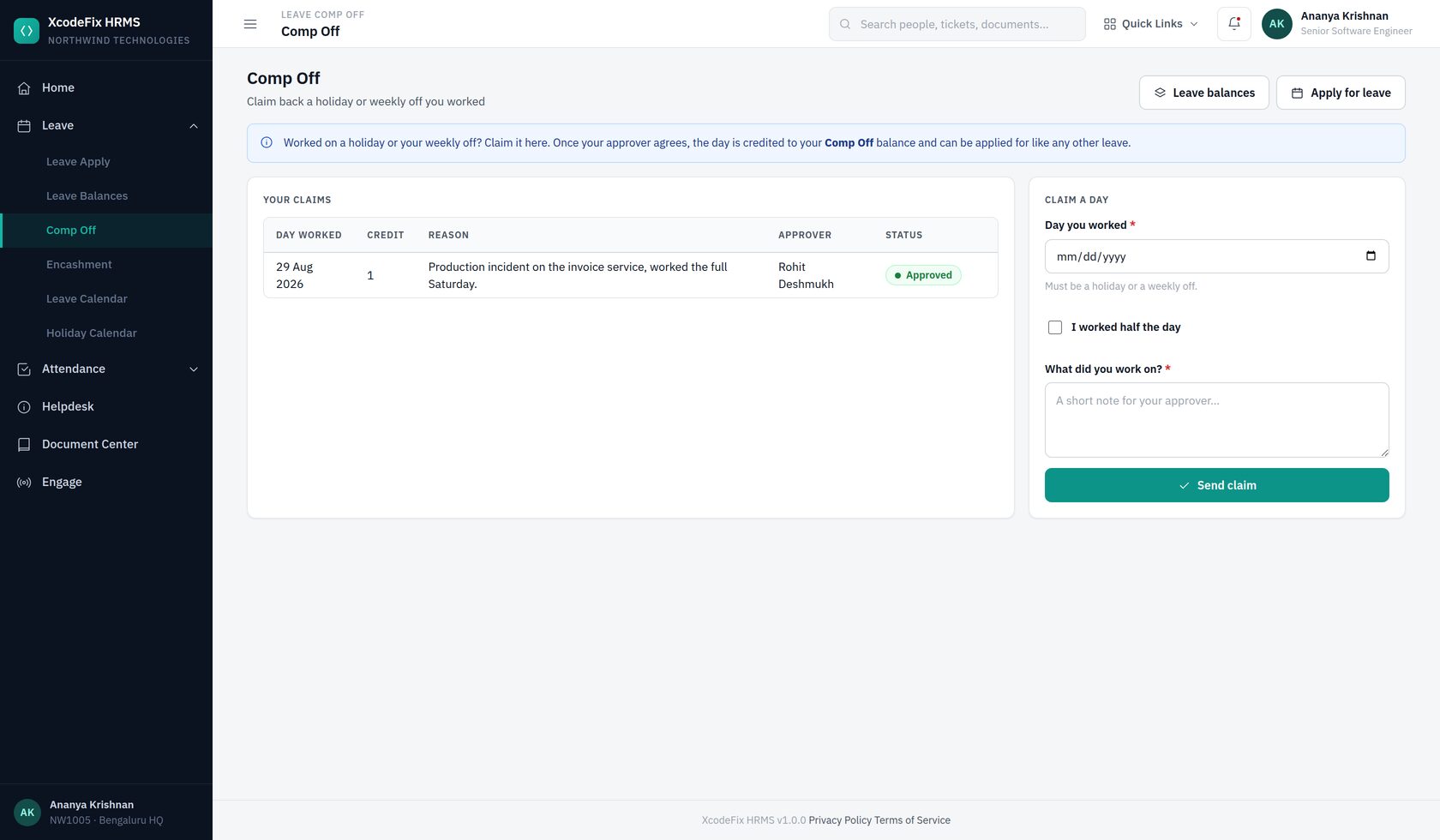
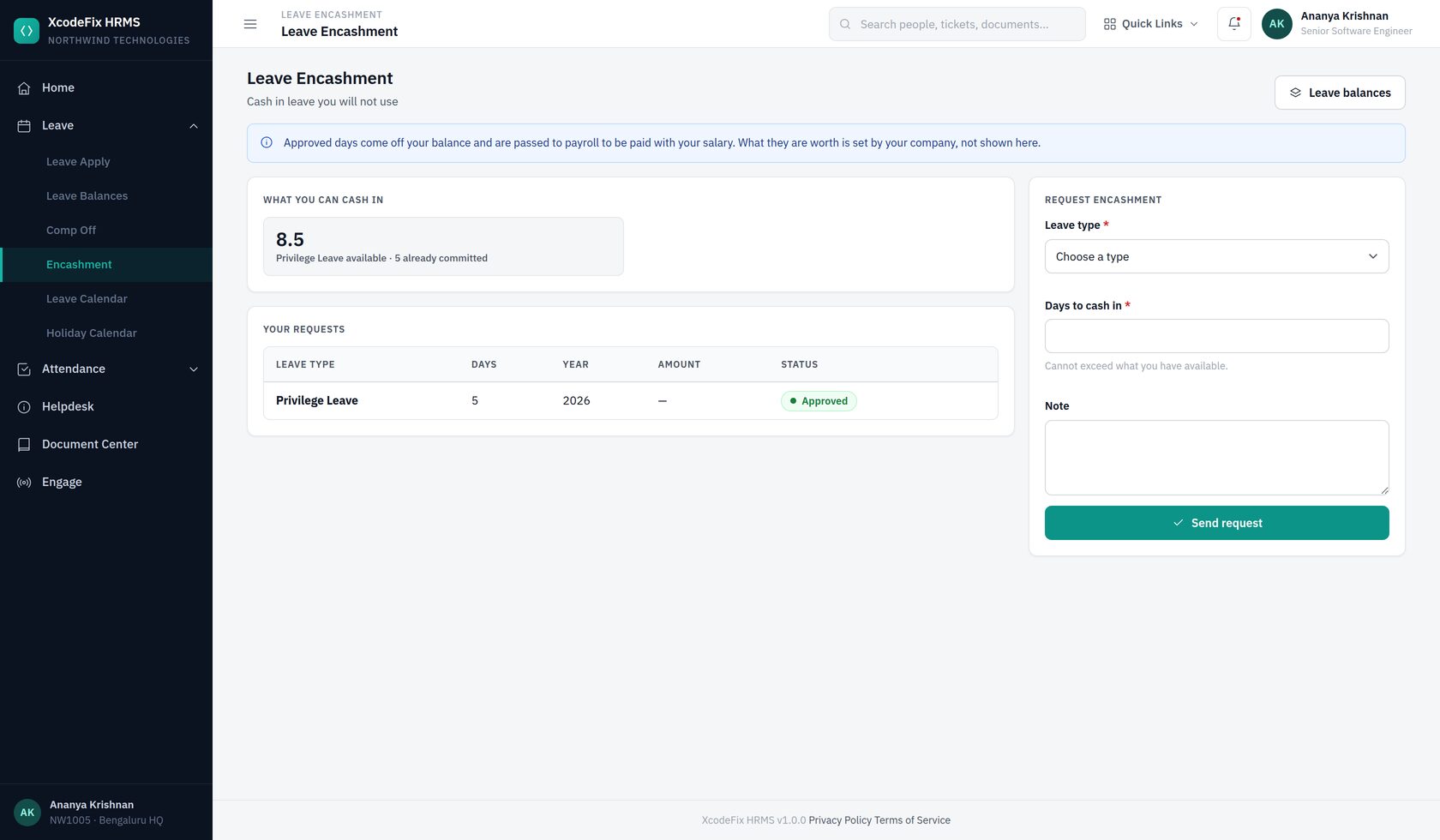
Two things employees ask for that create or spend entitlement, both landing in the approver's To Do inbox alongside leave.
| Request | What approving it does | Switched on by |
|---|---|---|
| Comp off | Credits the worked day to the employee's comp off balance | Ticking Credit comp off to this type on a leave type |
| Encashment | Spends the days and hands the amount to payroll to pay | Ticking May be cashed in, plus an optional yearly cap |
What the days are worth is not calculated here — the portal has no payroll. You record the amount to pay when approving, and it is carried on the record for payroll to act on.
8. Attendance administration
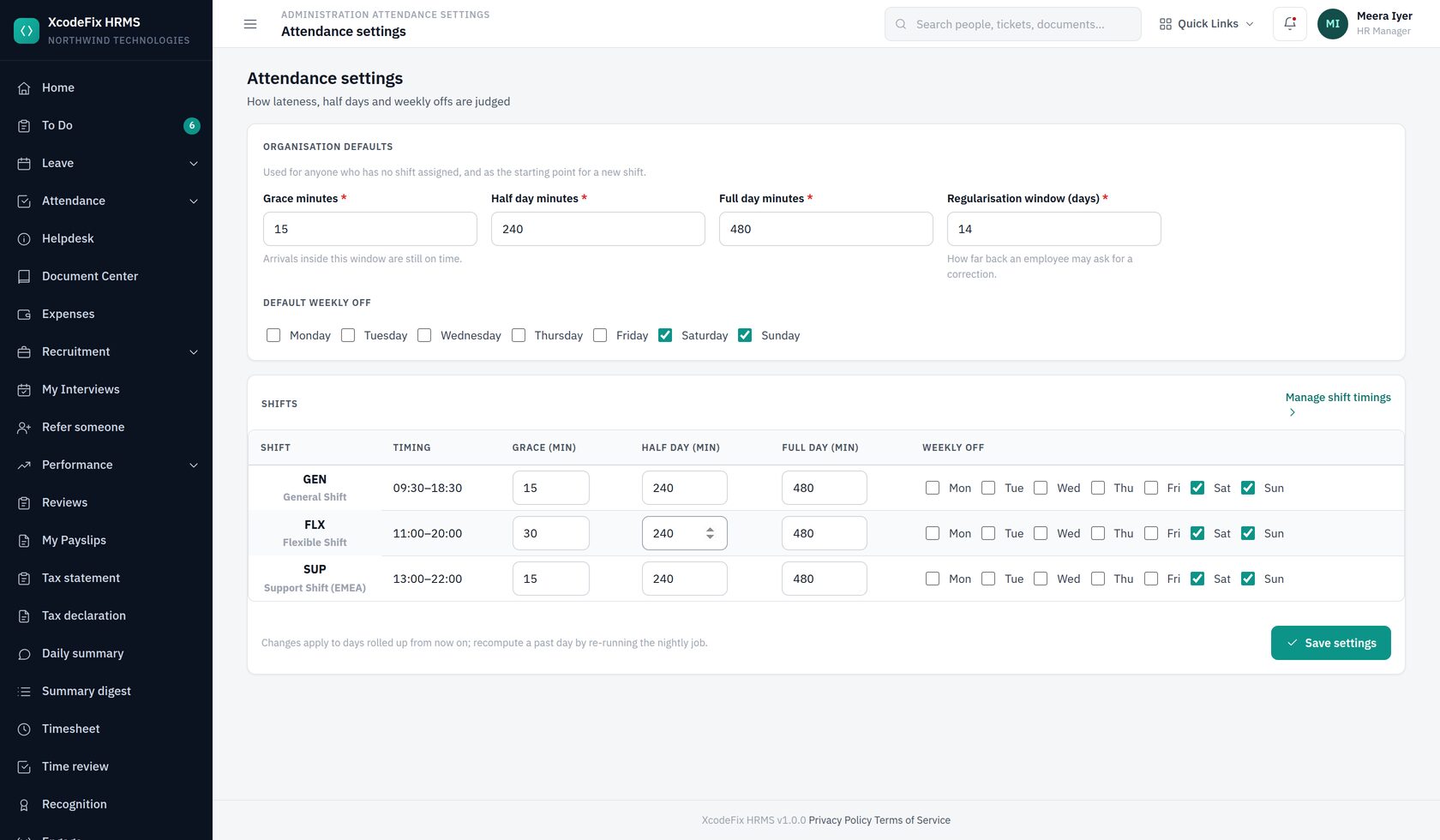
Four numbers do most of the work:
| Setting | Meaning |
|---|---|
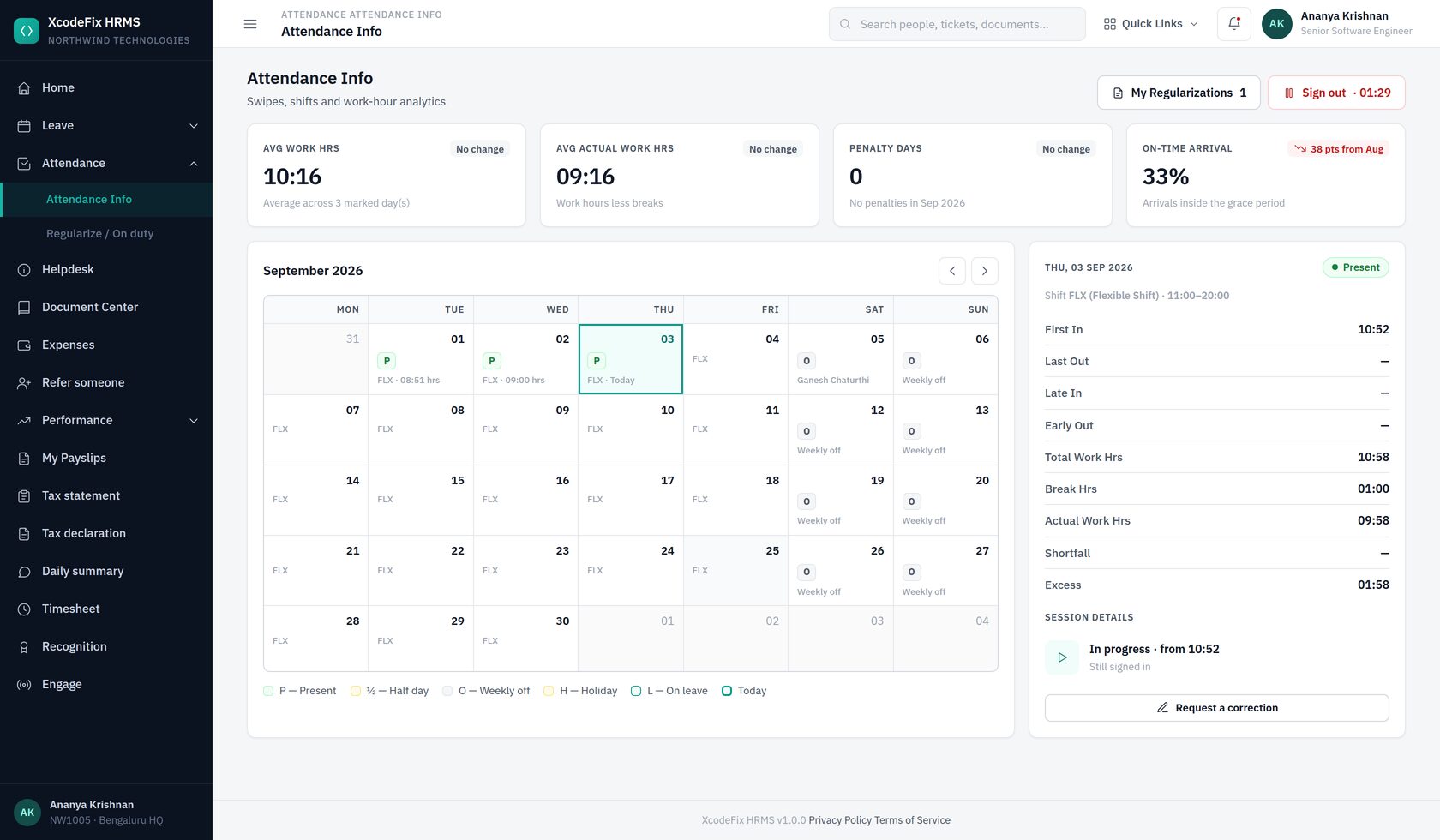
| Grace minutes | Arrivals inside this window still count as on time |
| Half-day minutes | Work below this is not a half day; at or above it, the day is marked half day |
| Full-day minutes | Work at or above this marks a full present day |
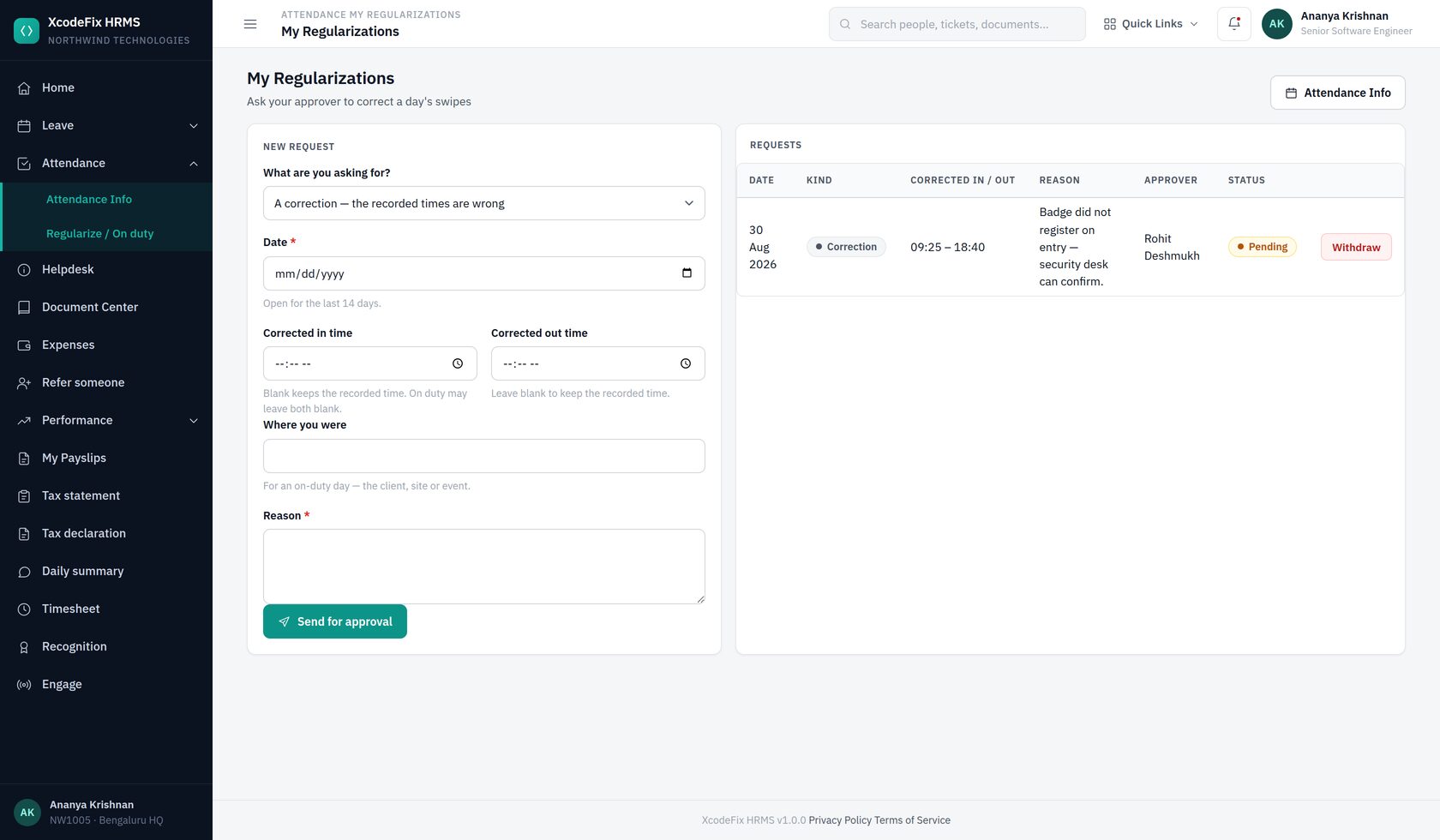
| Regularisation window | How many days back an employee may request a correction |
Each shift can override grace and the two thresholds, and carries its own weekly offs. Changes apply to days rolled up from that point on — a day already processed keeps the judgement it was given, unless the nightly job is re-run for it.
How a day gets marked
Employees sign in and out from the portal. Overnight, the system rolls up each person's swipes against their shift and marks the day Present, Half day, Absent, Weekly off, Holiday or On leave, and computes late minutes, shortfall and excess. Approved leave wins over the swipe record, so an approved day never shows as absent.
Regularisation
When a day is wrong — a missed swipe, a client visit, a kiosk outage — the employee requests a correction from their attendance screen. It reaches their manager's To Do inbox with the requested times and a reason. Approving it rewrites that day and marks it regularised, which stays visible in the record.
9. Helpdesk administration
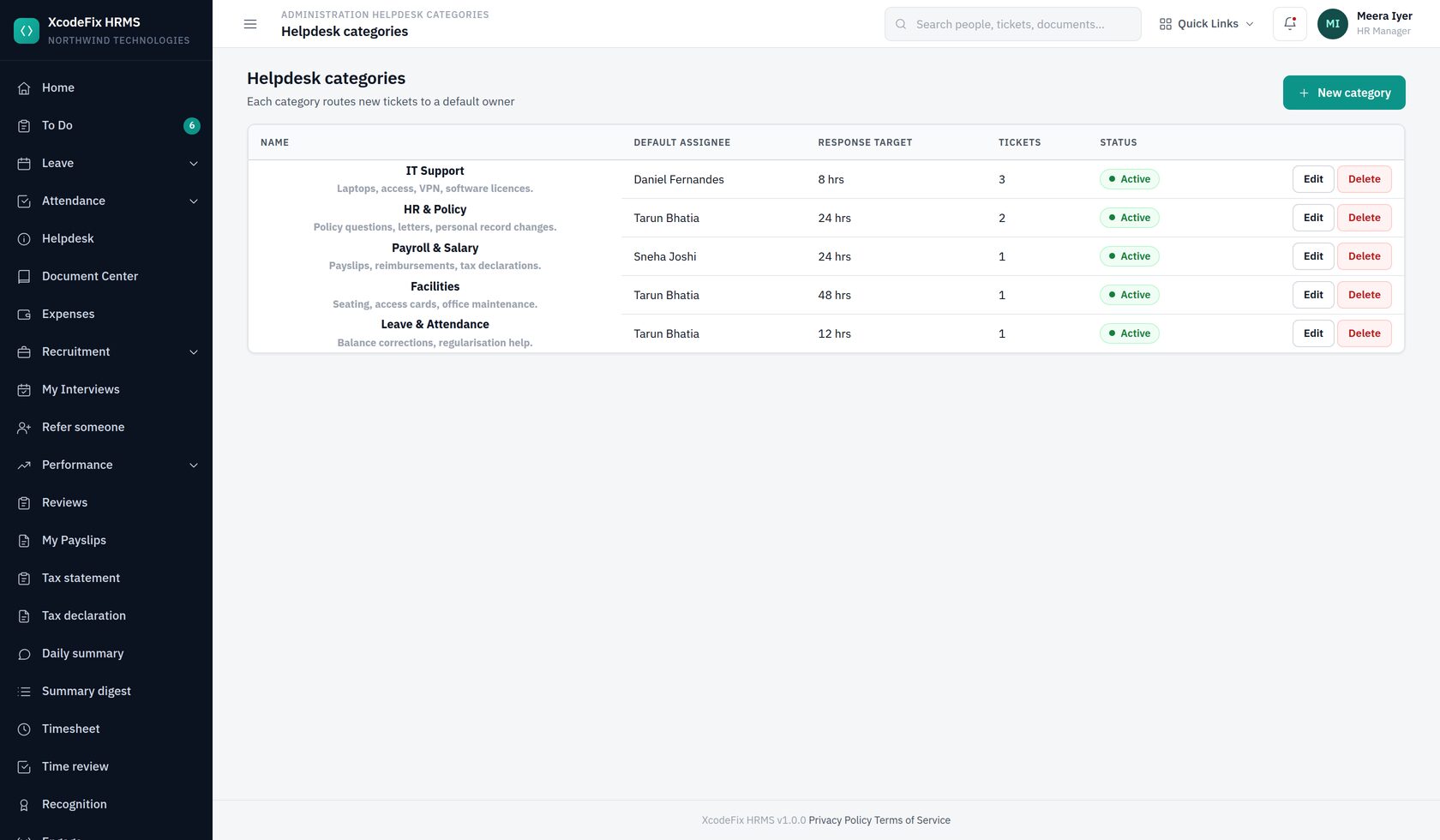
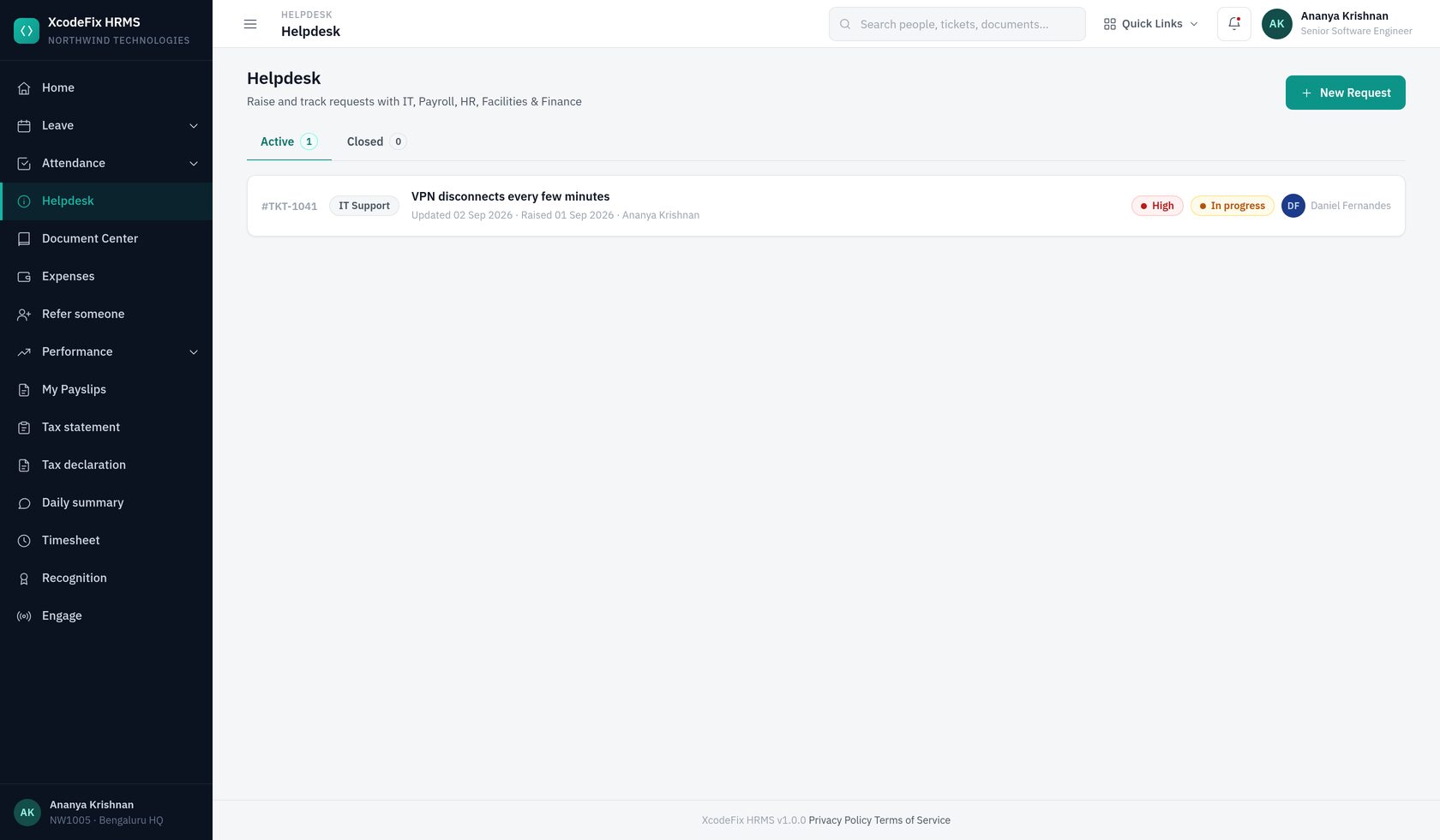
Each category is a queue: a name, a description employees see when choosing, a default assignee who picks tickets up, and an SLA in hours that sets the response target. A workable starting set:
| Category | Owner | SLA |
|---|---|---|
| IT Support | IT lead | 8 hours |
| HR & Policy | HR executive | 24 hours |
| Payroll & Salary | Finance | 24 hours |
| Facilities | Admin | 48 hours |
| Leave & Attendance | HR executive | 12 hours |
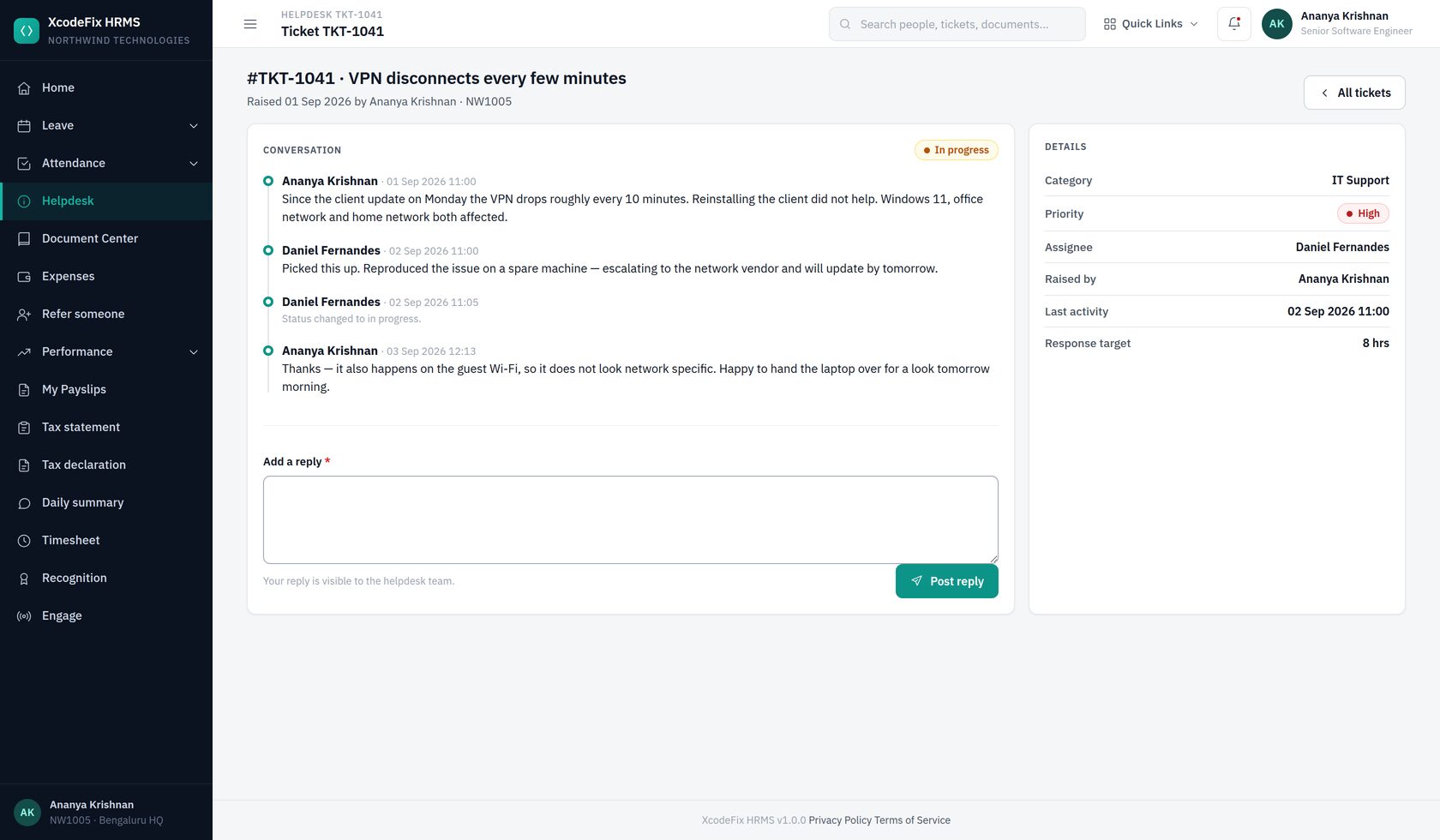
Tickets move through Open → In progress → Resolved → Closed. Every change emails the raiser. Internal notes are available for anything the employee should not see.
10. Documents and letters
10.1 Folders and documents
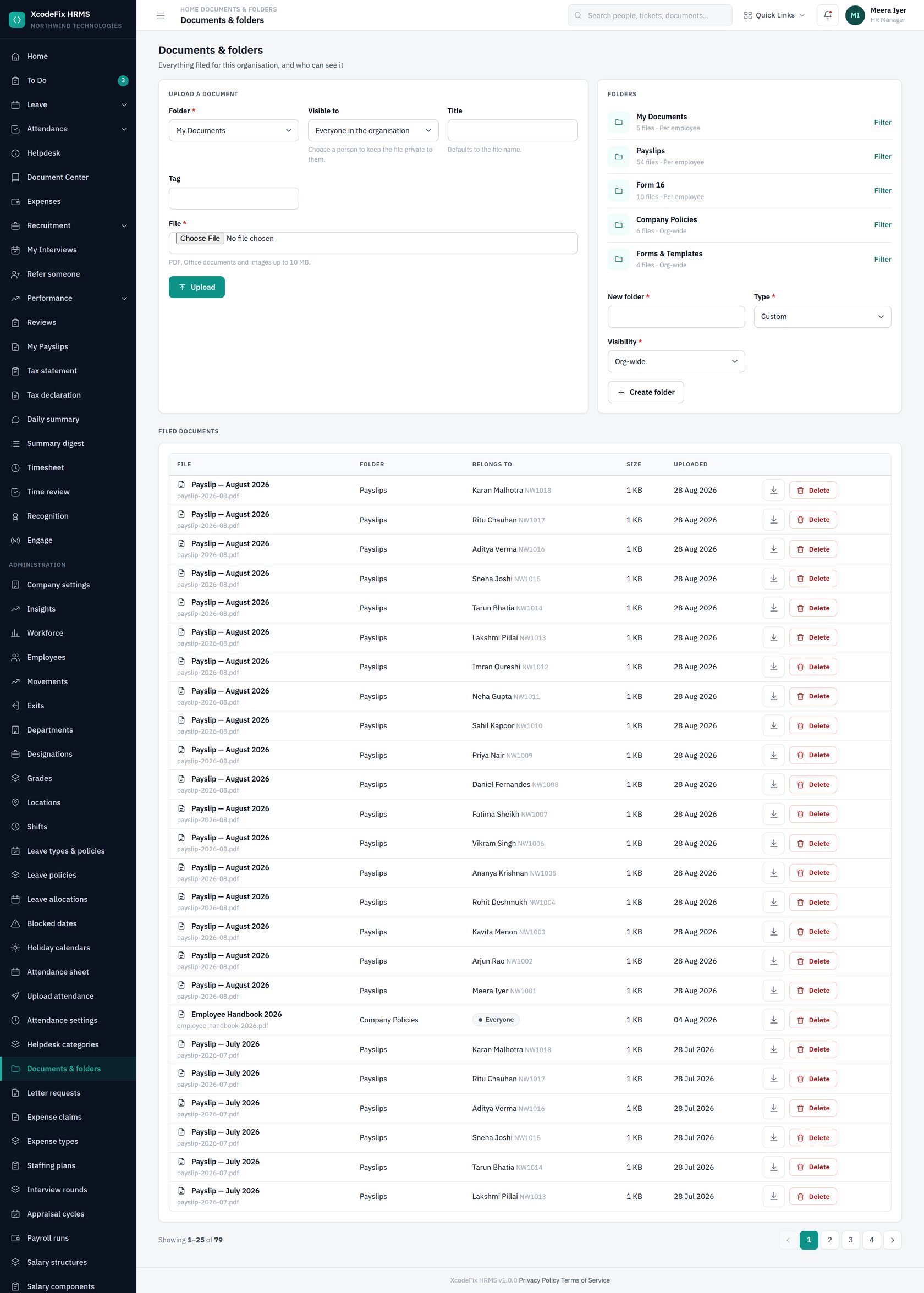
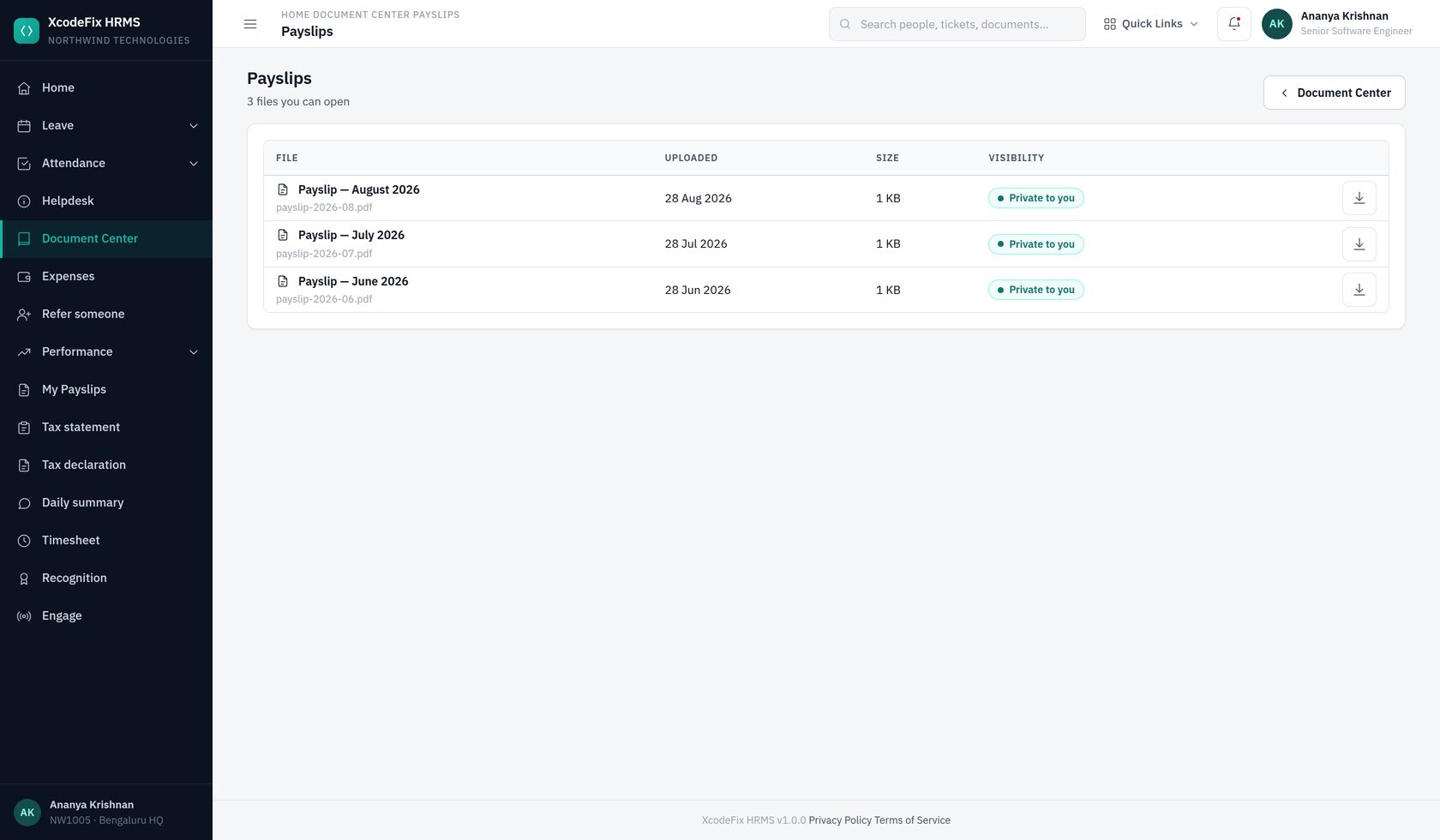
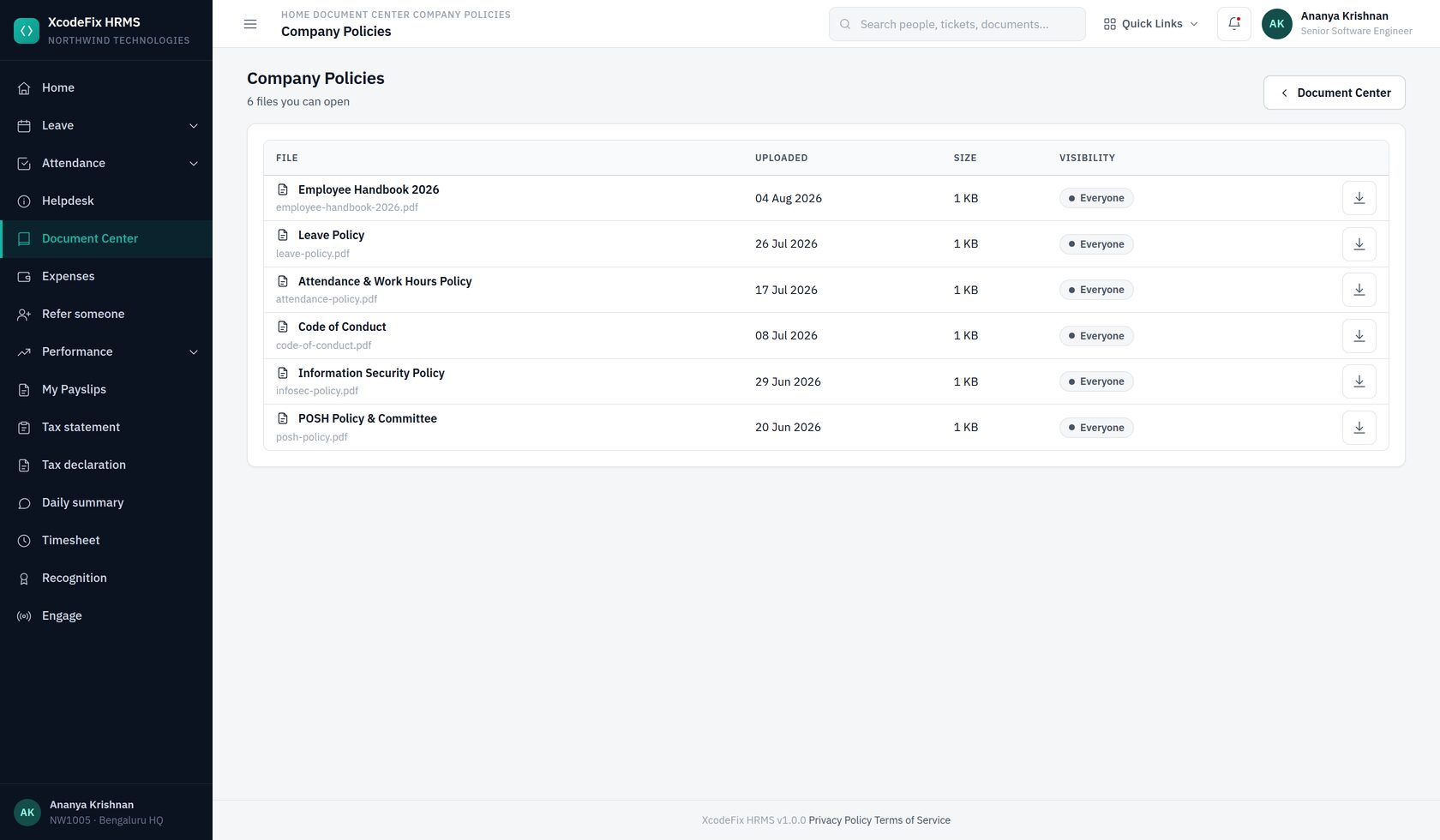
A folder is either organisation-visible — everyone sees the same files — or employee-visible, where each person sees only their own. Payslips, Form 16 and My Documents are the employee-visible kind; Company Policies and Forms are organisation-wide.
Uploads are content-checked rather than trusted by filename, stored outside the web root under a random name, and served only to people entitled to them. A file whose contents do not match its extension is rejected.
10.2 Letter requests
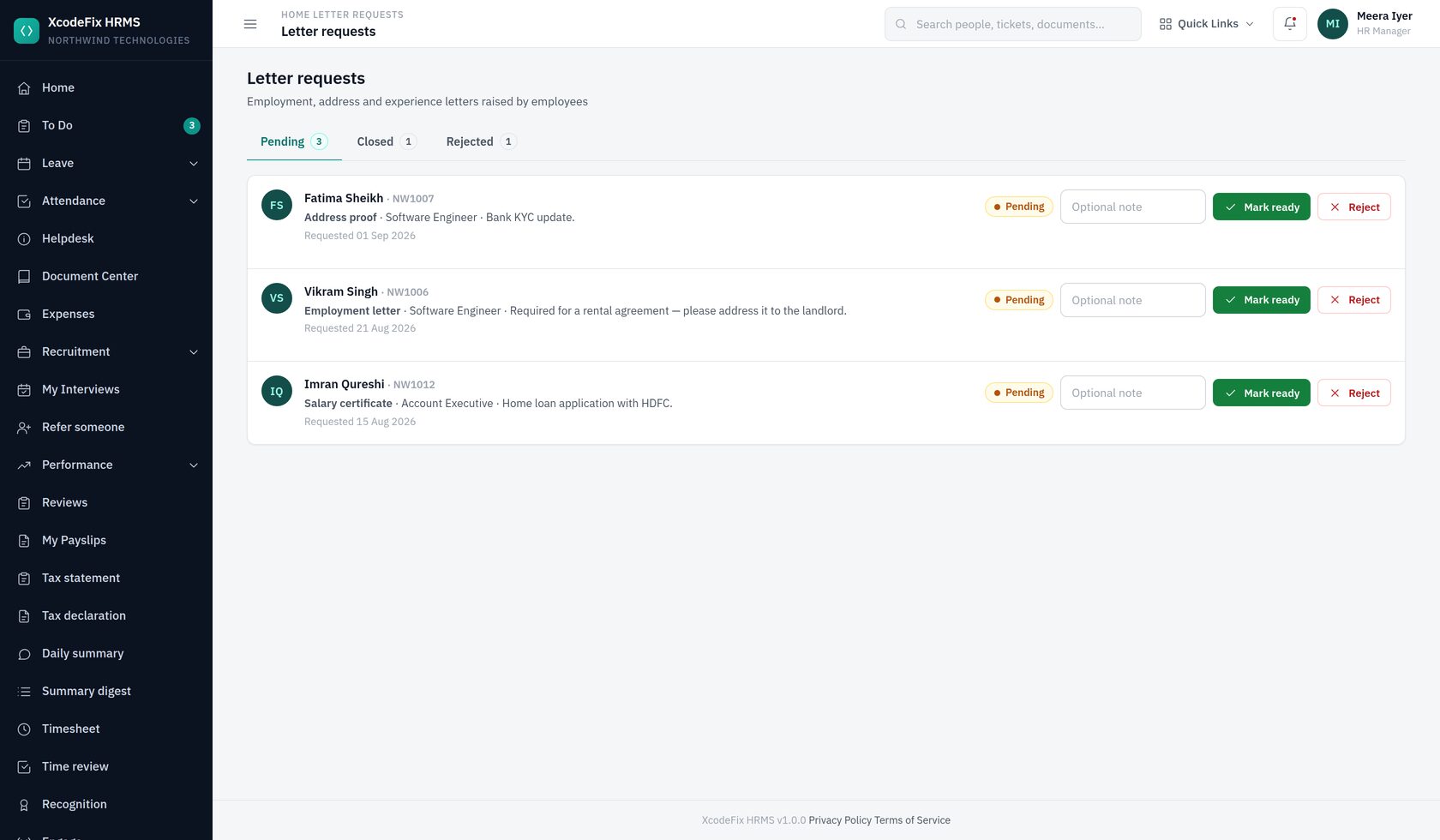
Employees request a letter from their Document Center; the request lands in your To Do inbox with their note explaining what it is for. Issue the letter by uploading the signed PDF against the request, which files it into that employee's documents and notifies them. Rejecting it asks for a reason, which is emailed too.
11. Expenses
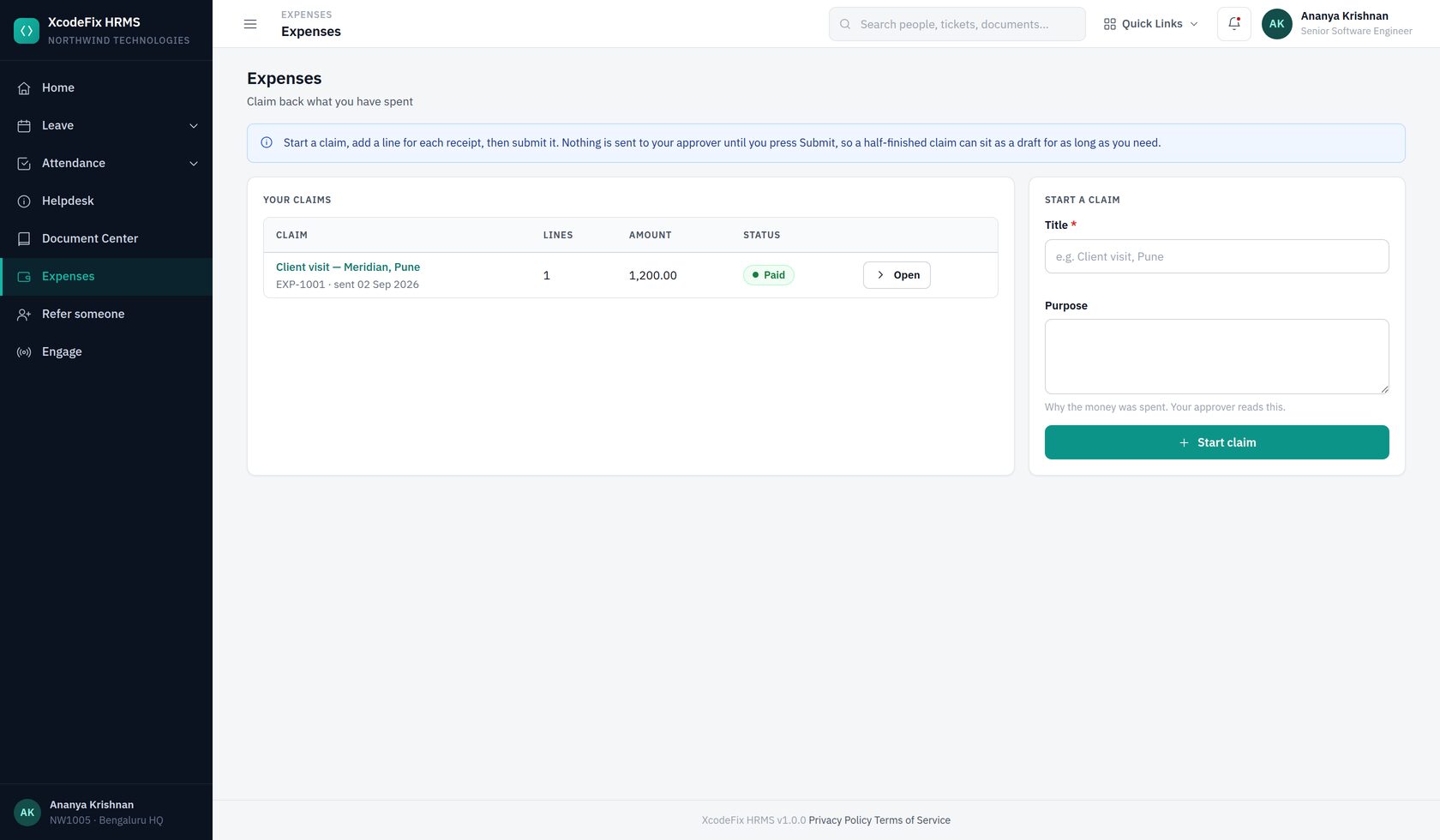
People spend their own money on the company's behalf and want it back without chasing anyone. A claim is a cover sheet with a line per receipt: the employee builds it as a draft, submits it when it is complete, an approver decides, and finance records the payment.
11.1 Expense types
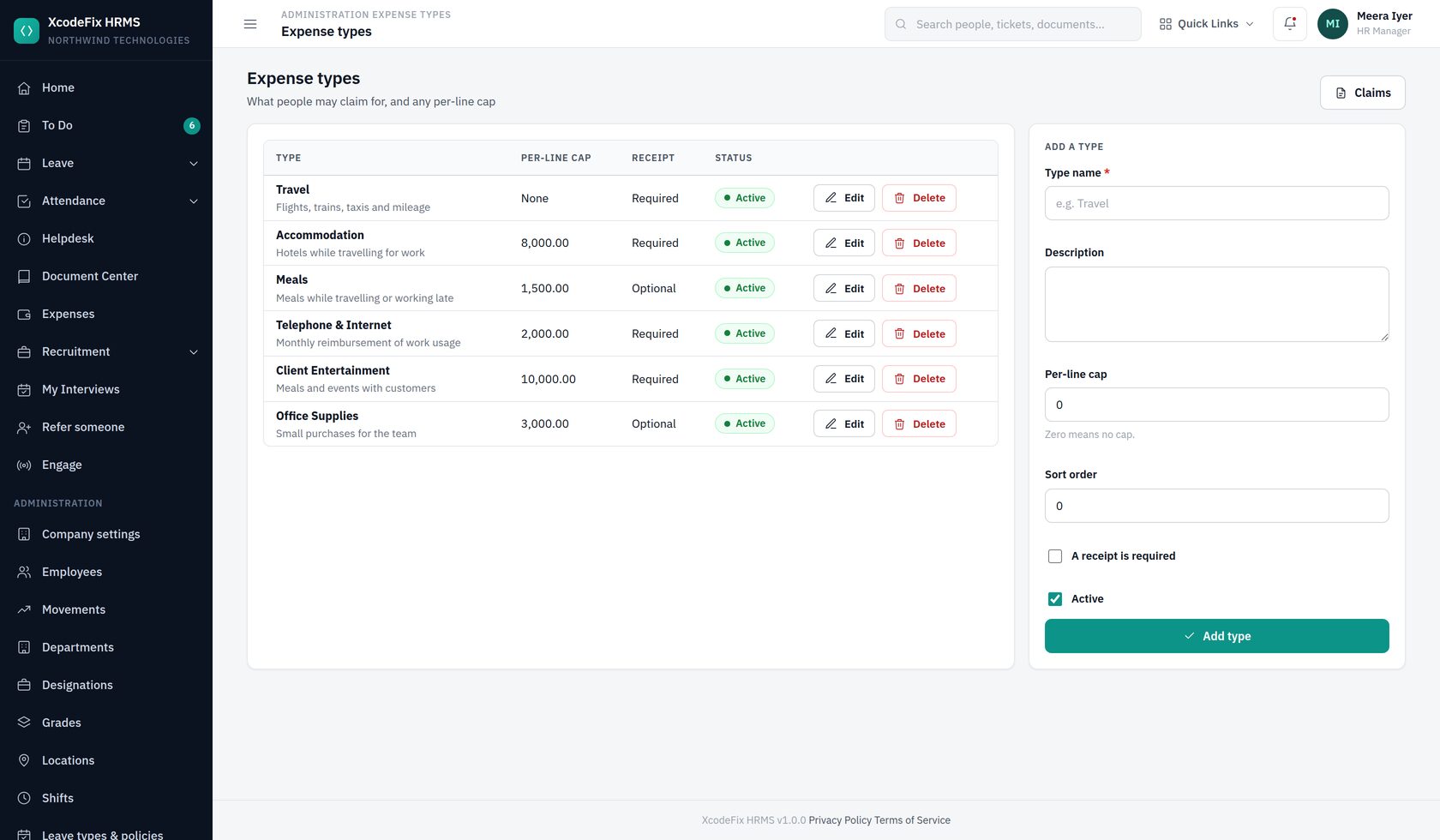
| Setting | What it does |
|---|---|
| Per-line cap | The most one line of this type may be worth. The claim is refused at the point the line is added, not at approval. Zero means no cap |
| Receipt required | A line of this type cannot be added without a file attached |
| Sort order, active | Ordering in the picker, and whether it still appears for new claims |
A type that has been used on a claim cannot be deleted — switch it off instead, and the history stays readable.
11.2 The claims register
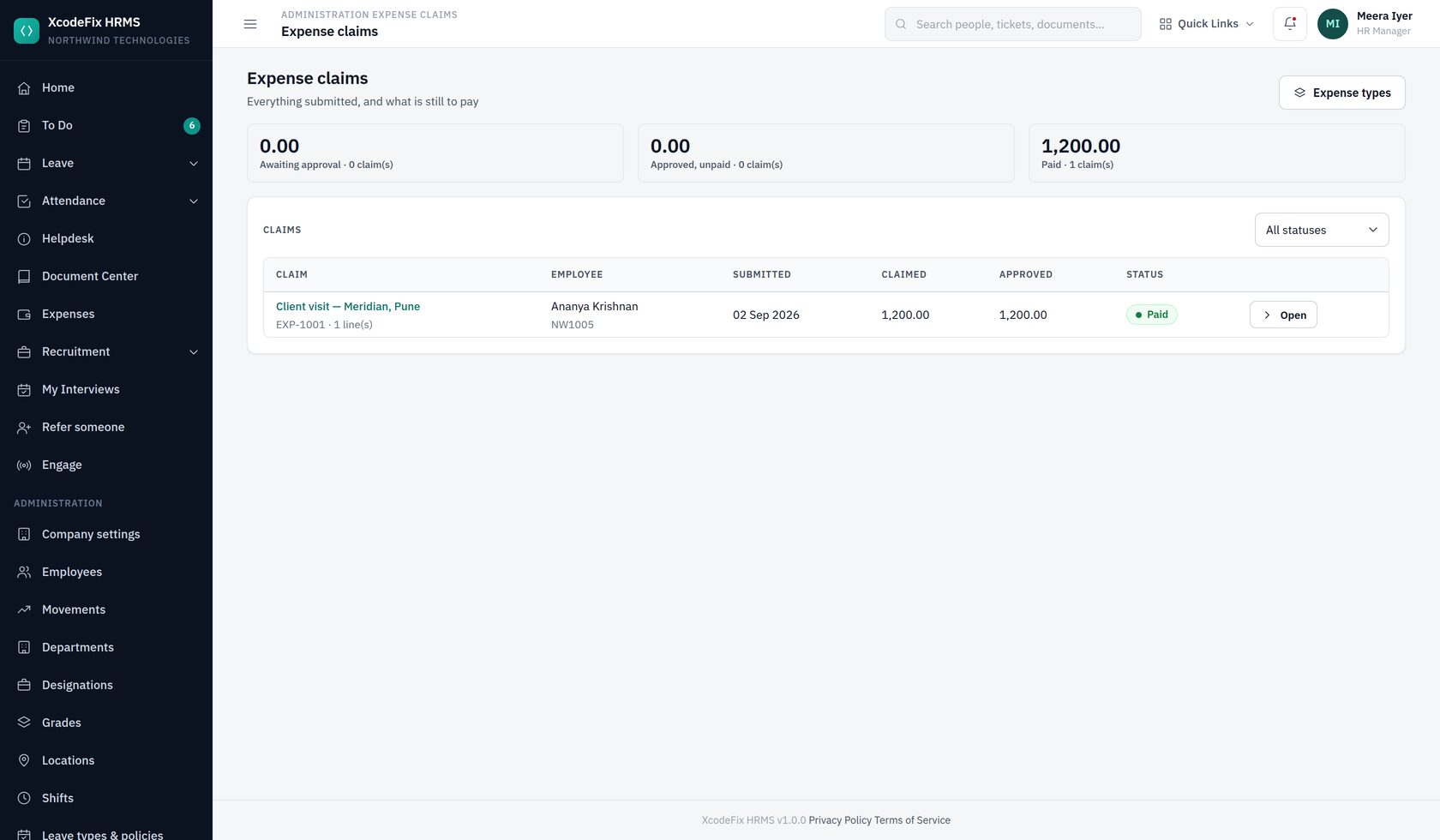
The three tiles are the numbers finance actually asks for. The middle one — approved but unpaid — is the work queue: each of those rows can be marked paid with a payment reference, which is recorded against the claim and shown to the employee.
12. Recruitment
12.1 The pipeline
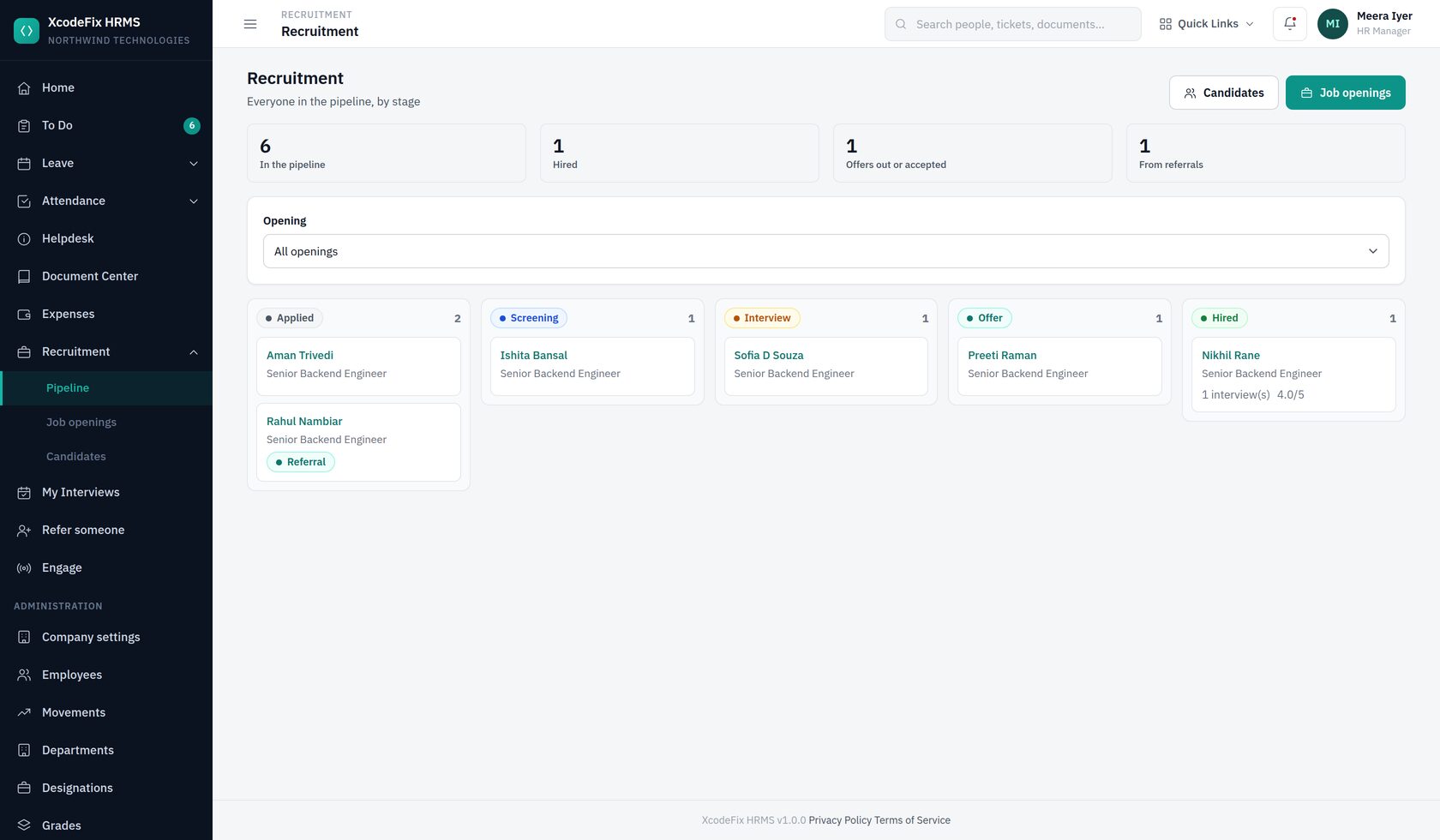
Five columns, left to right: Applied → Screening → Interview → Offer → Hired. Rejected and withdrawn candidates leave the board rather than cluttering a sixth column; they are still on the Candidates list. Filter the whole board to one opening from the control above it.
12.2 Job openings
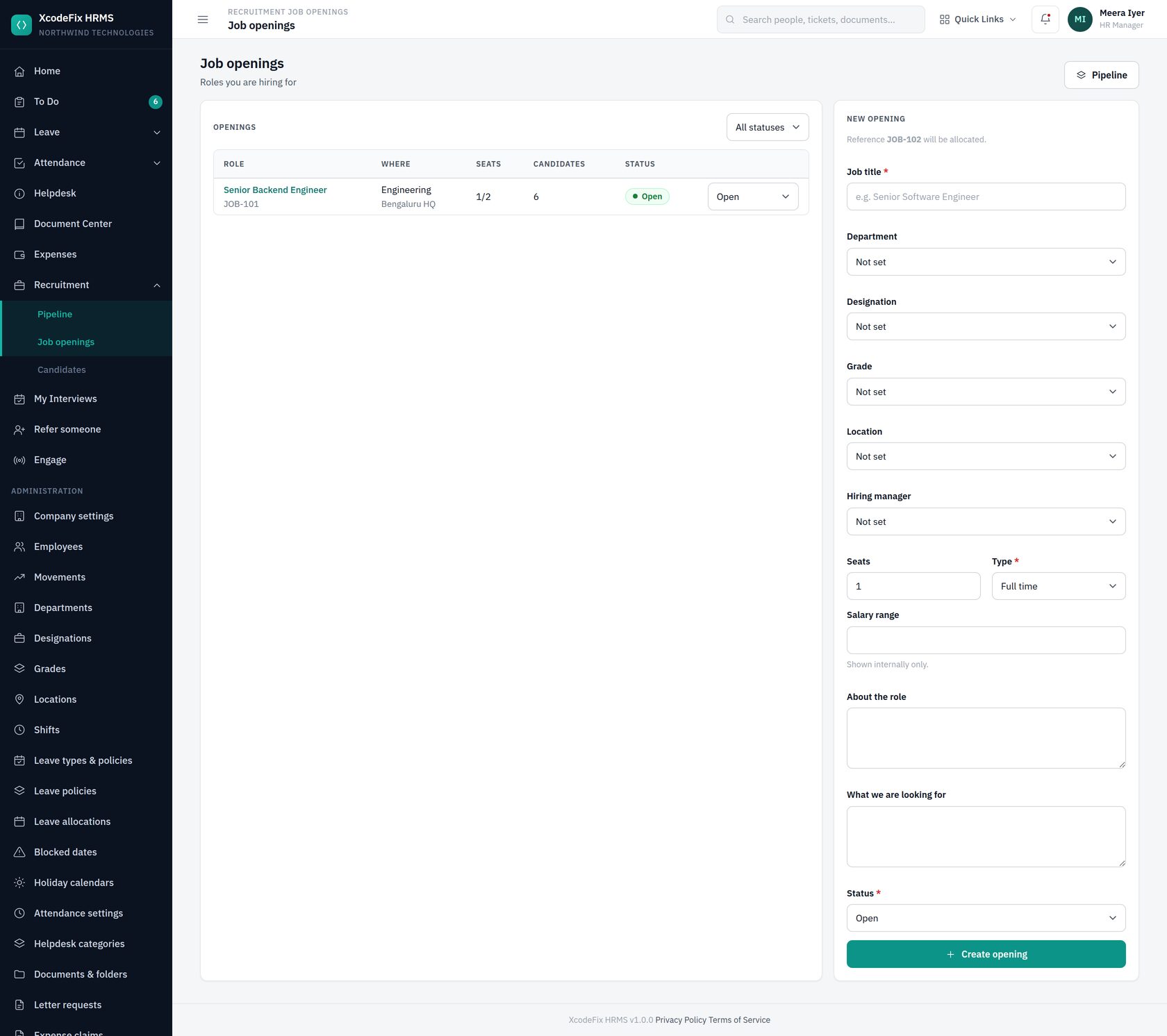
An opening carries the department, designation, grade, location and hiring manager, so a candidate hired against it arrives with their placement already decided. The status dropdown on each row moves it between draft, open, on hold, filled and closed without opening a form.
12.3 Candidates
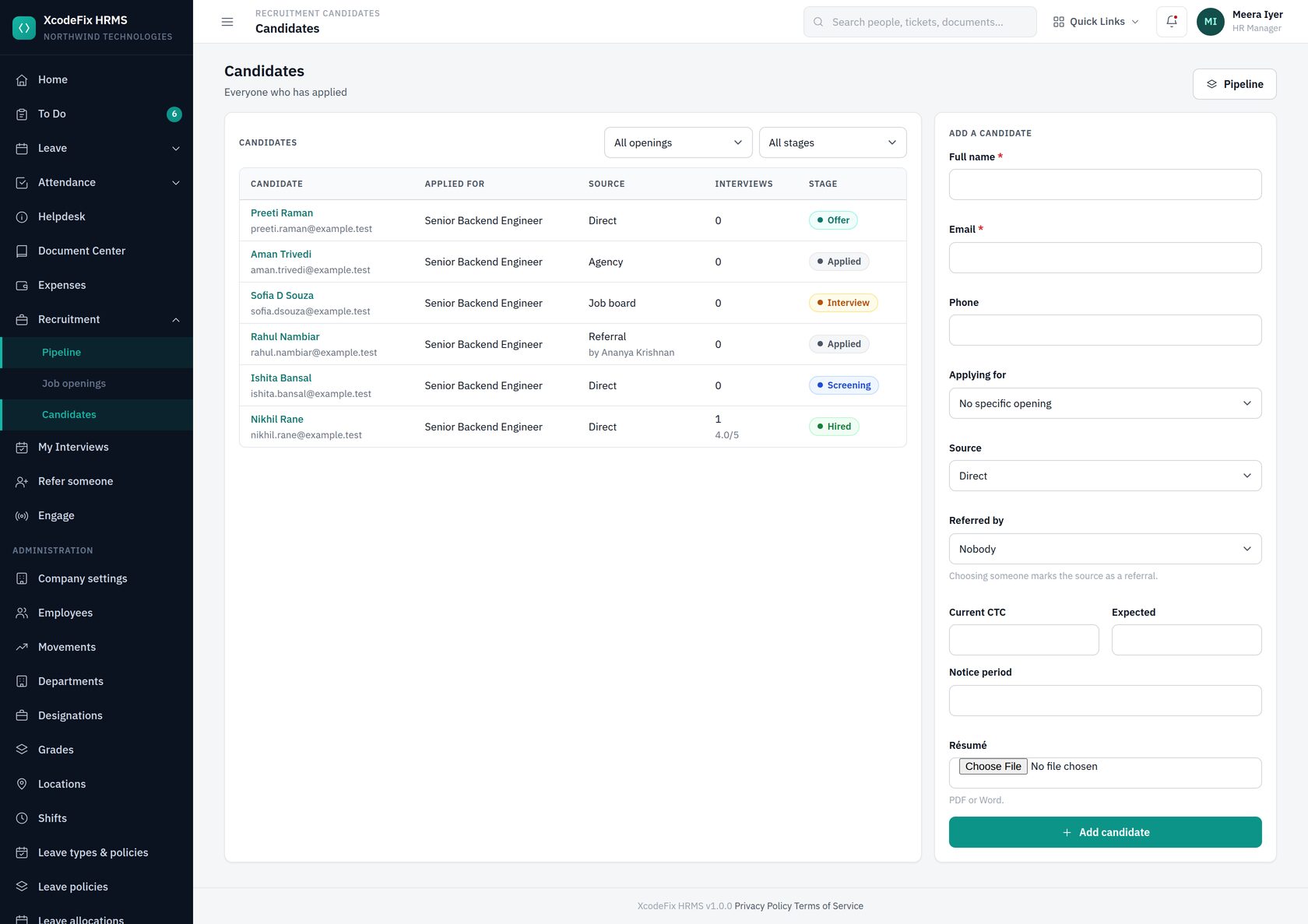
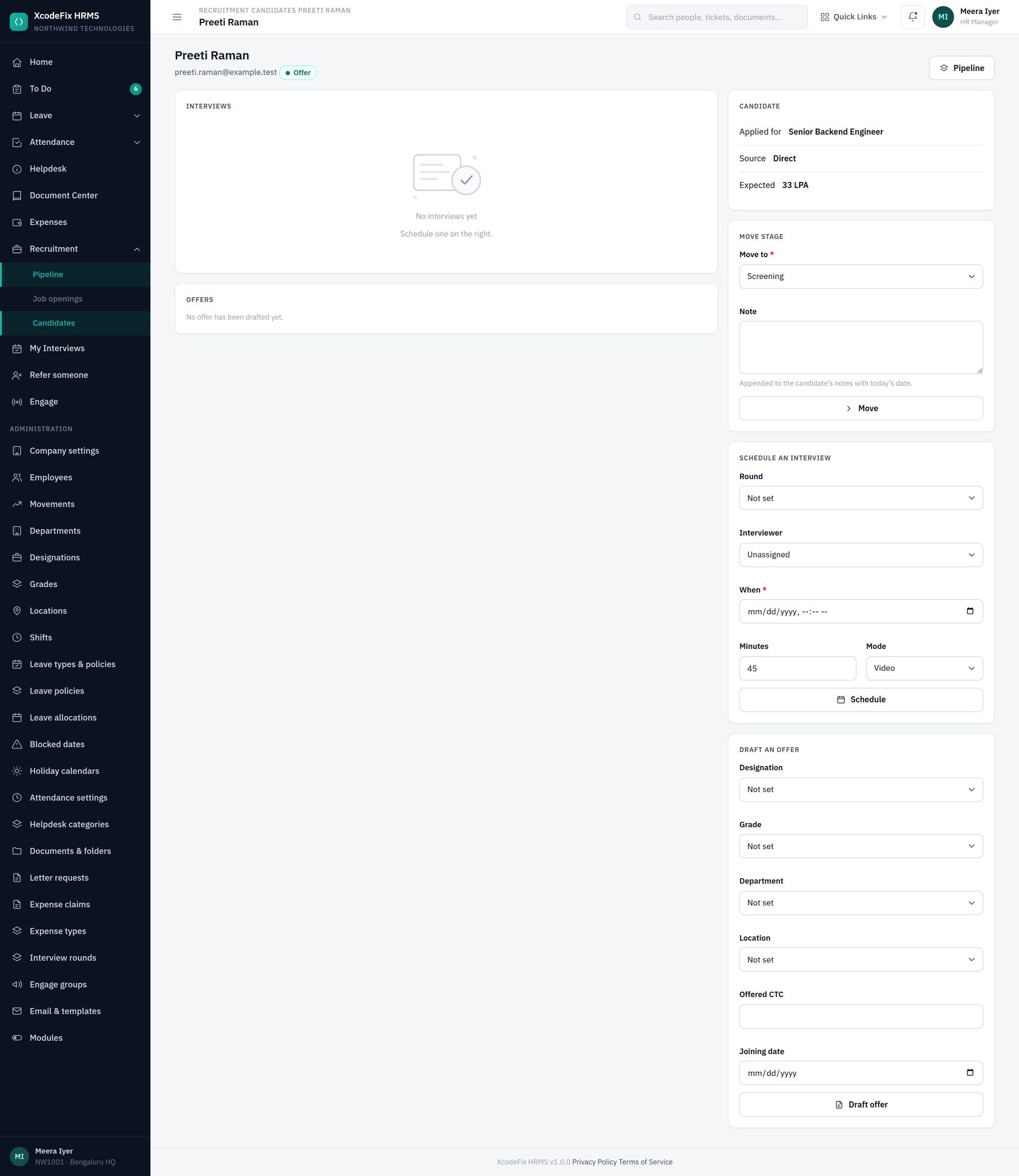
The same email may apply for two different openings, but not twice for the same one. Choosing a referrer marks the source as a referral automatically.
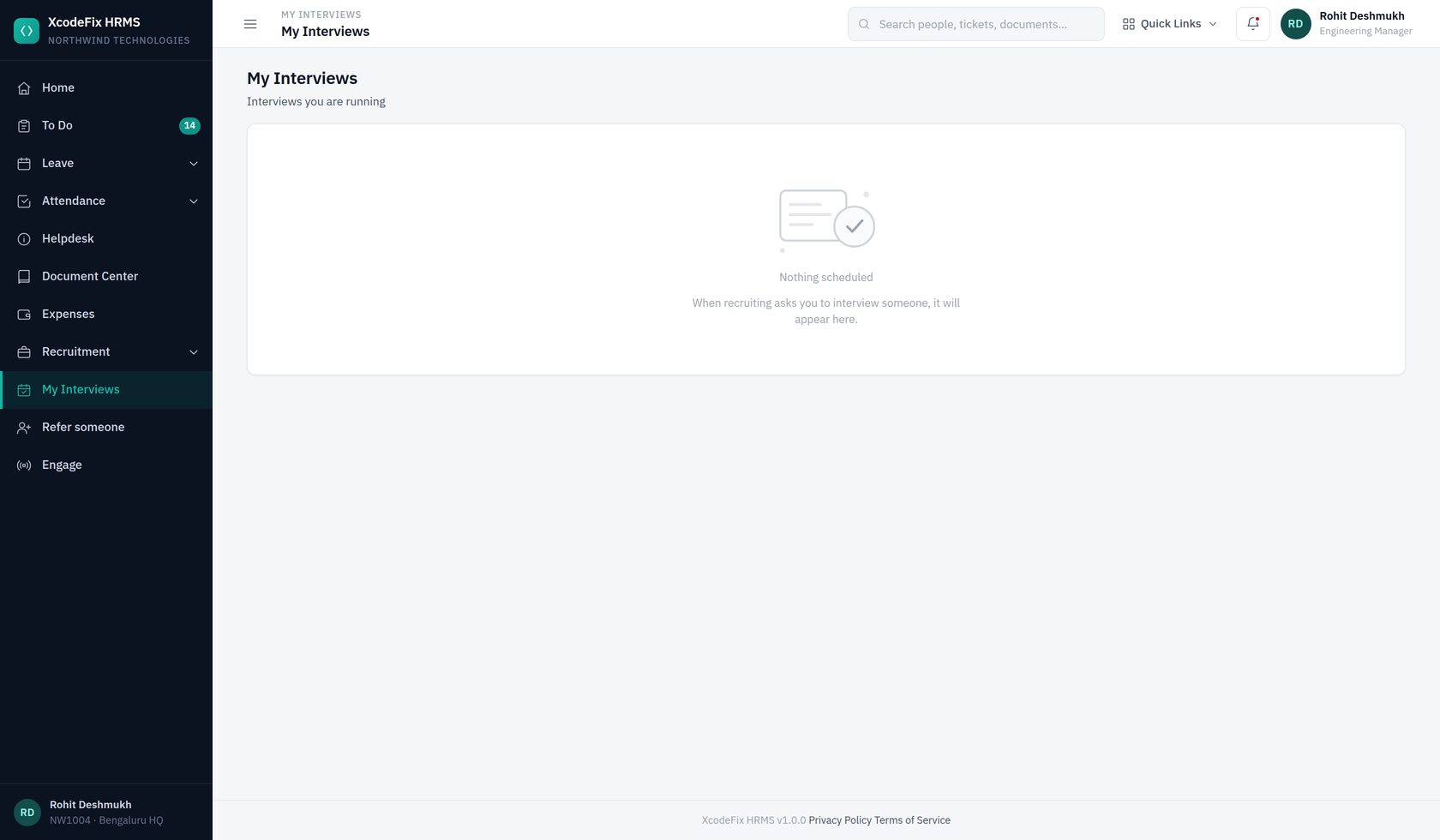
12.4 Interviews and feedback
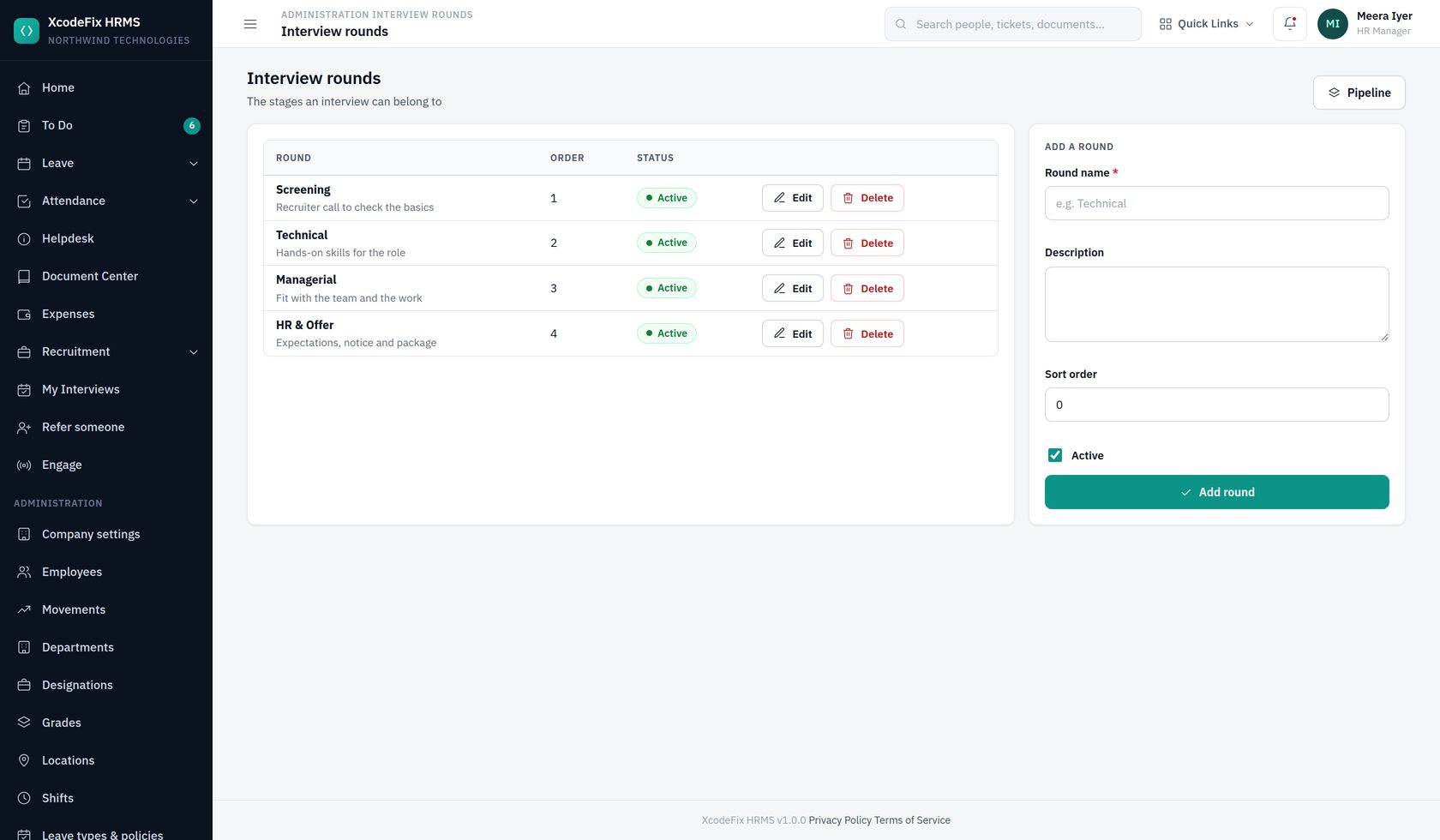
Scheduling an interview moves the candidate into the Interview stage by itself, so the board never lags behind what is actually happening. The interviewer sees it under My Interviews and records a 1–5 rating, a recommendation and written feedback.
12.5 Offers and hiring
Draft an offer with the designation, grade, CTC and joining date; move it through sent and then accepted or declined. A declined offer takes the candidate off the board.
Once an offer is accepted, the Hire card appears. It creates the employee record from the candidate — carrying the offer's placement across — and links the two, so the pipeline shows where somebody ended up and nobody is hired twice. Sending their invitation is the separate, deliberate step described in chapter 5.
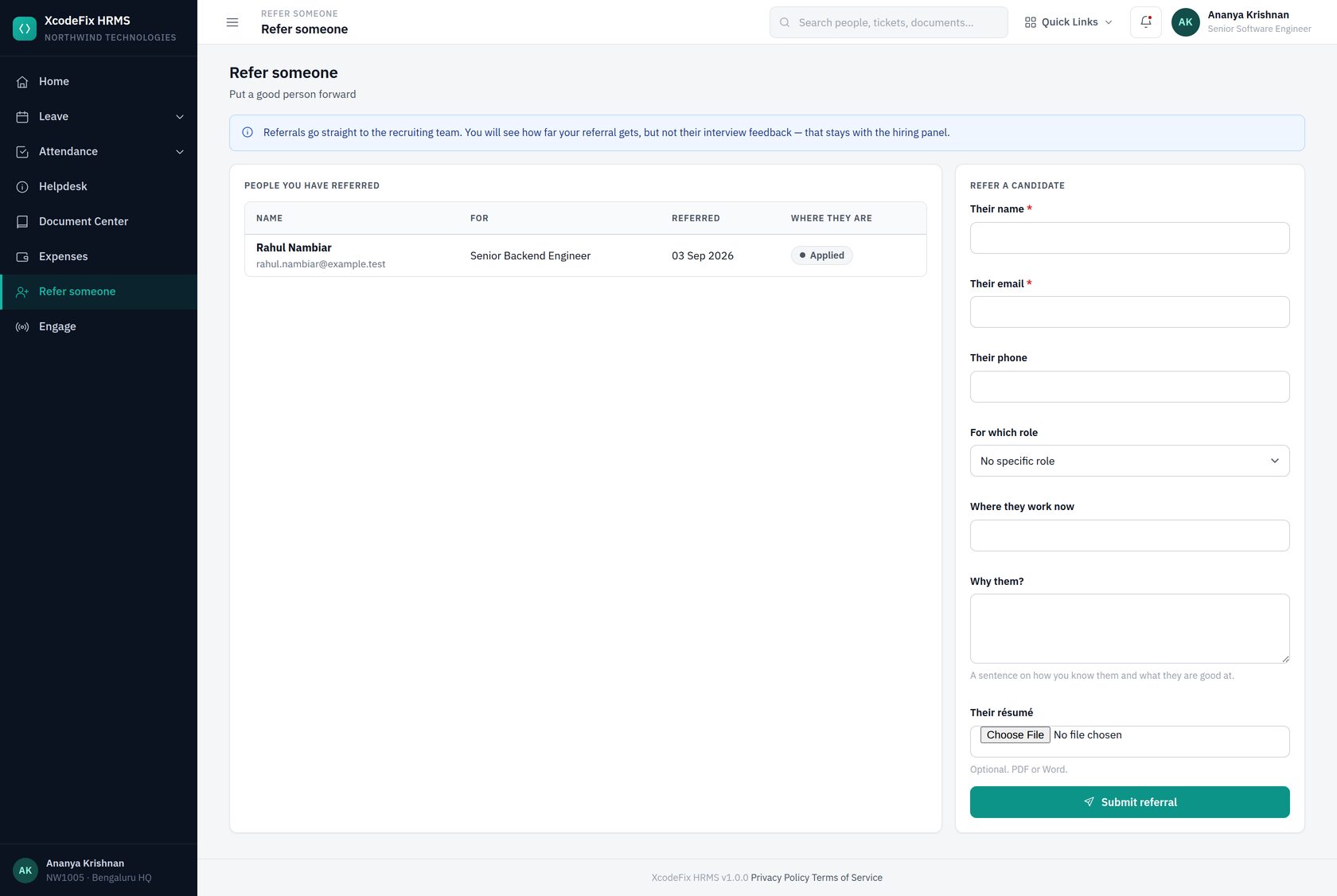
12.6 Referrals
Employees put people forward from Refer someone. The referrer is taken from their session, so it cannot be spoofed, and they can watch how far their referral gets without seeing any interview feedback.
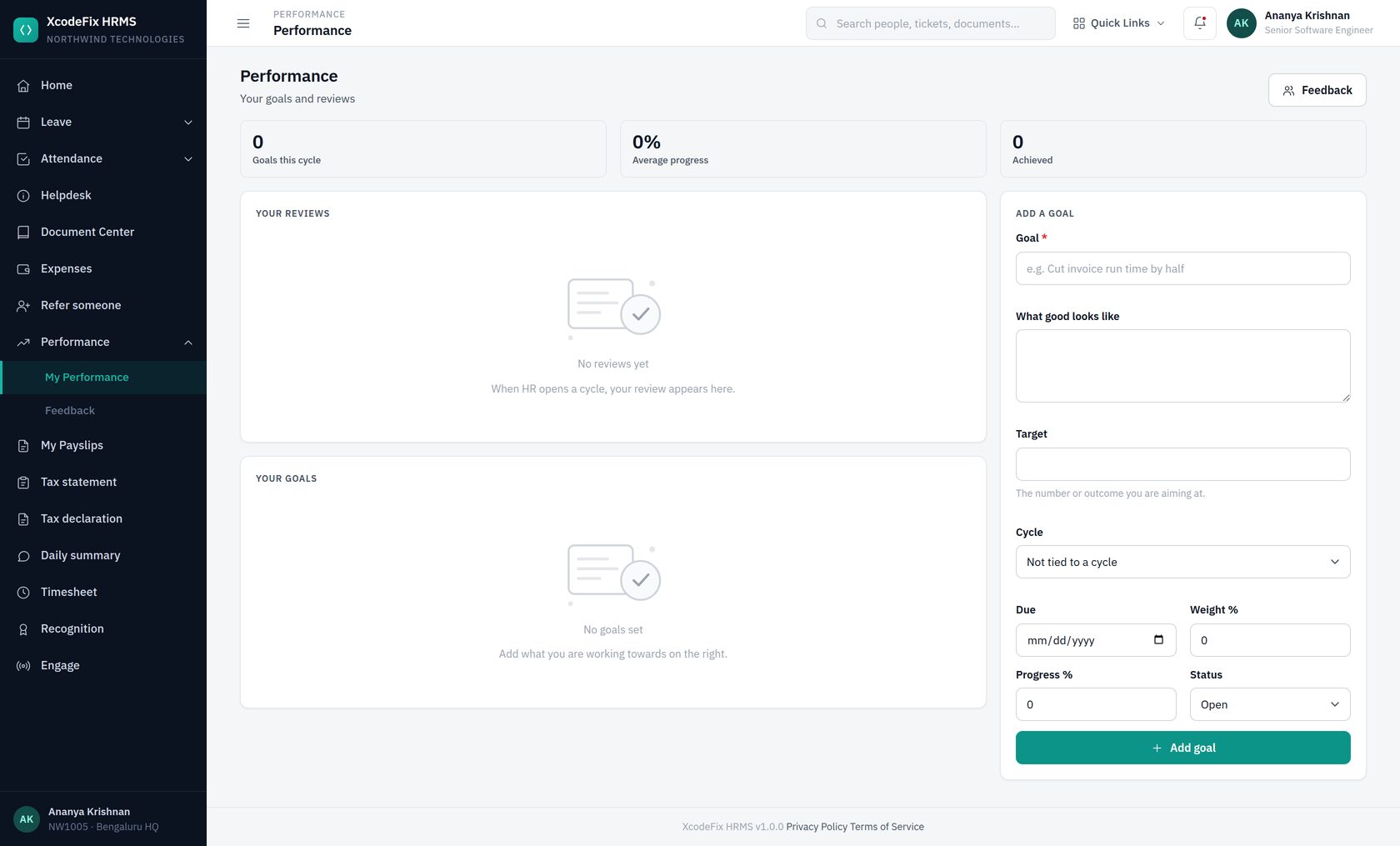
13. Performance
A review cycle has three moving parts: goals people set, the appraisal each person and their manager fill in, and the feedback colleagues give along the way. The product keeps them together so a review conversation starts from evidence rather than memory.
13.1 Appraisal cycles
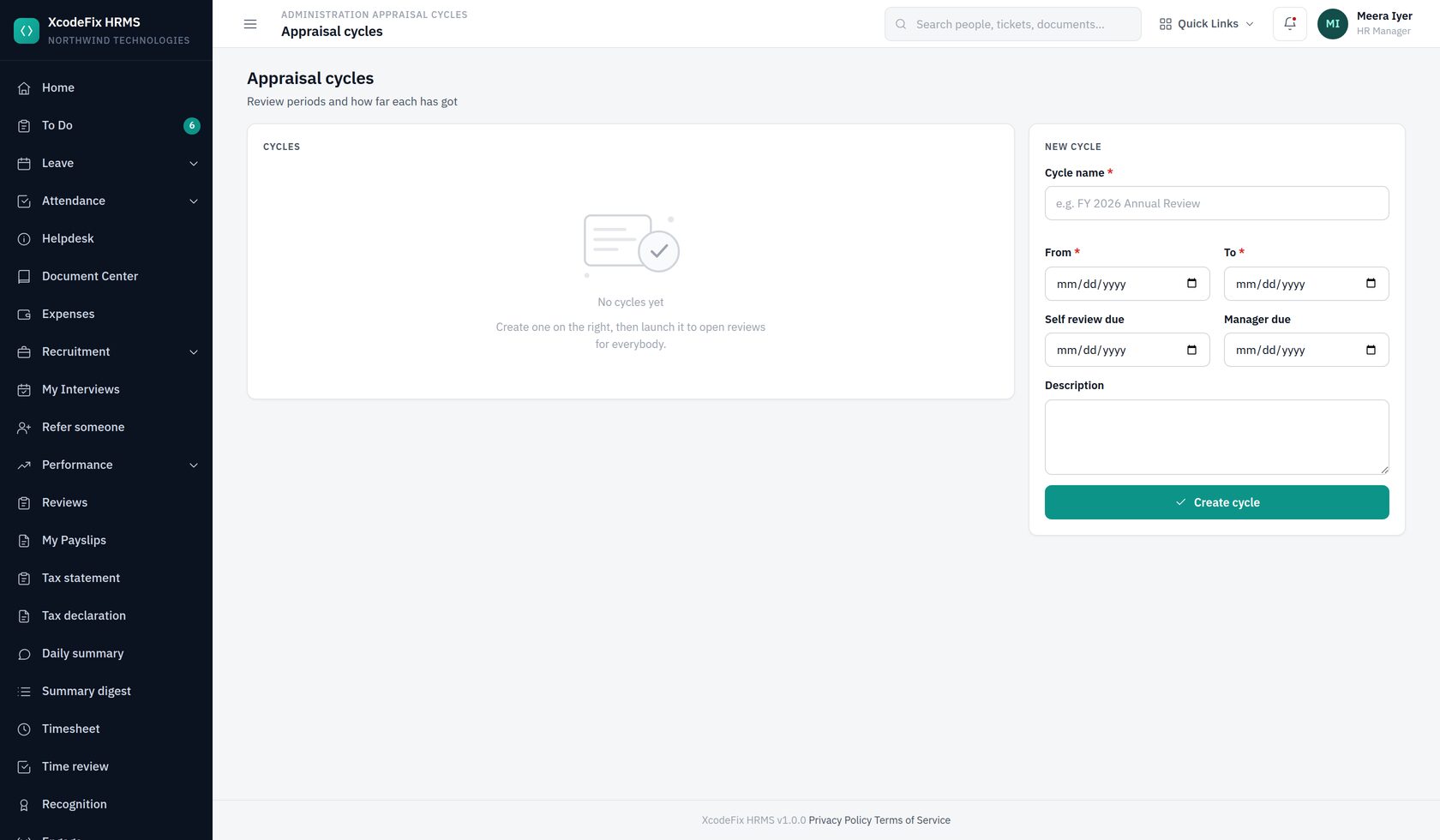
Set the period the cycle covers and the dates self-assessment and manager review are due, then launch it. Launching is the moment the cycle becomes real: every active employee gets an appraisal record, and everyone is notified. A cycle can be launched only once.
13.2 What people see
Each person gets their own appraisal to complete, their goals to update, and — if they manage anyone — a review to write for each report. Feedback can be given to anyone at any time and is attached to the person, not the cycle, so it is still there next year.
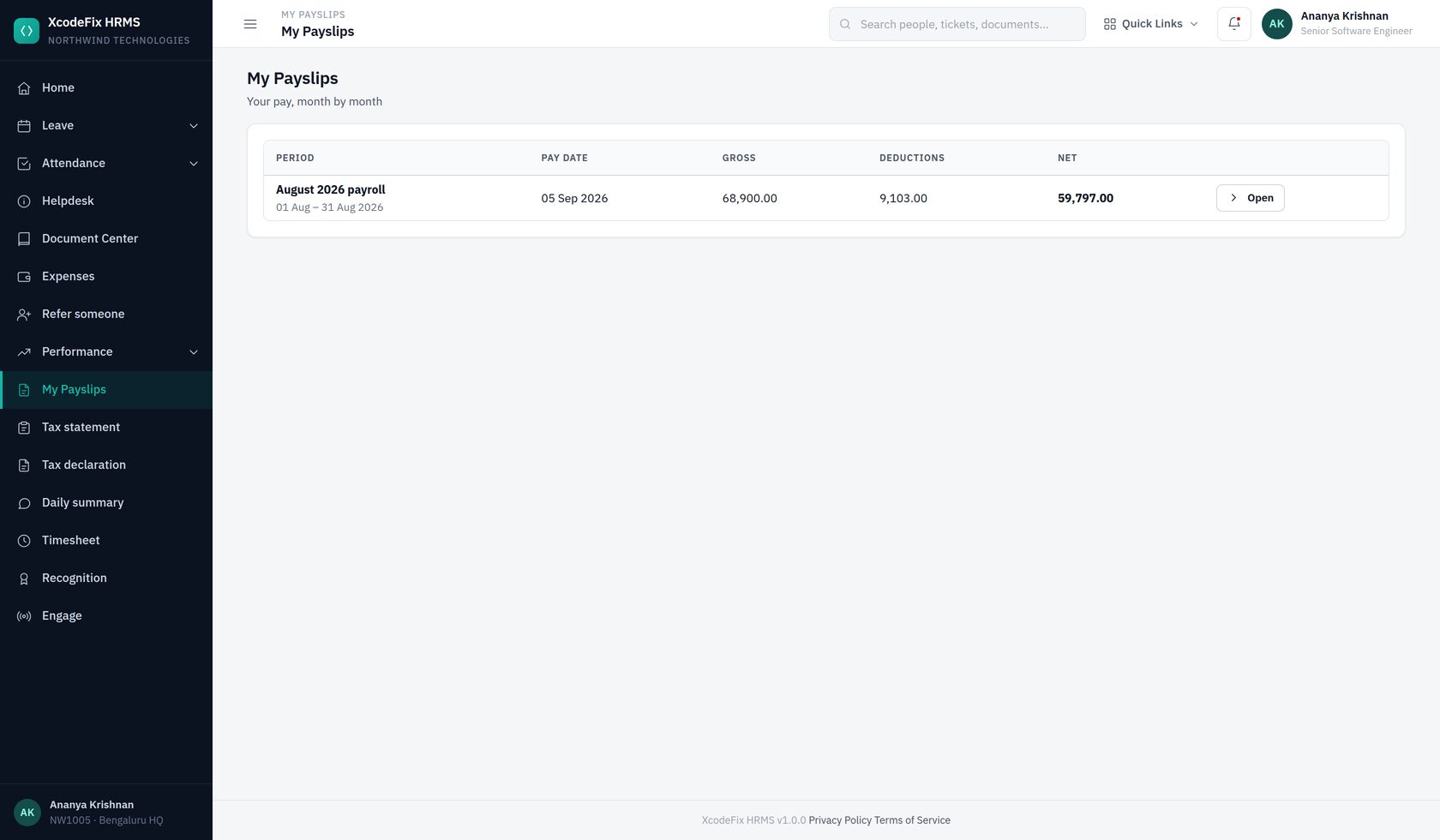
14. Payroll
14.1 Salary components
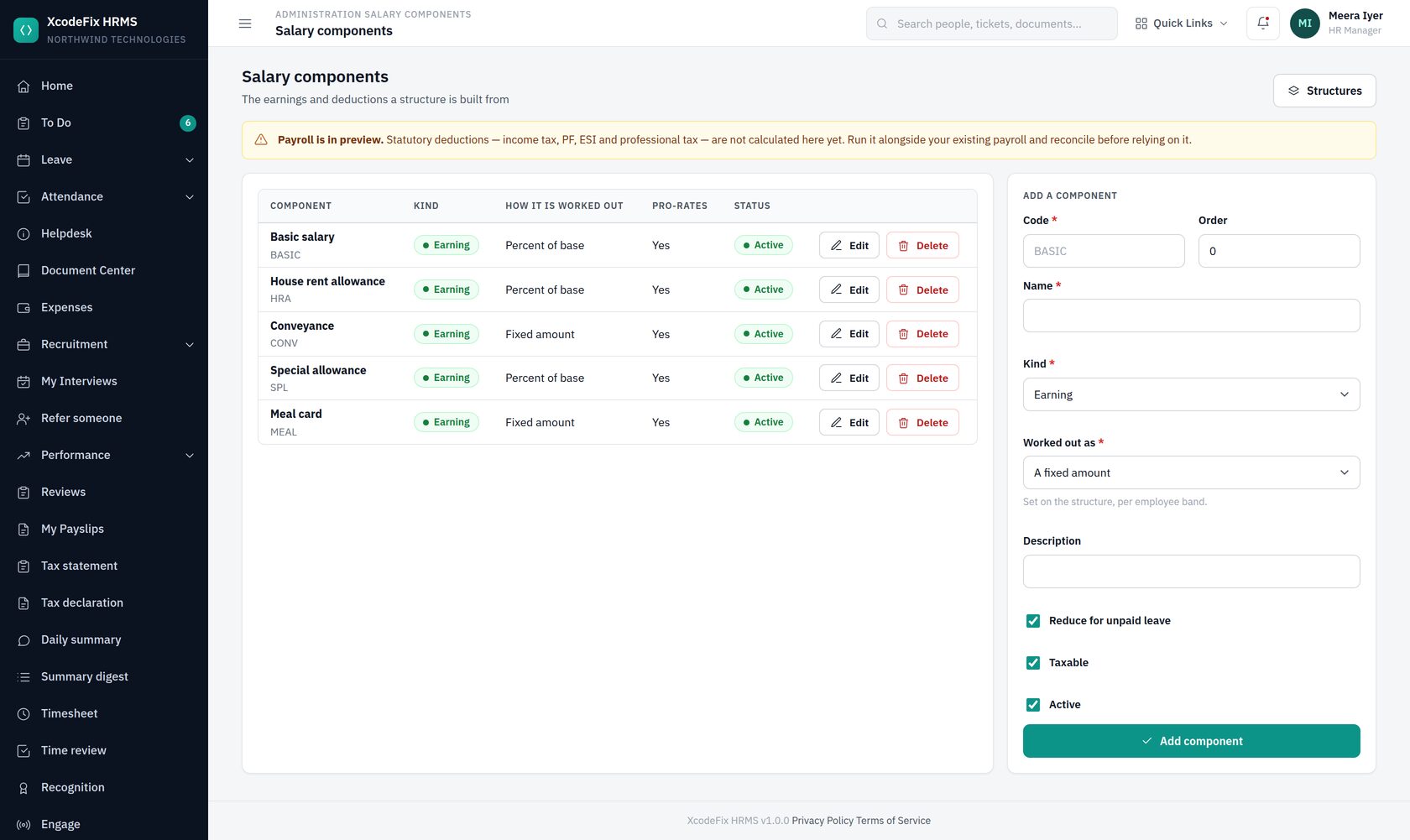
| Setting | What it does |
|---|---|
| Calculation | A fixed amount, or a percentage of the person's base salary |
| Taxable | Whether this component forms part of the wage that tax and statutory rules are worked out on |
| Pro-rates | Whether unpaid leave reduces it. A monthly allowance usually does; a fixed reimbursement often does not |
14.2 Structures and assignments
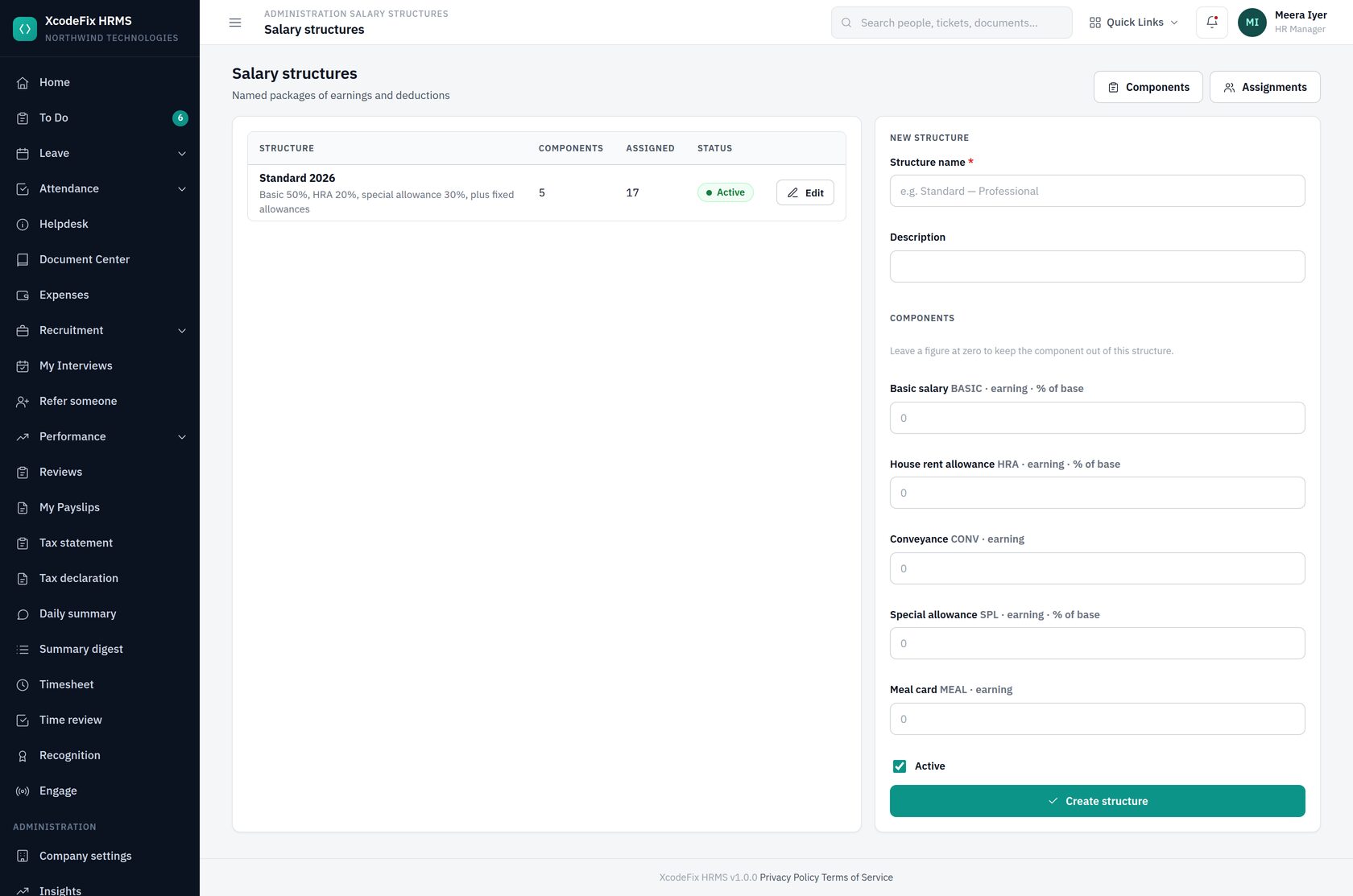
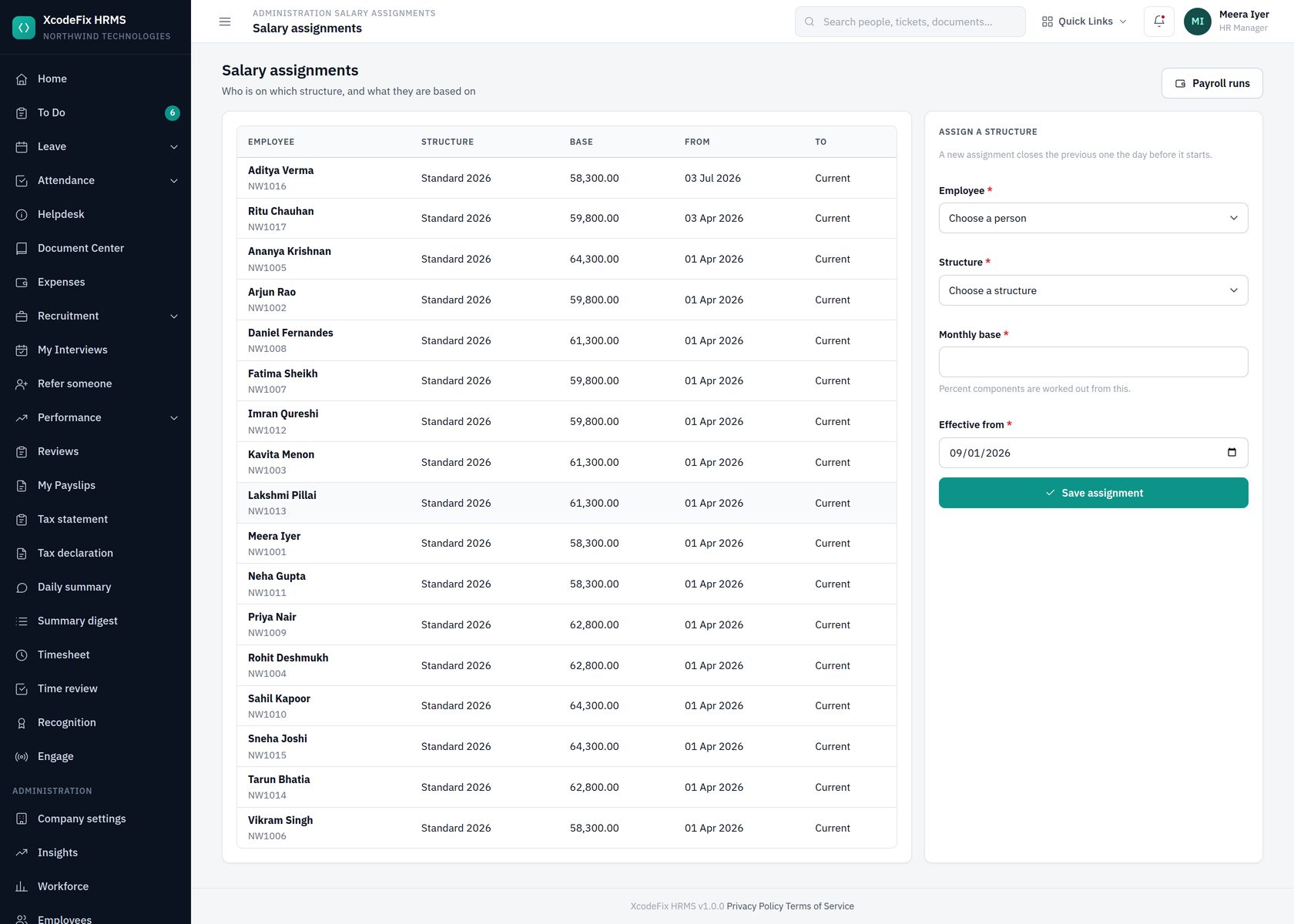
An assignment has a start date. Giving somebody a rise means adding a new assignment from the date it takes effect, not editing the old one — which is what lets last year's payroll still compute last year's answer.
14.3 Additional salary
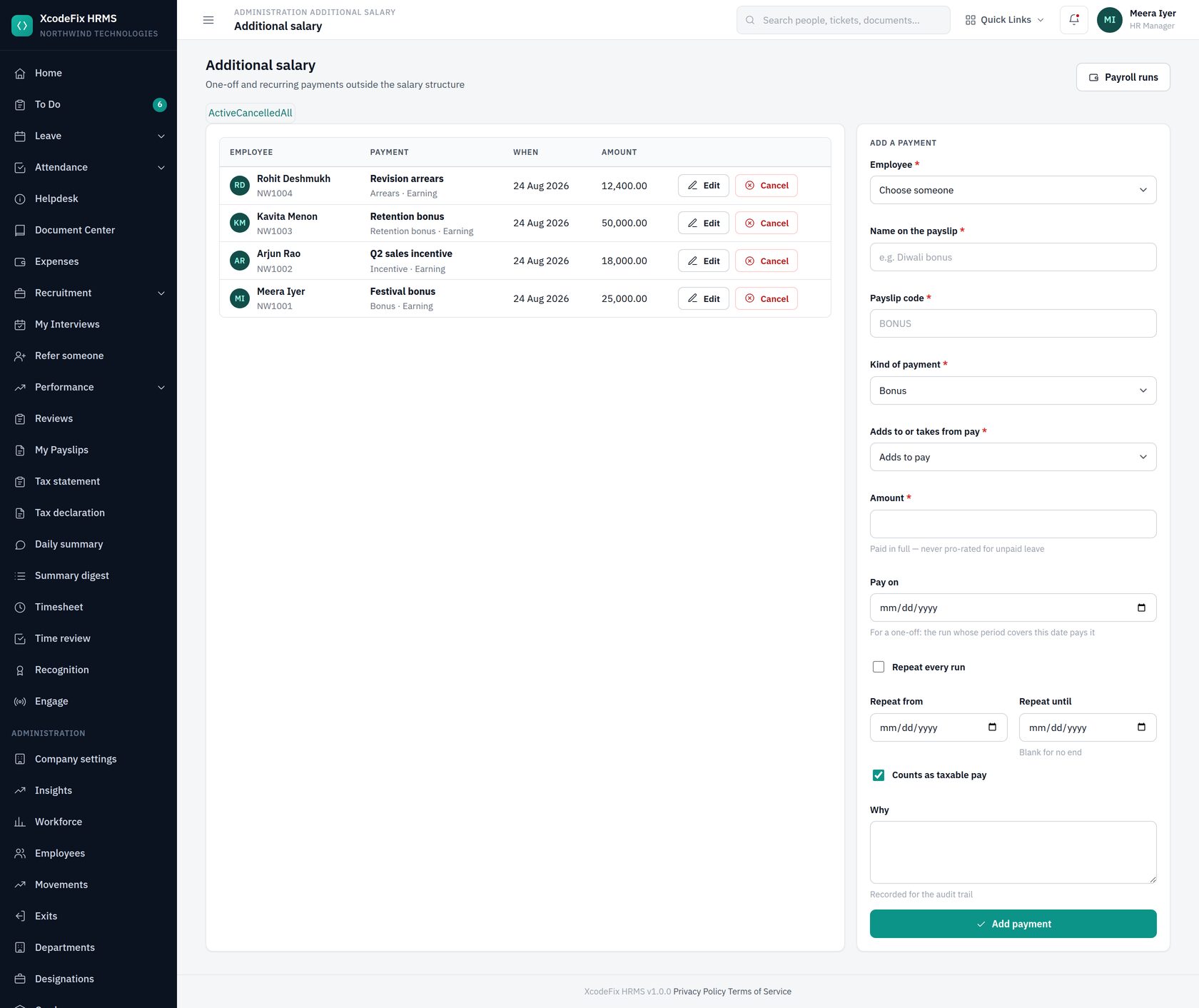
A one-off is paid by the run whose period contains its date. A recurring entry is paid by every run its dates overlap. Either way the amount is paid in full — a bonus is a decision about a number, so half a month of unpaid leave does not halve it, unlike every component in the structure.
Entries are cancelled rather than deleted. Why somebody was not paid a bonus is a question that gets asked as often as the other one.
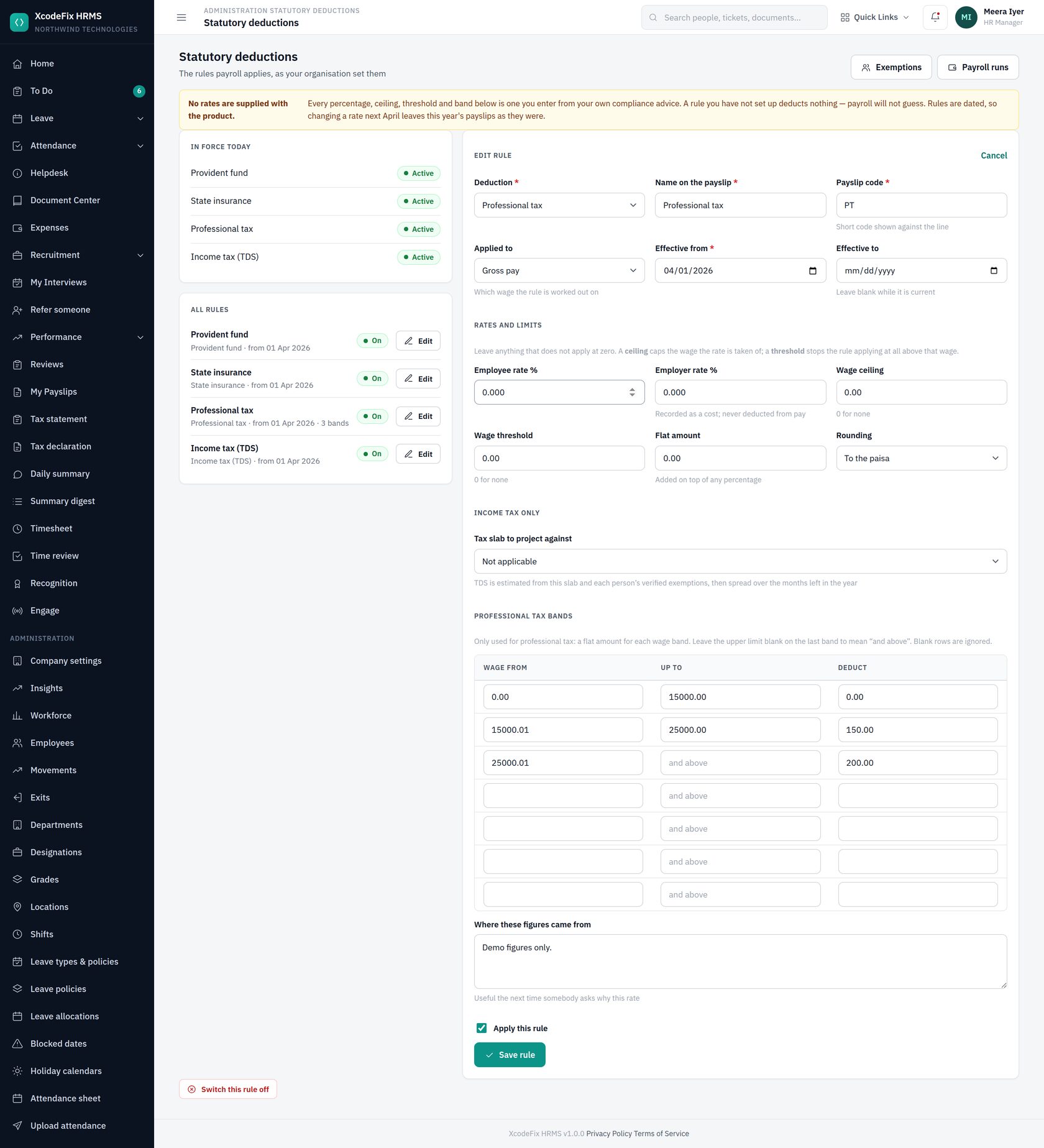
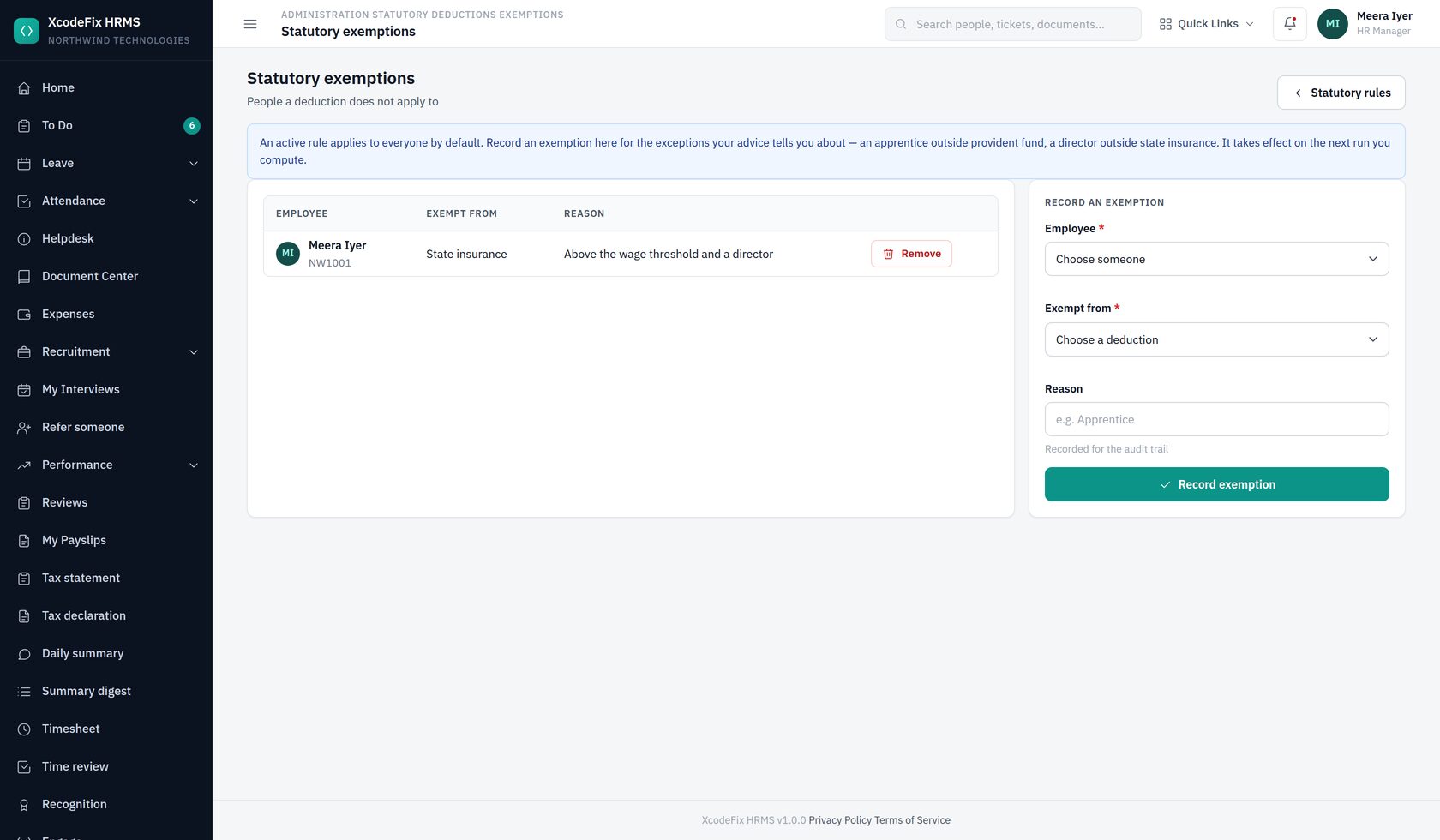
14.4 Statutory deductions
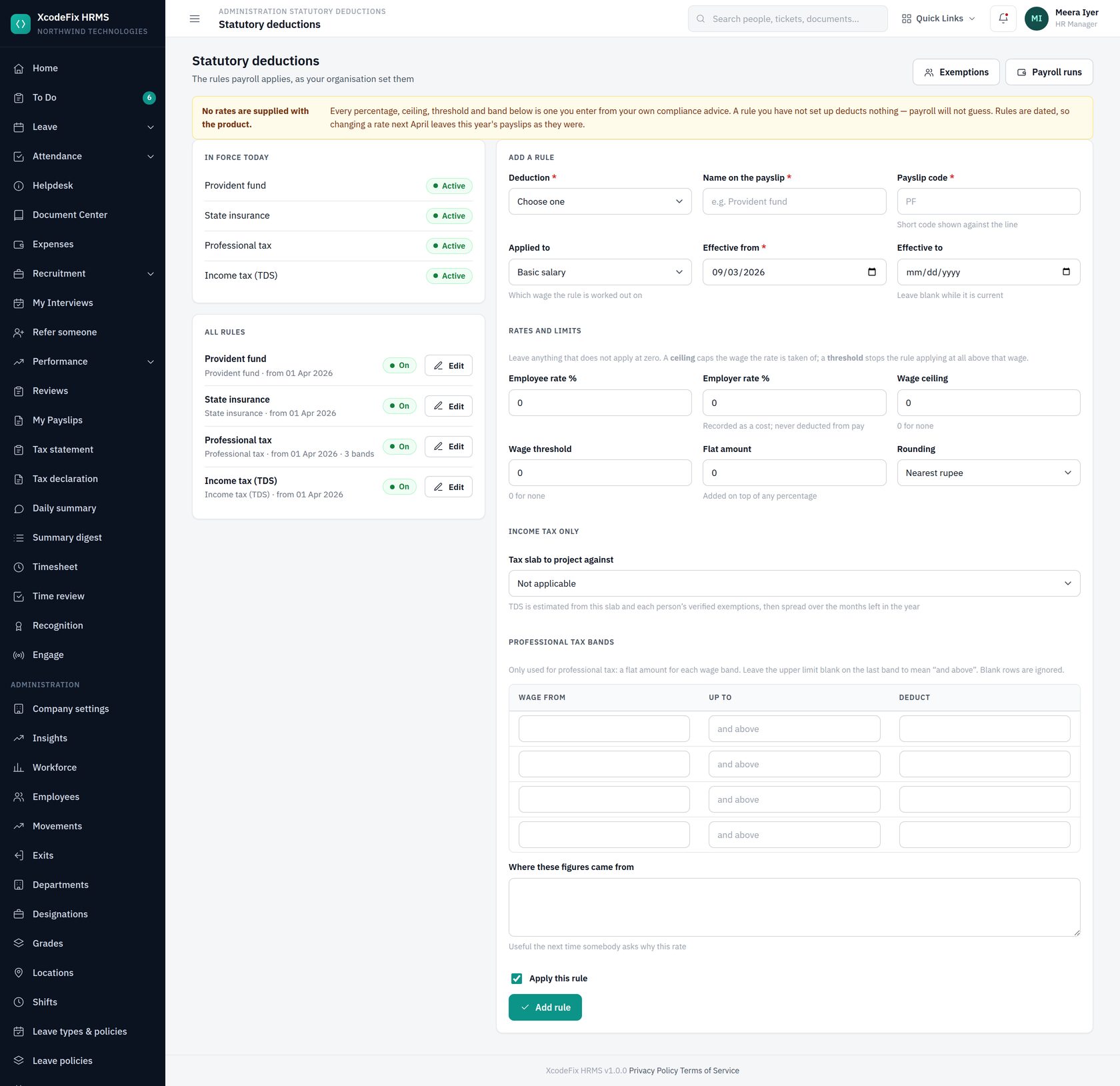
| Field | What it means |
|---|---|
| Applied to | Which wage the rule works on: basic salary, gross pay, or taxable gross |
| Employee rate | The percentage taken from the person's pay |
| Employer rate | The company's share. It is recorded as a cost and shown on the payslip, and it never reduces net pay |
| Wage ceiling | Caps the wage the rate is applied to. The rule still applies above it, just on the capped amount |
| Wage threshold | Stops the rule applying at all above that wage. This is the difference that catches people out: a ceiling caps, a threshold excludes |
| Effective from / to | Rules are dated rather than edited in place, so a March run keeps computing March's answer after April's rates arrive |
14.5 Running payroll
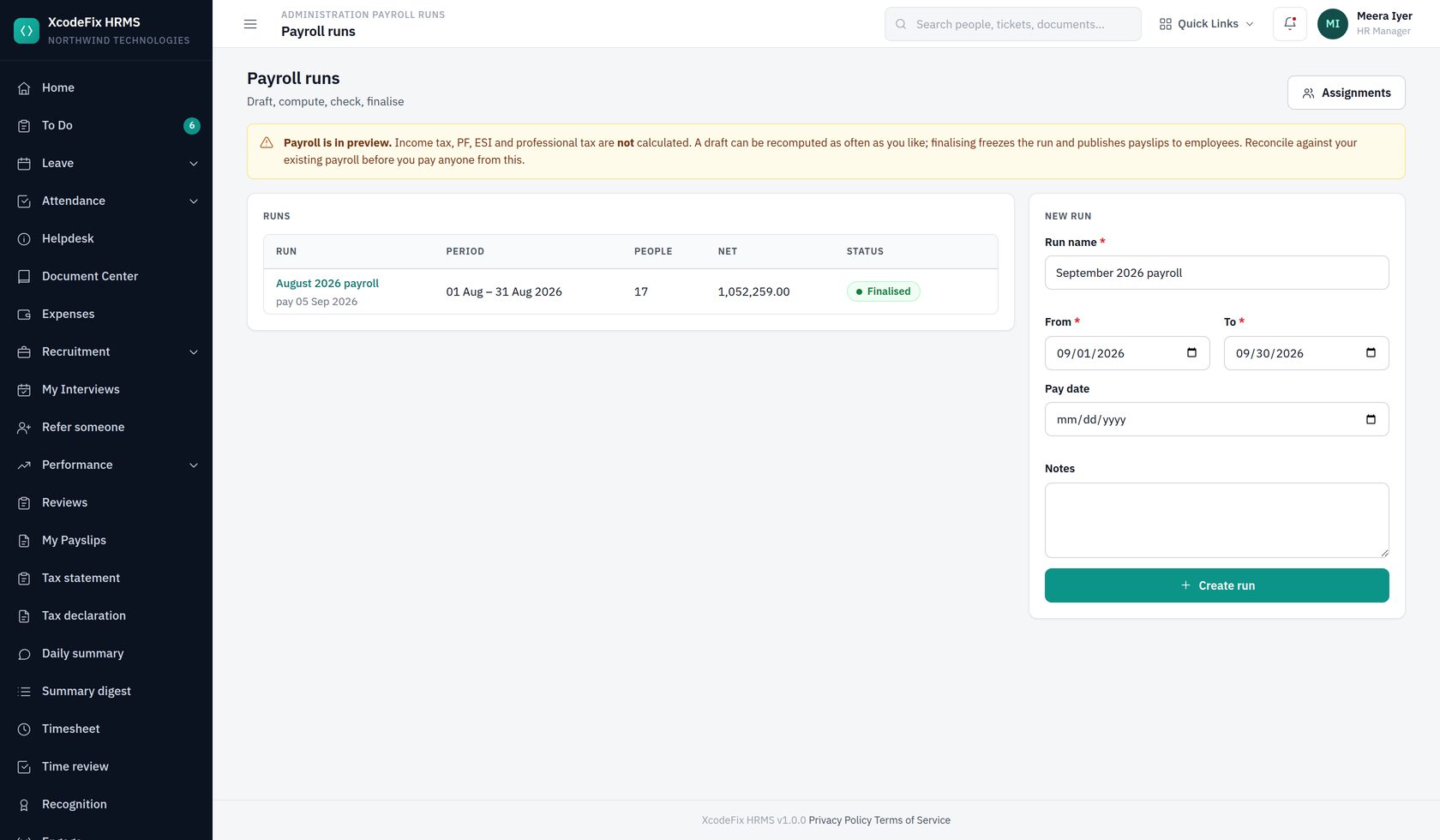
- Create a run for the period, with the date people are to be paid.
- Compute. Every payslip in the run is deleted and rebuilt from the structures, additional salary and statutory rules as they stand. Correct something and compute again as often as you like.
- Check the register and a few payslips.
- Finalise. The run becomes read-only and payslips are published to employees. A finalised run cannot be recomputed — it is a record of what was paid.
14.6 The salary register and the bank file
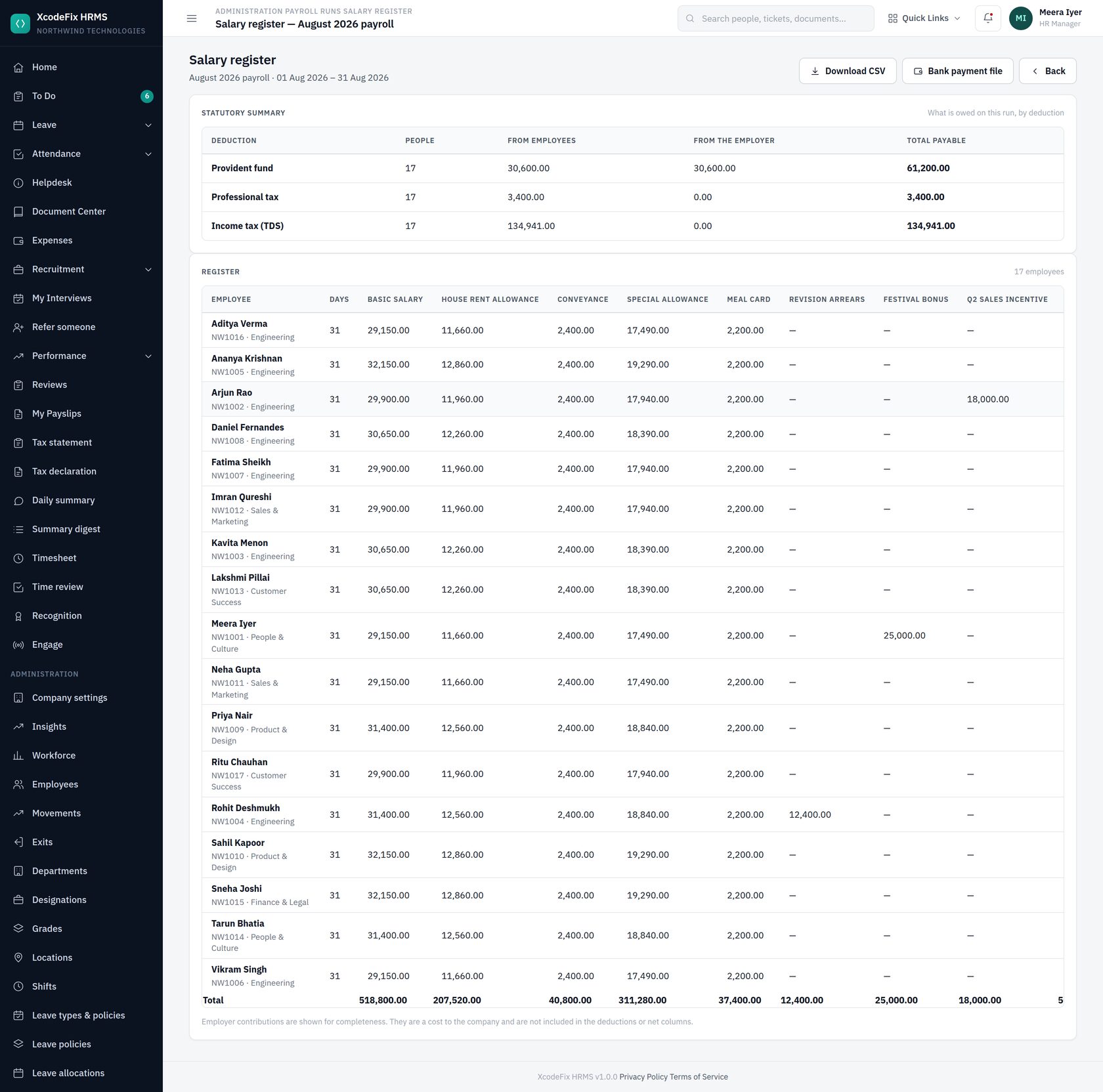
The statutory summary is what each authority is owed for this run, split between the employees' share and the company's. The register below it can be downloaded as a CSV for your accountant.
The bank payment file lists everyone with a net amount to pay, with their account and IFSC. It is available only once a run is finalised: a draft can still change, and a payment file is an instruction to move money. Anyone without bank details on file is left out of the file and reported on screen rather than silently dropped.
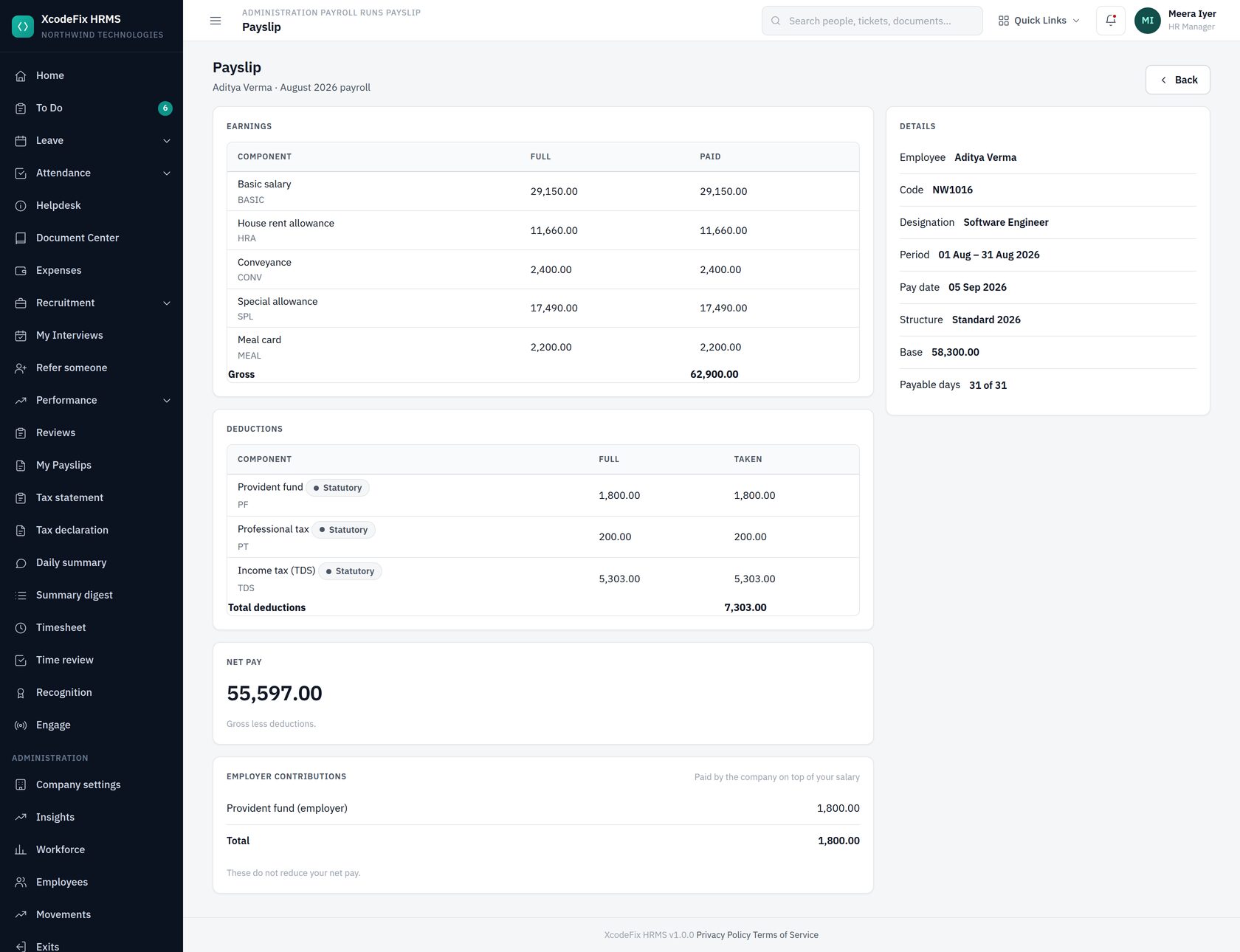
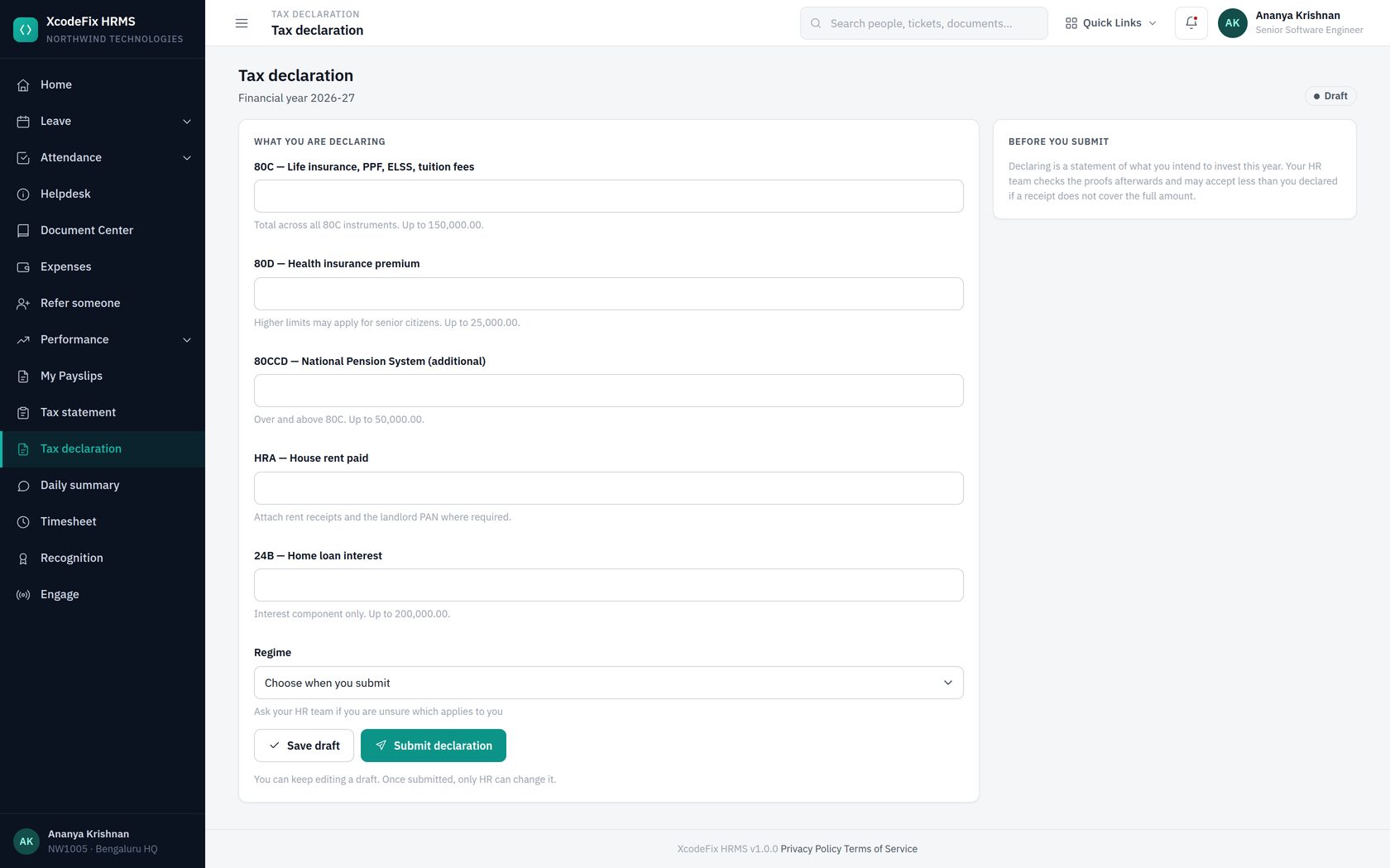
15. Tax declarations
Employees declare what they intend to invest, upload the proofs, and HR verifies them. What HR accepts is what reduces the tax withheld from their pay — so the loop matters, not just the form.
15.1 Tax slabs
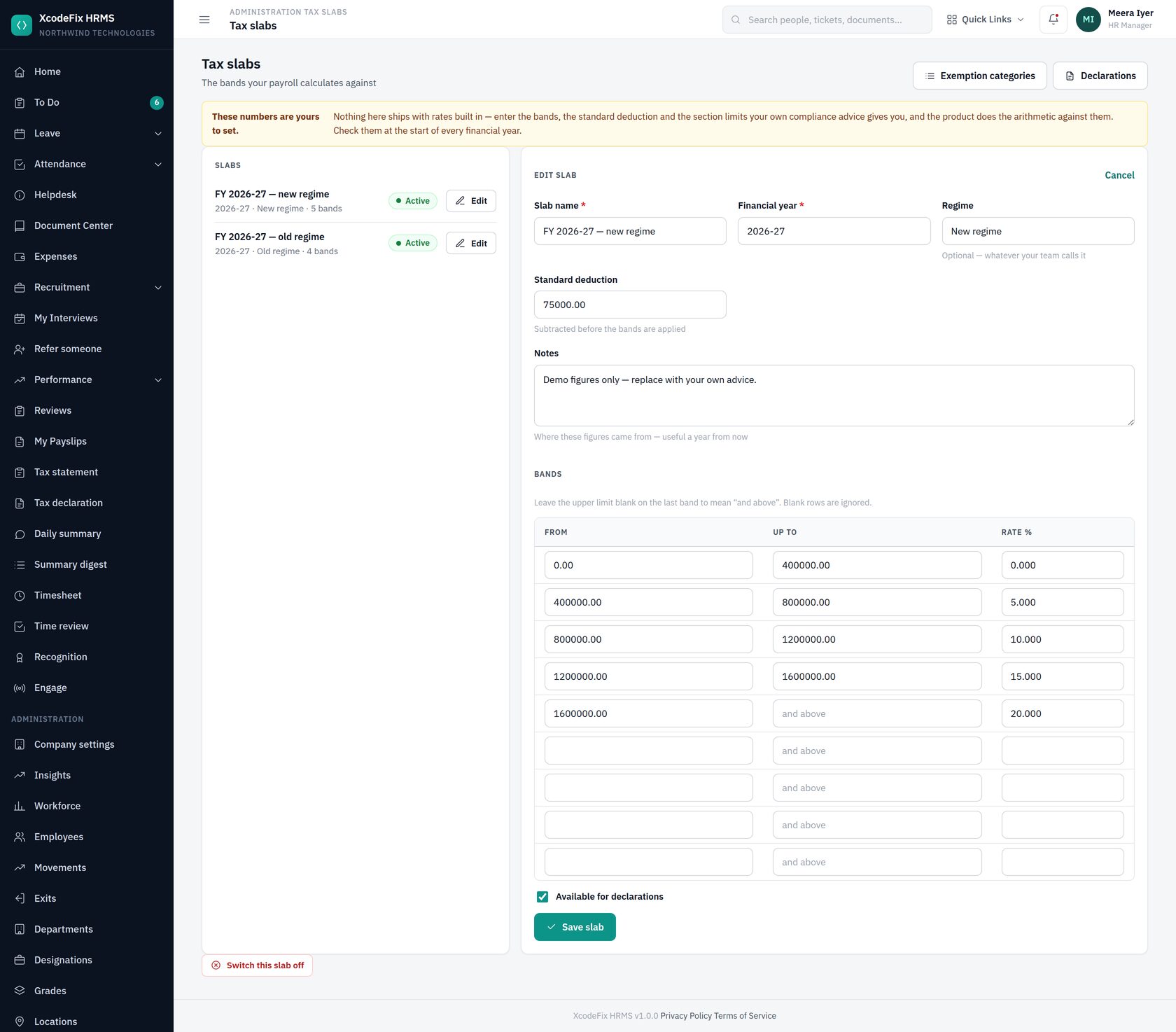
Add one slab per regime you offer. The standard deduction is subtracted before the bands are applied. Leave the upper limit blank on the last band to mean “and above”. The notes field is worth filling in — a year from now, somebody will ask why these numbers.
15.2 Exemption categories
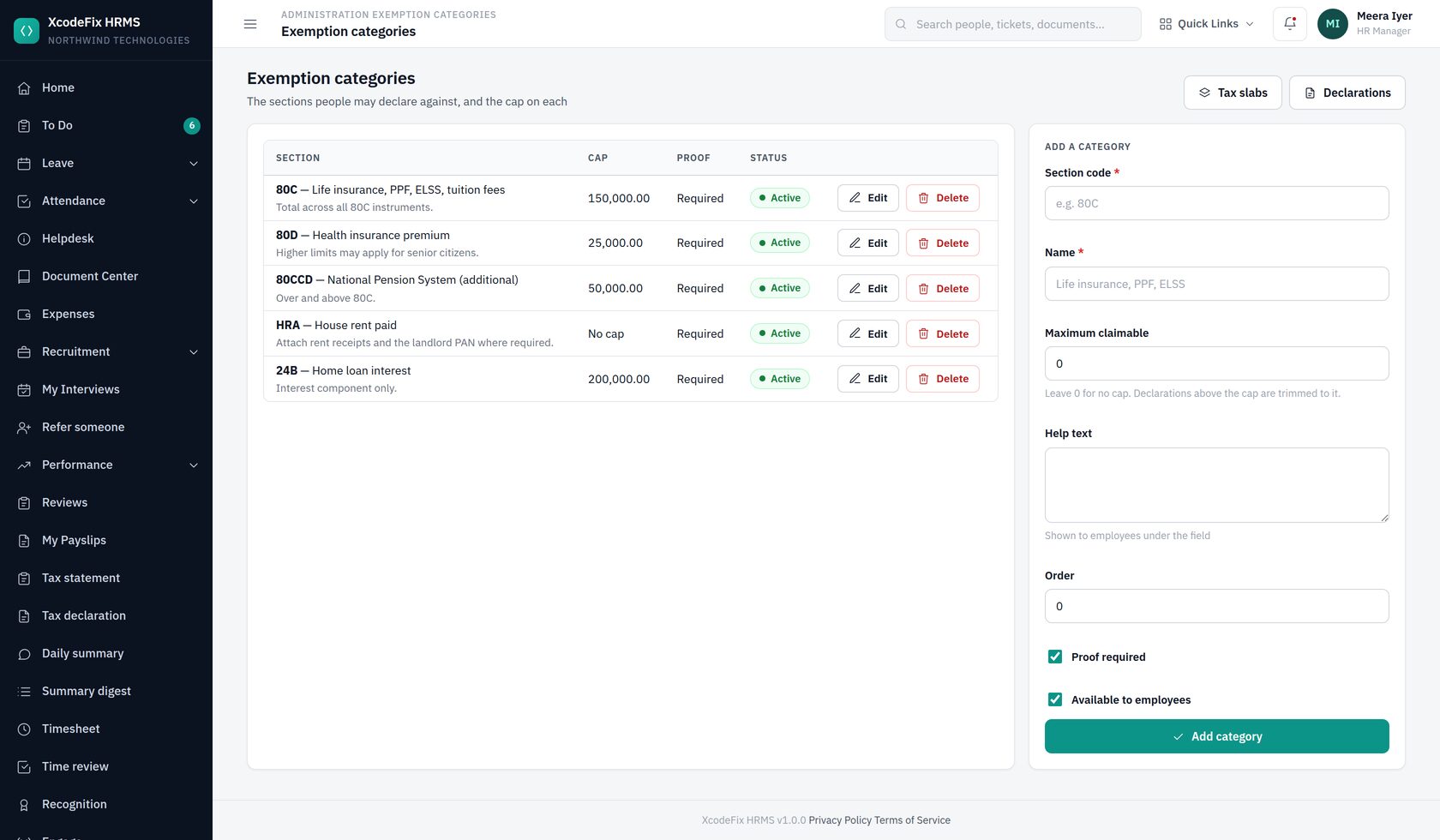
A declaration above the cap is trimmed to the cap when it is saved, not argued about at verification time. The help text you write here is shown to employees under the field, which is the cheapest way to reduce the number of questions you get.
15.3 Verifying proofs
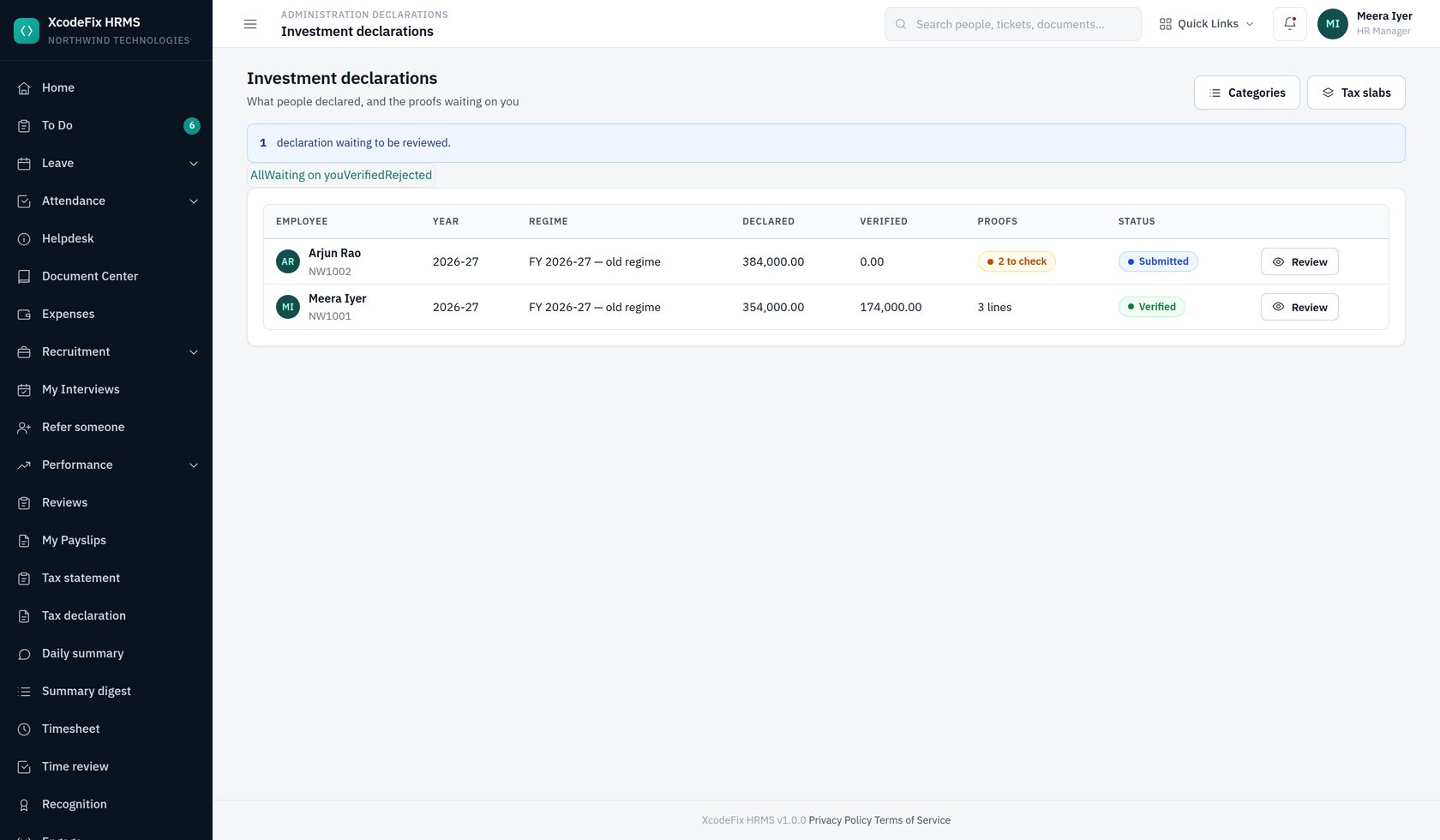
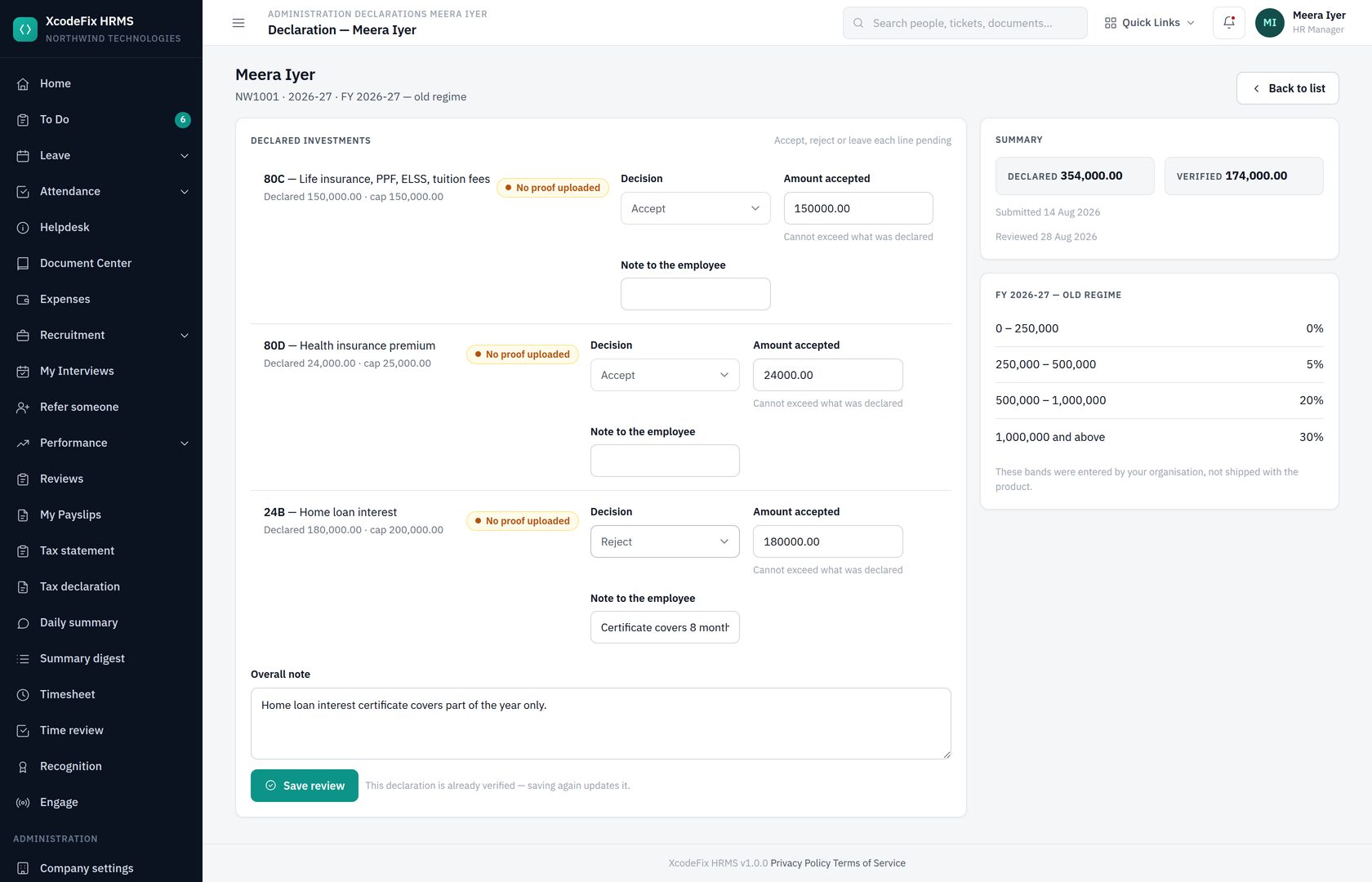
You can accept less than was declared — a certificate covering eight months of the year, say — but never more. Accepting more than somebody claimed would be inventing a claim on their behalf, so the product will not do it whatever is typed in the box.
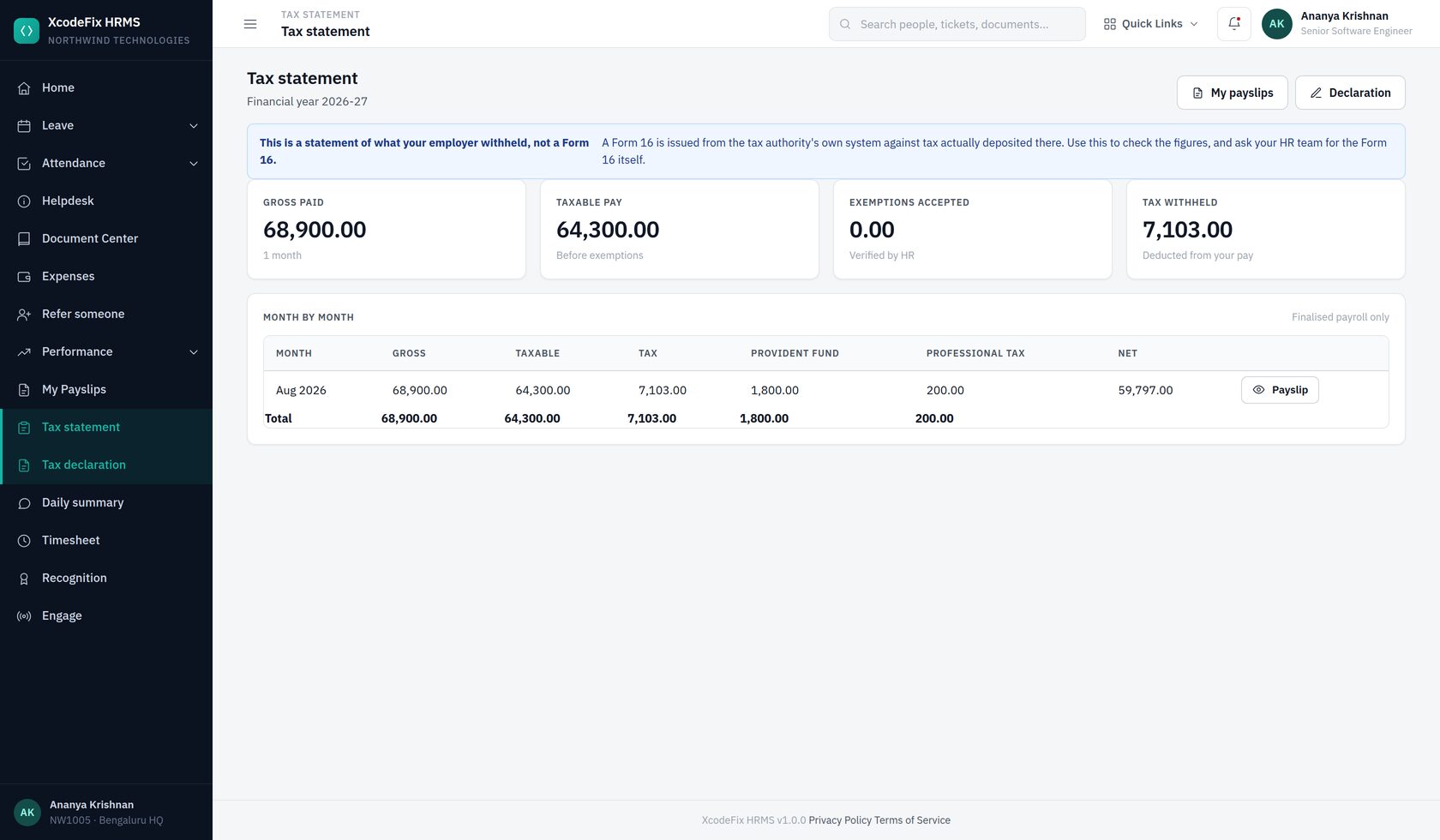
15.4 What was withheld
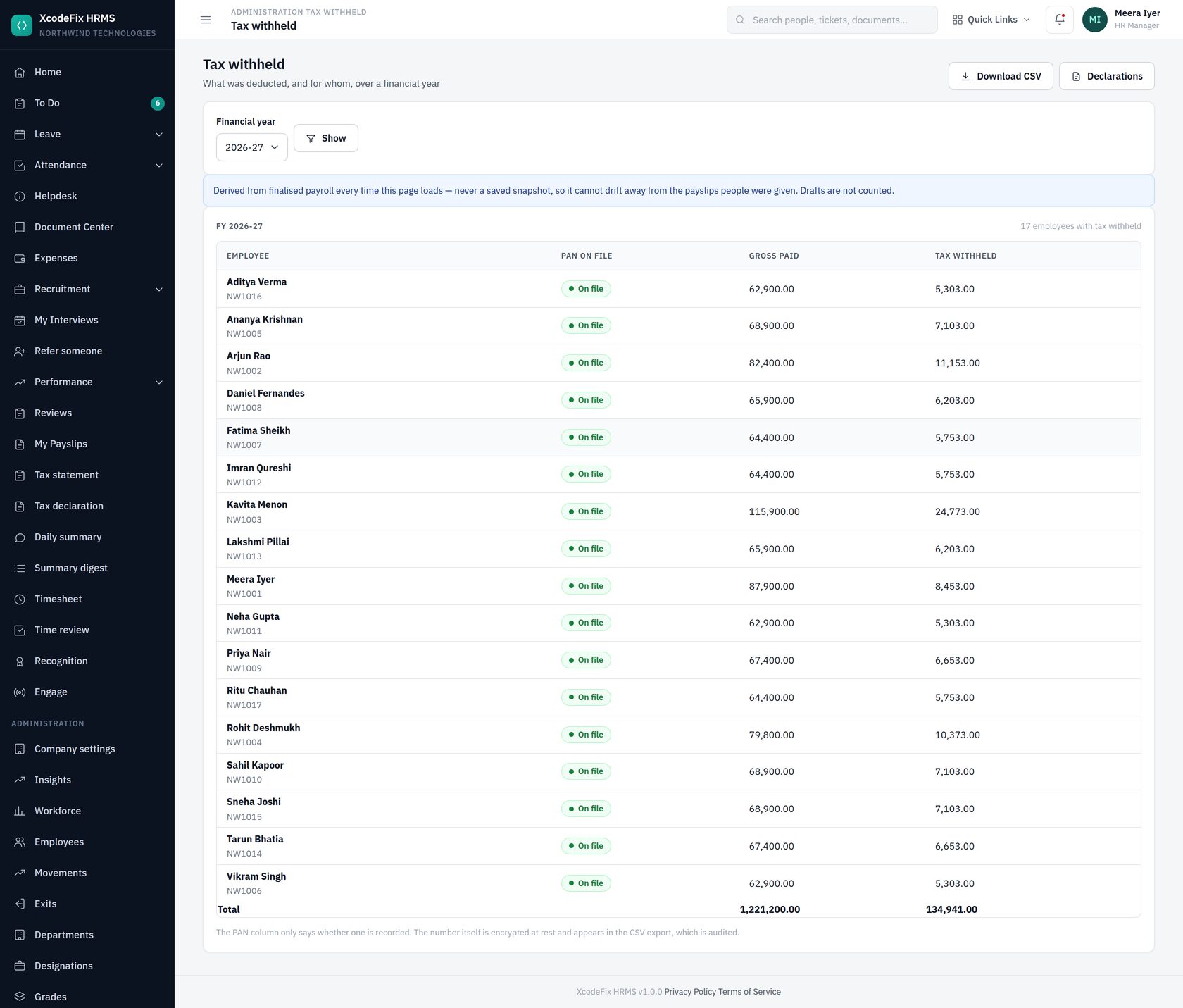
This is derived from finalised payroll every time the page loads — never a saved snapshot, so it cannot drift away from the payslips people were actually given. Draft runs are not counted.
The PAN column only says whether one is on file; the number itself is encrypted at rest and appears in the CSV export, which is audited. A row flagged Missing is worth chasing before you file.
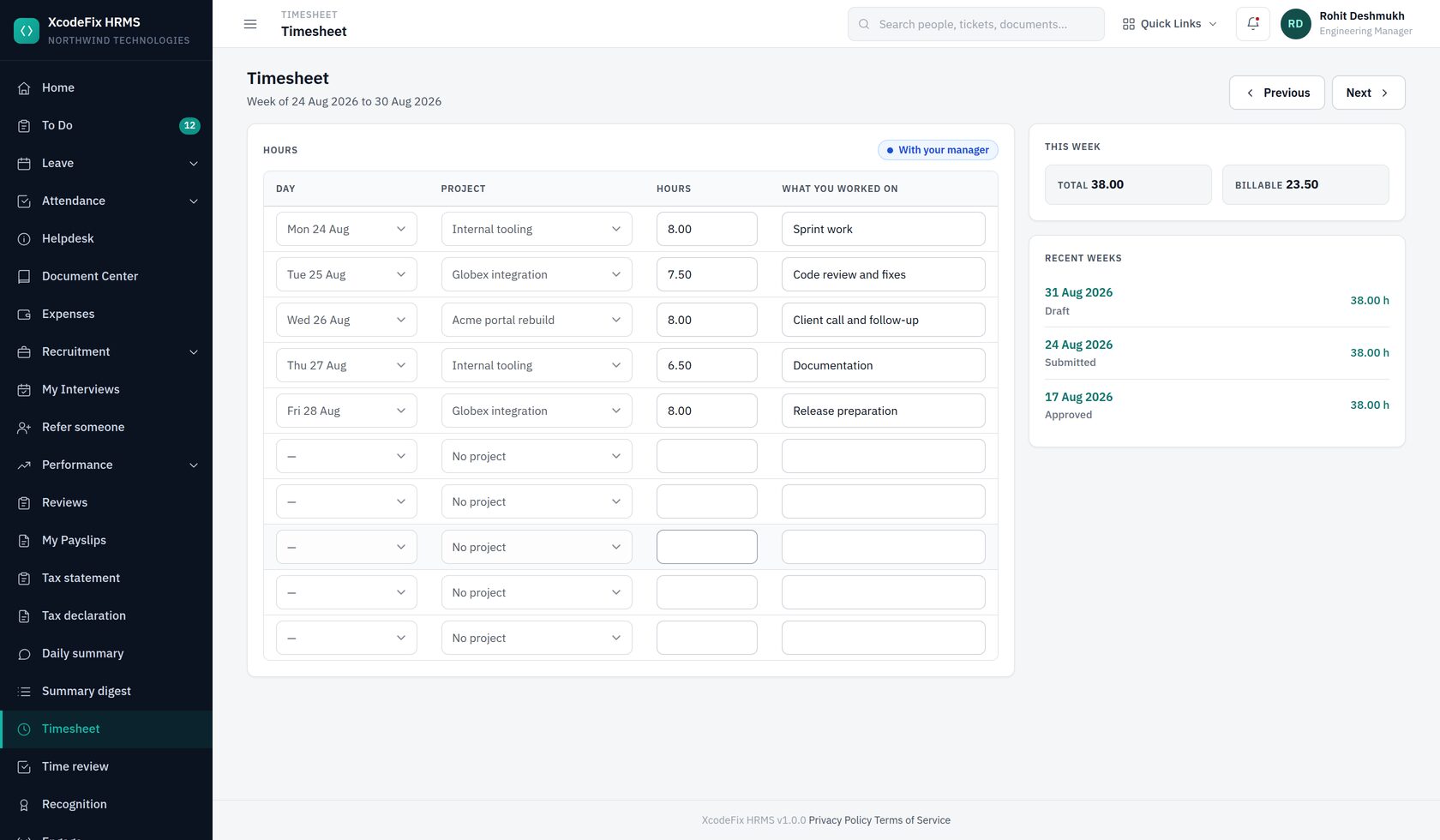
16. Timesheets
A timesheet is a week. The employee fills it in, submits it, and their manager approves or sends it back — the same boundary as a leave application, and for the same reason: once somebody else is relying on the numbers, the person who entered them should not be able to change them quietly.
16.1 Projects
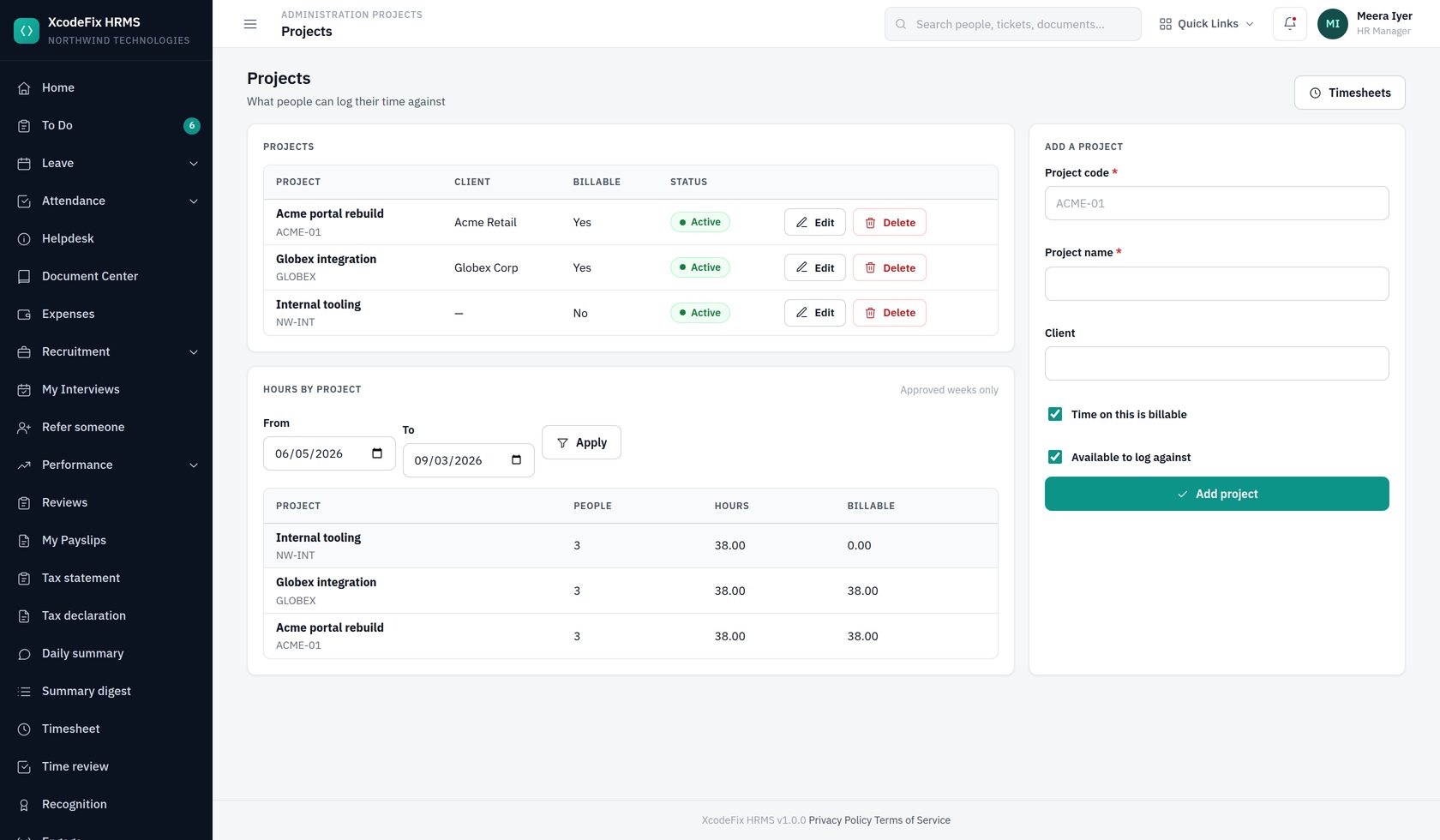
A project marked billable makes every hour logged against it billable. Time can also be logged with no project at all, which is how internal work is recorded without inventing a project for it. The hours report counts approved weeks only — an unapproved week is a claim, not a fact.
16.2 Reviewing the team's weeks
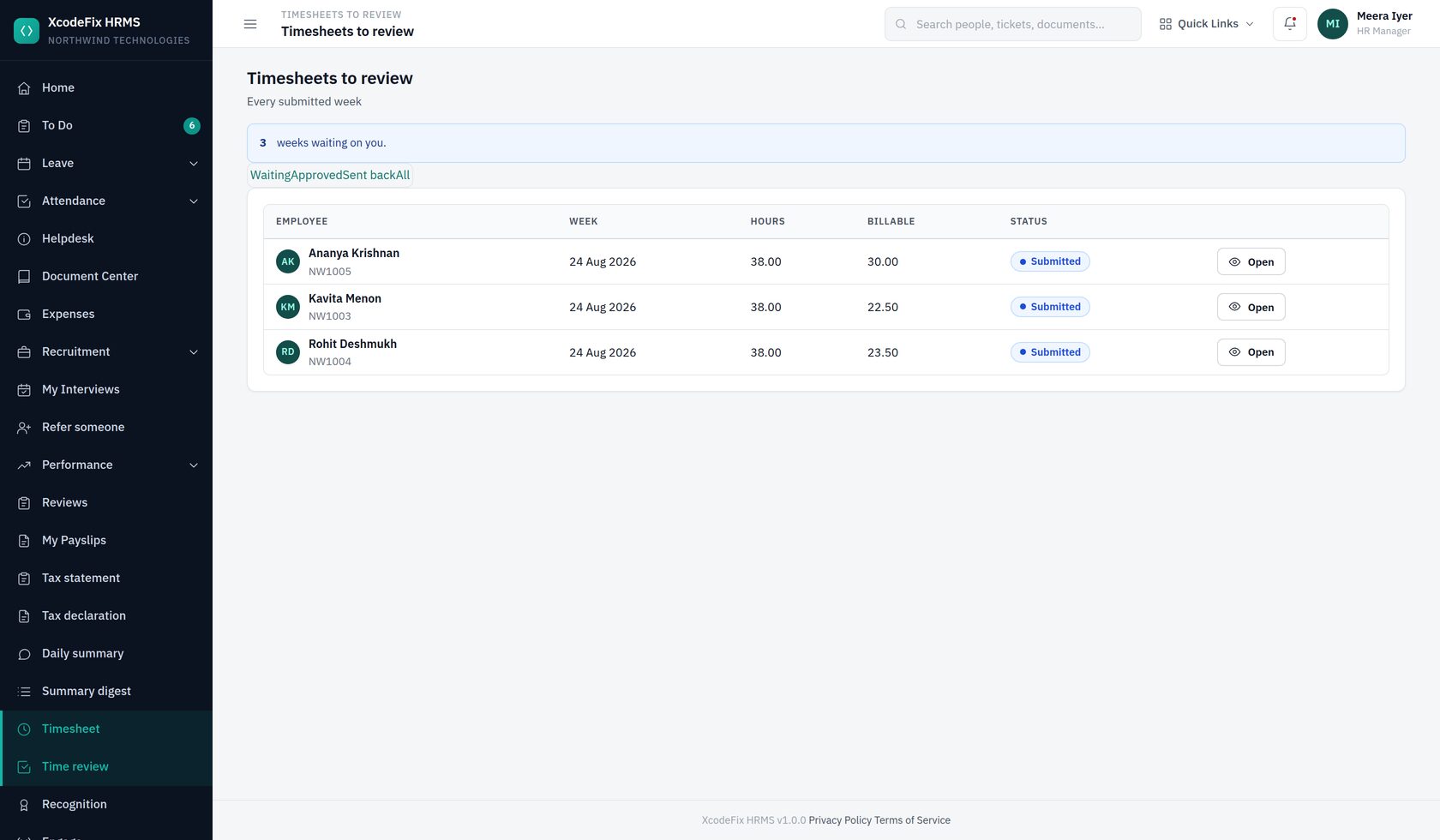
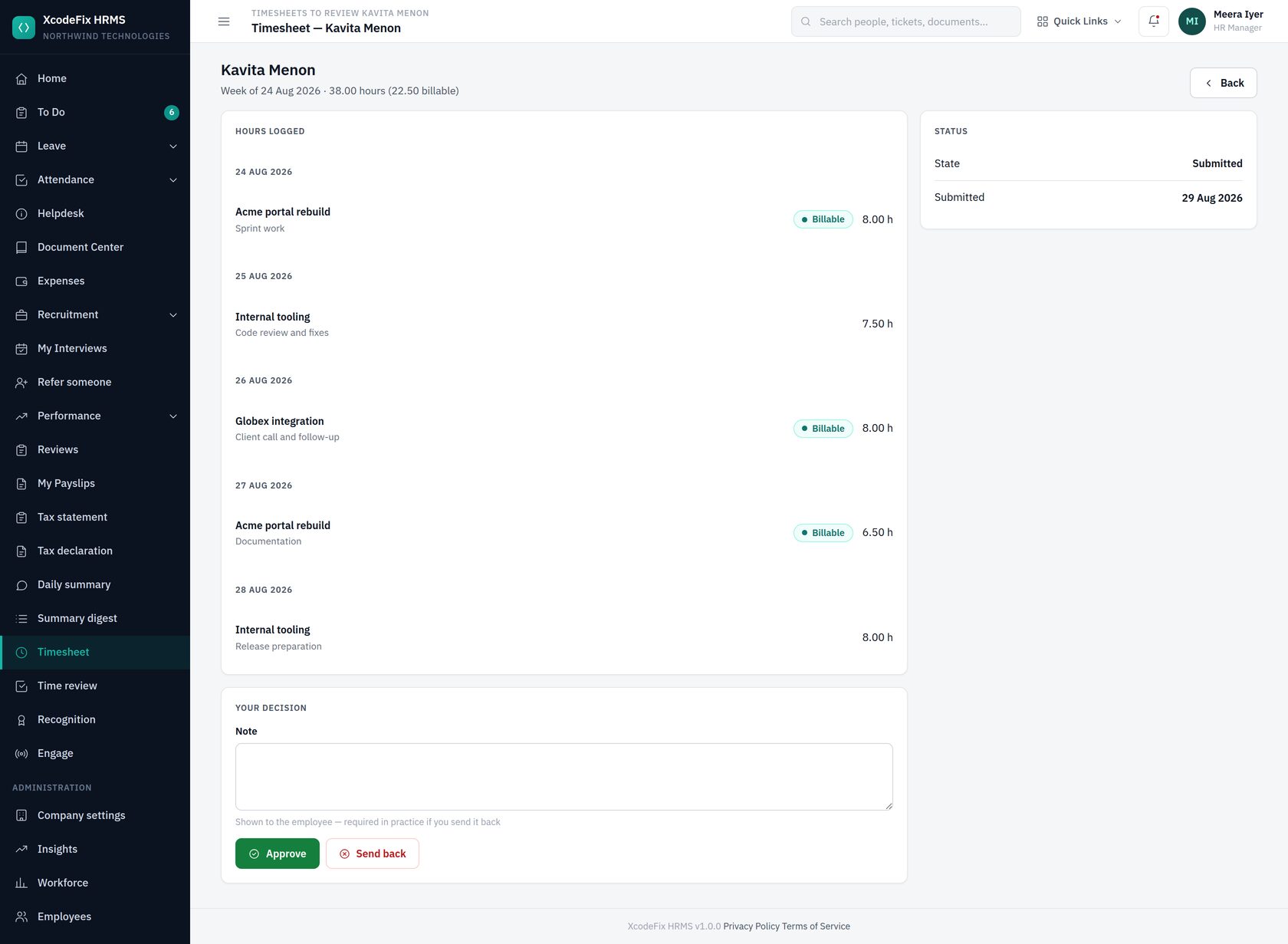
Sending a week back returns it to the employee as a draft to correct and resubmit. Nobody can approve their own timesheet, including an administrator.
17. Workforce analytics and planning
17.1 Insights
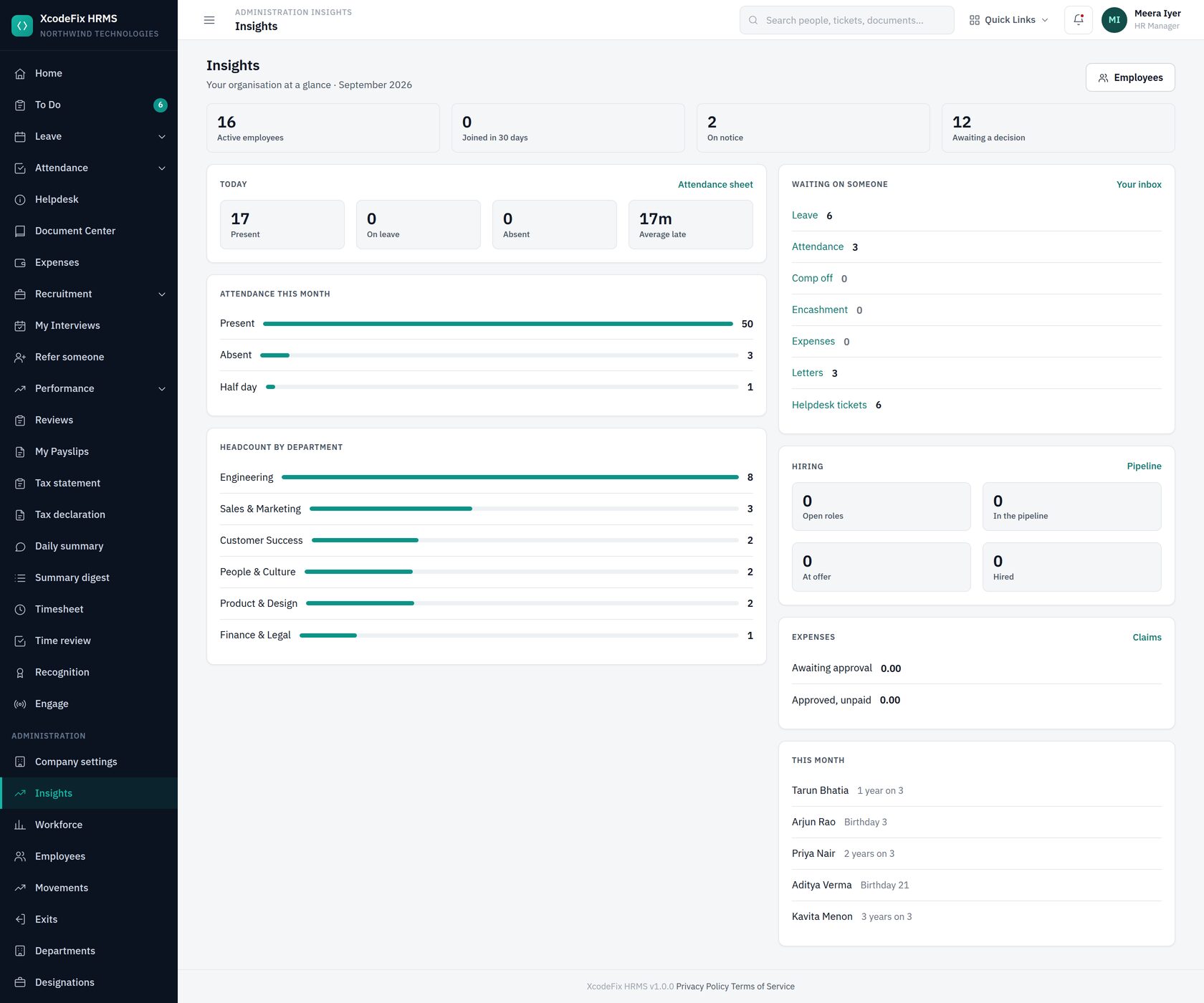
Insights answers “what is happening right now”. The approvals tile is the useful one on a Monday morning — each number links straight to the queue behind it.
17.2 Workforce analytics
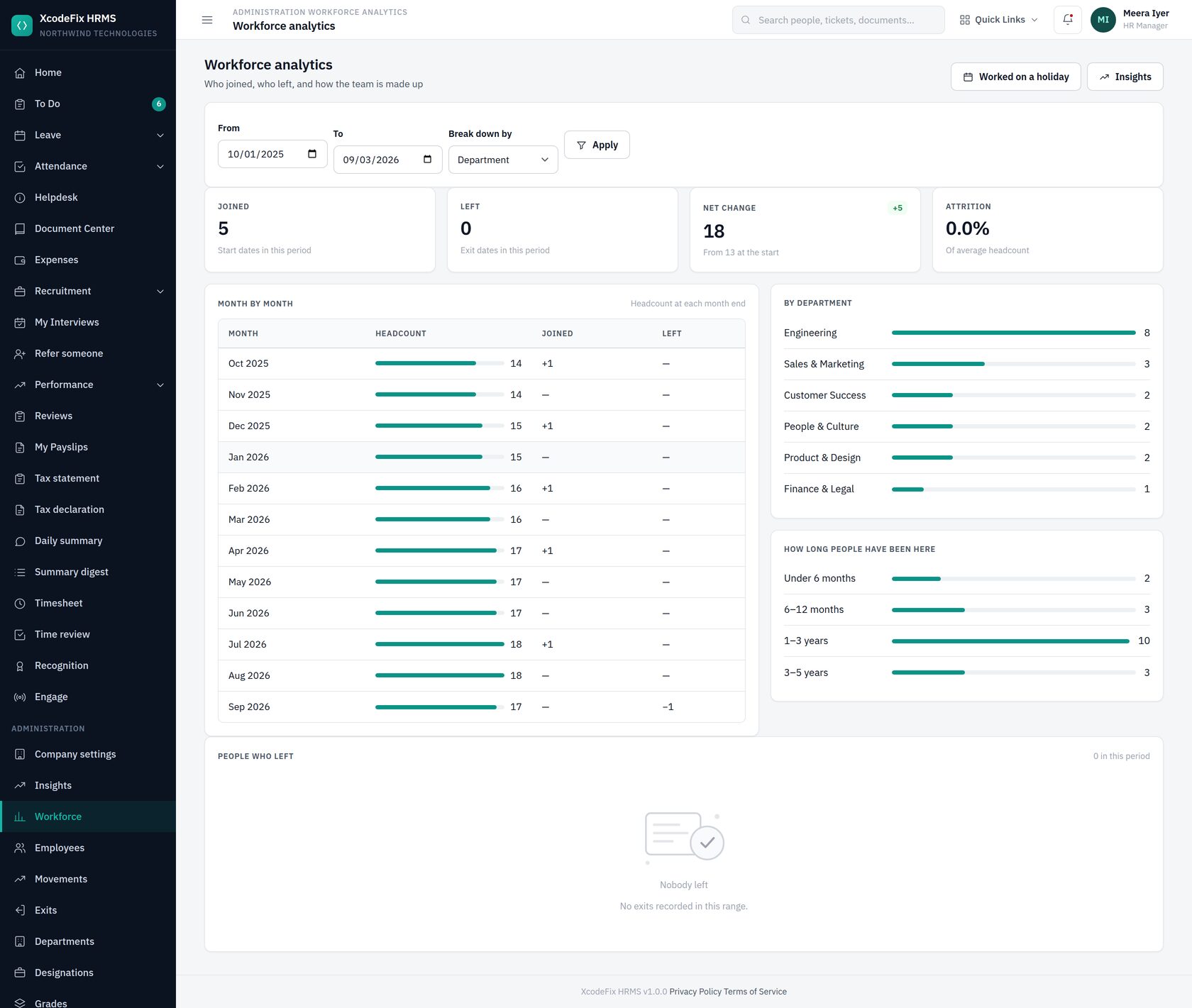
Where Insights is about today, this is about change. Set a period and the report shows who joined, who left, headcount at each month end, and how people are distributed by department, designation, grade, location, employment type or gender.
17.3 Who worked on a holiday
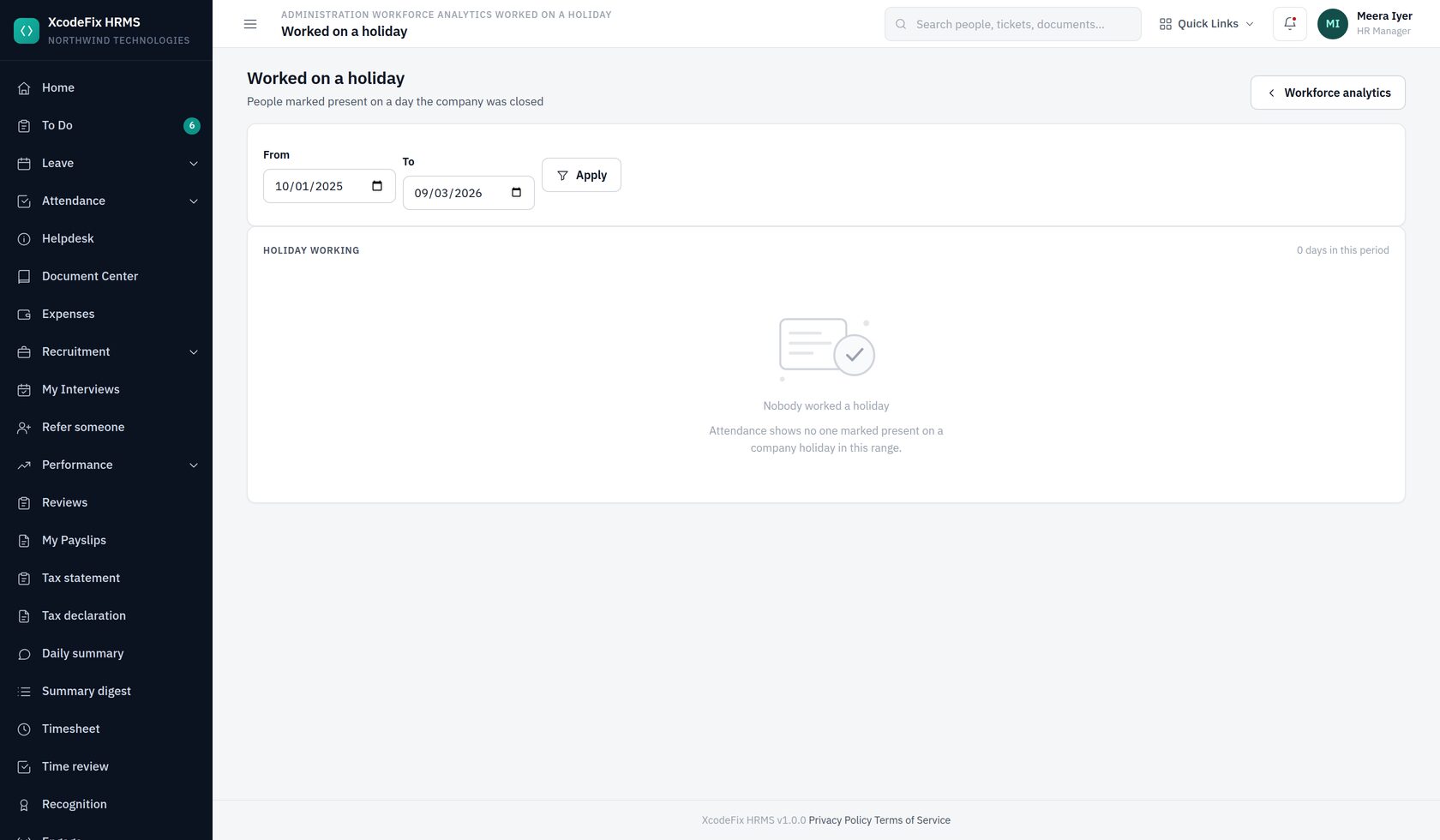
A row here without a compensatory-off claim is not necessarily a problem. It is, however, the list worth checking before somebody notices they were never given the day back.
17.4 Staffing plans
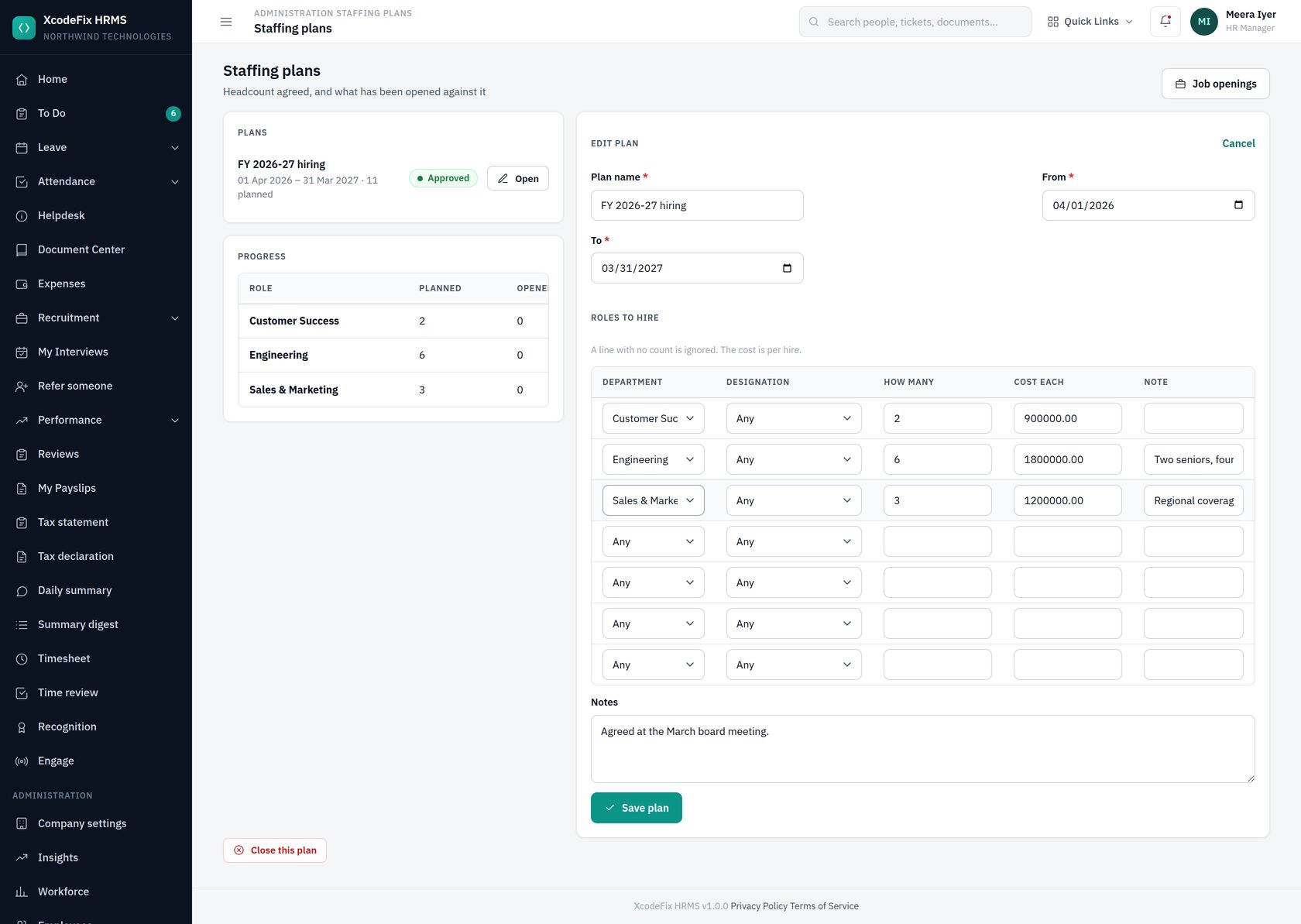
A plan is a budget decision; a job opening is a recruiting activity. Keeping them apart is what lets anyone answer “are we hiring more than we agreed” — a question with no answer if the only record of the agreement is the openings themselves.
- Create the plan with a period and a line per role: department, designation, how many, and the cost of each hire.
- Approve it. Only an approved plan offers its lines to job openings.
- When raising an opening, choose the plan line it draws against. The plan then shows planned, opened and hired side by side, and flags a line that has gone over.
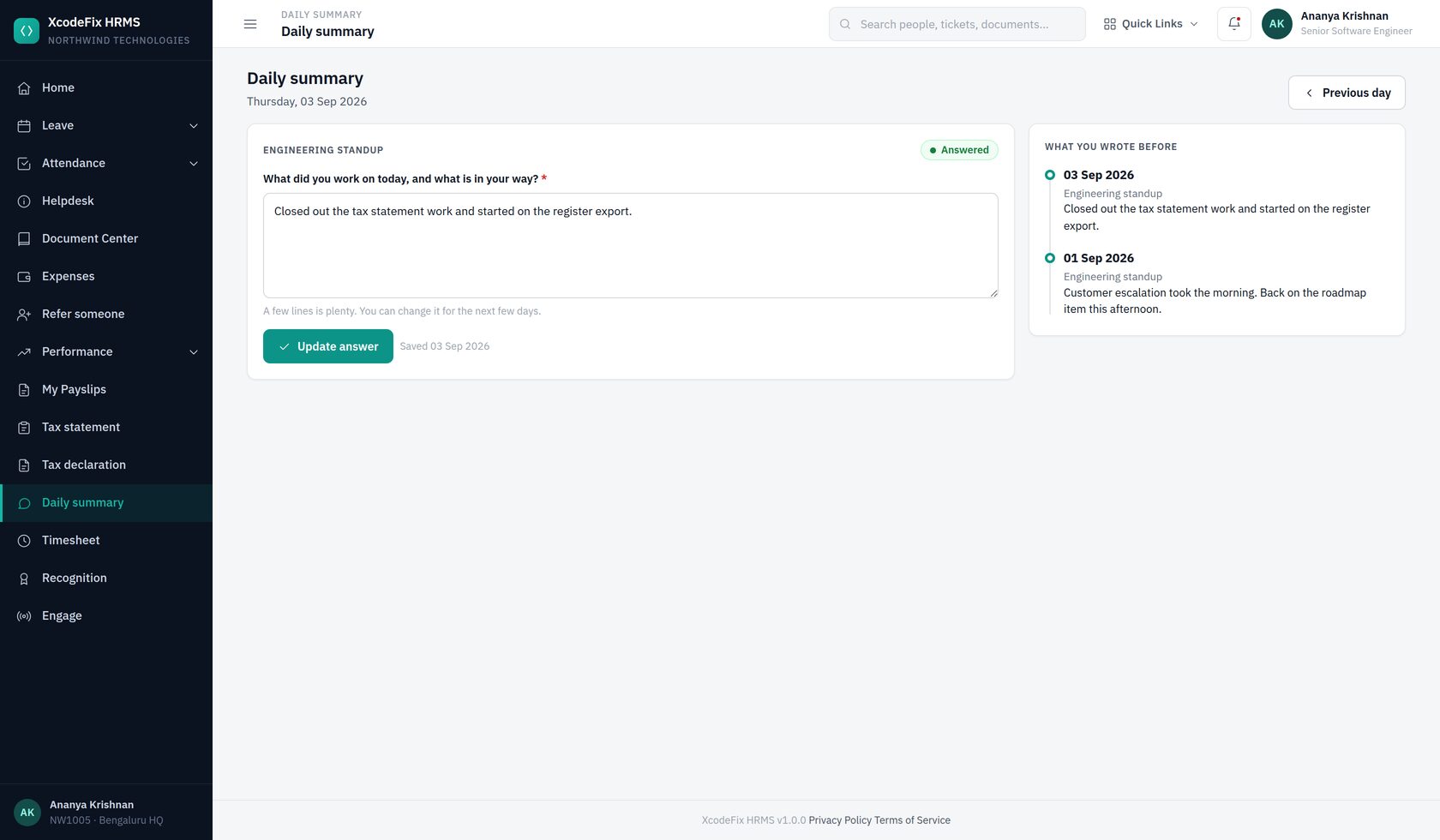
18. Daily work summary
A standing question, asked of a group every working day, with the answers collected in one place. It is not a timesheet and is not trying to be: a timesheet asks how many hours went where and is approved, a summary asks what somebody did and is read. Use either, both, or neither.
18.1 Setting a group up
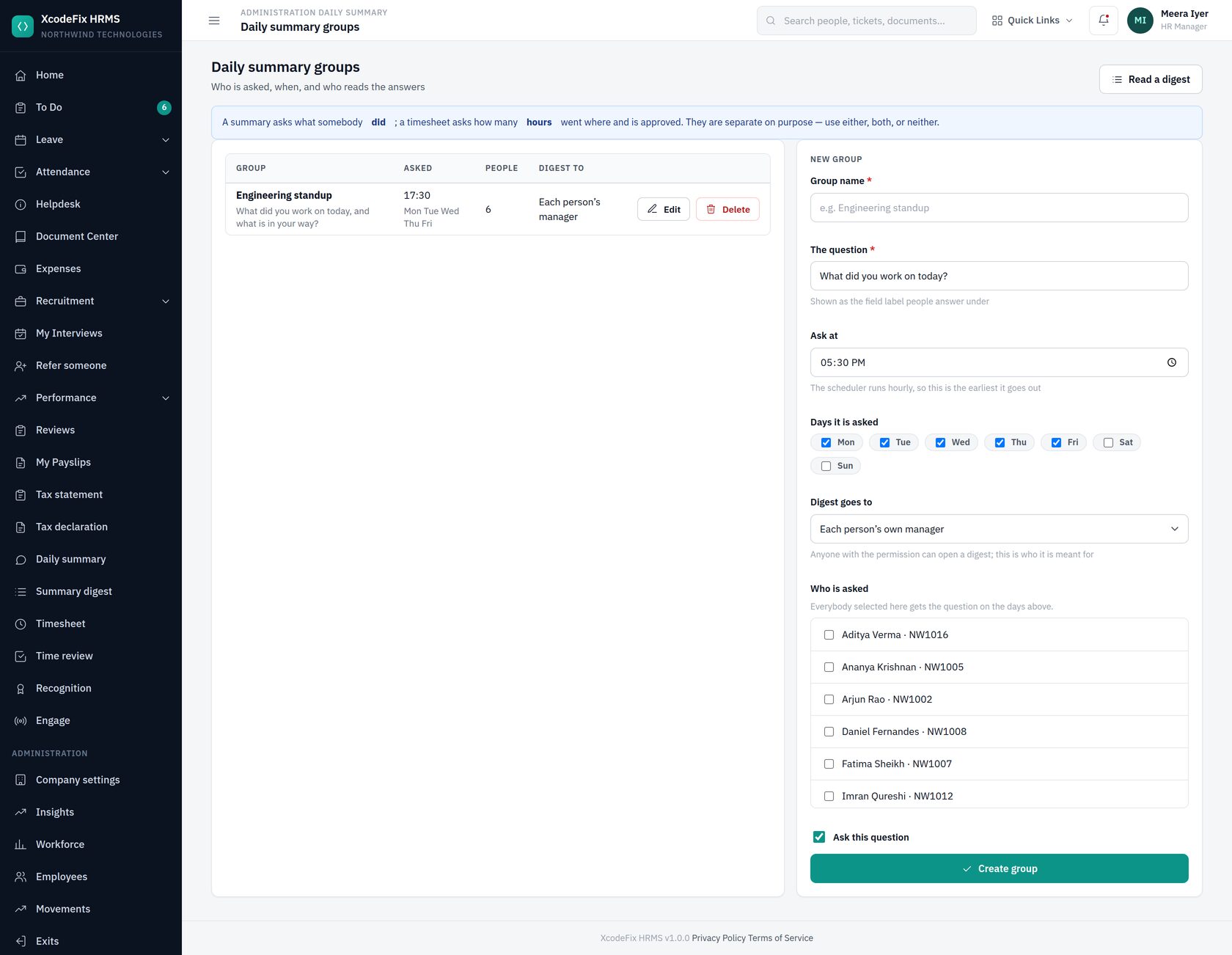
Write the question in your own words — it becomes the label people answer under, so "What did you work on today, and what is in your way?" gets better answers than "Daily update". Pick the time and the days, then tick the people.
18.2 Reading the digest
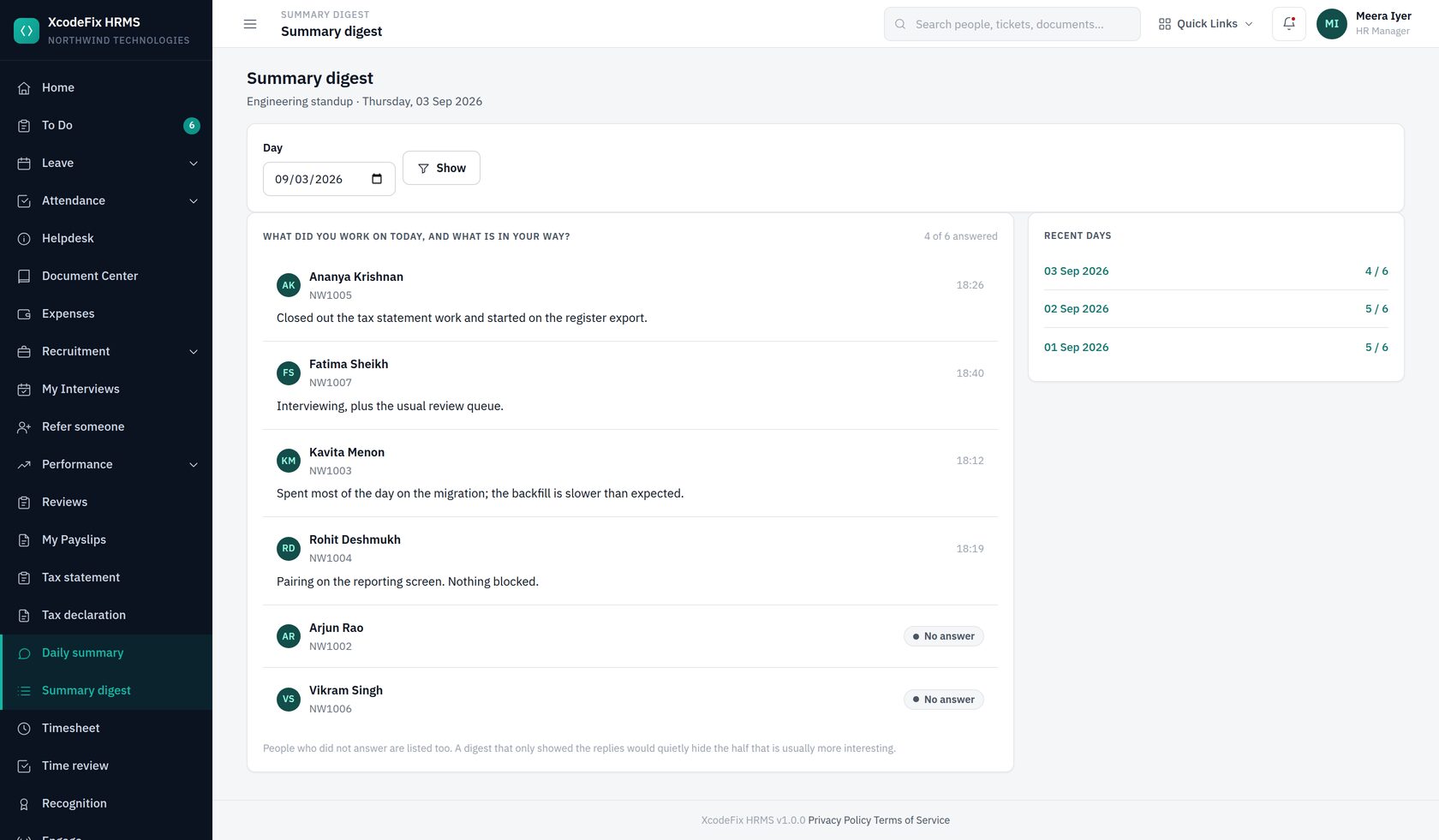
People who said nothing are listed too, marked No answer. A digest that only showed the replies would quietly hide the half that is usually more interesting. The panel on the right gives the last fortnight at a glance — four of six one day and six of six the next tells you something.
People can revise an answer for a week, which is long enough to fix a typo in something their manager is about to read and short enough that the record stays honest.
19. Recognition
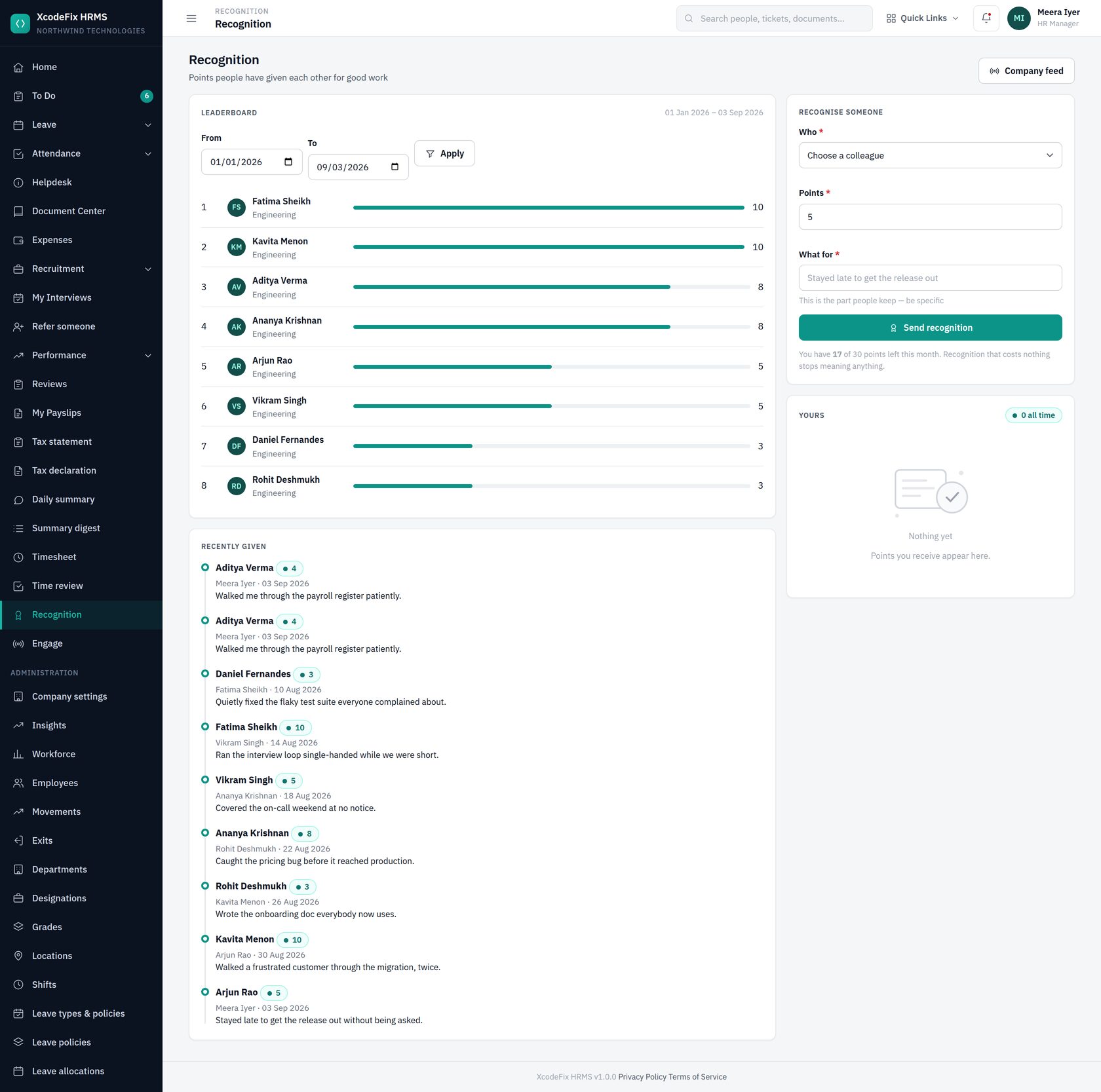
People give each other points with a reason attached. The reason is the part that matters — "Stayed late to get the release out without being asked" is worth reading a year later; "Great work" is not.
Nobody can award themselves, and somebody who has left cannot be recognised. Points are held as a ledger rather than a running total on the employee record, for the same reason leave balances are: a total nobody can explain is worse than no total.
Recognition is a module of its own, so it arrives switched off. Turn it on under Administration → Modules when you are ready for it — nothing appears in anybody's sidebar until you do.
20. Drivers and vehicles
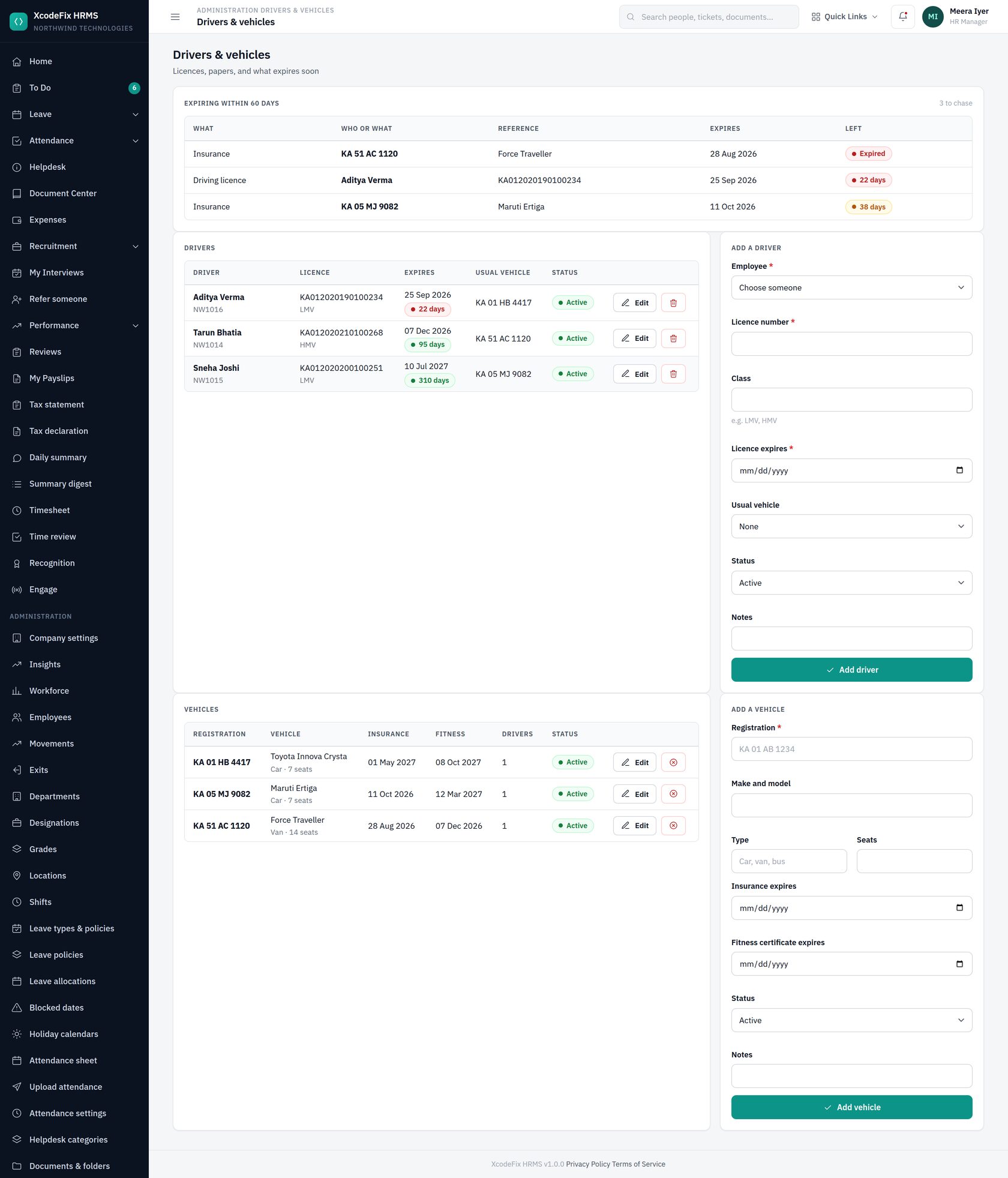
For a company with drivers, the thing that matters is not the fleet list; it is the expiry date somebody has to chase. A driving licence is a compliance date exactly like a probation date, and so are vehicle insurance and fitness certificates.
The list at the top of the screen puts all three together, within sixty days, soonest first, colour coded — red for expired or within a month, amber for within two. Retired vehicles and inactive drivers drop out of it, so it stays a list of things that need doing rather than a list of everything.
| Record | What it holds |
|---|---|
| Driver | An employee, their licence number, class and expiry, the vehicle they usually drive, and whether they are currently active or suspended |
| Vehicle | Registration, make and model, seats, insurance and fitness expiry |
21. Engage administration
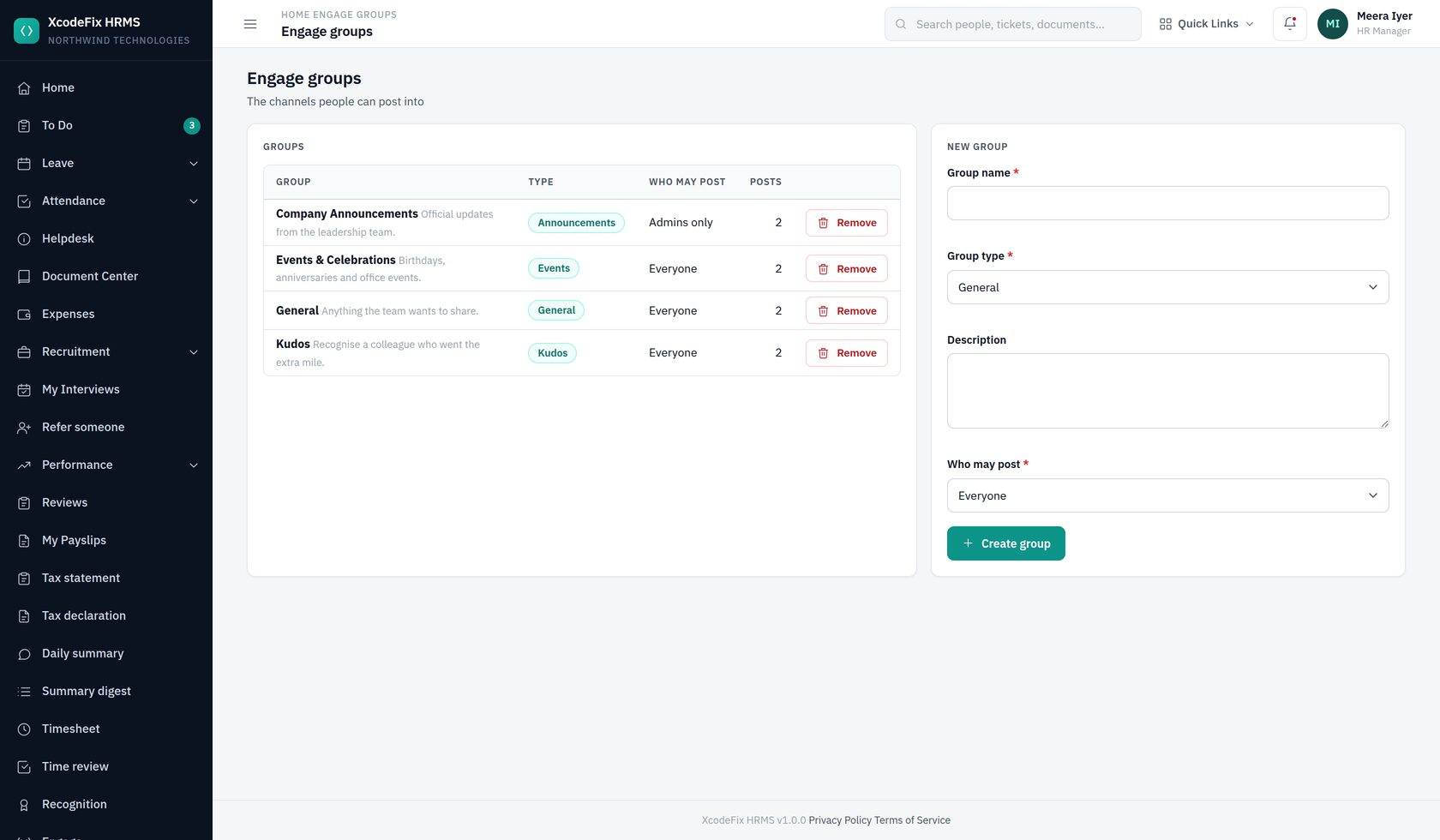
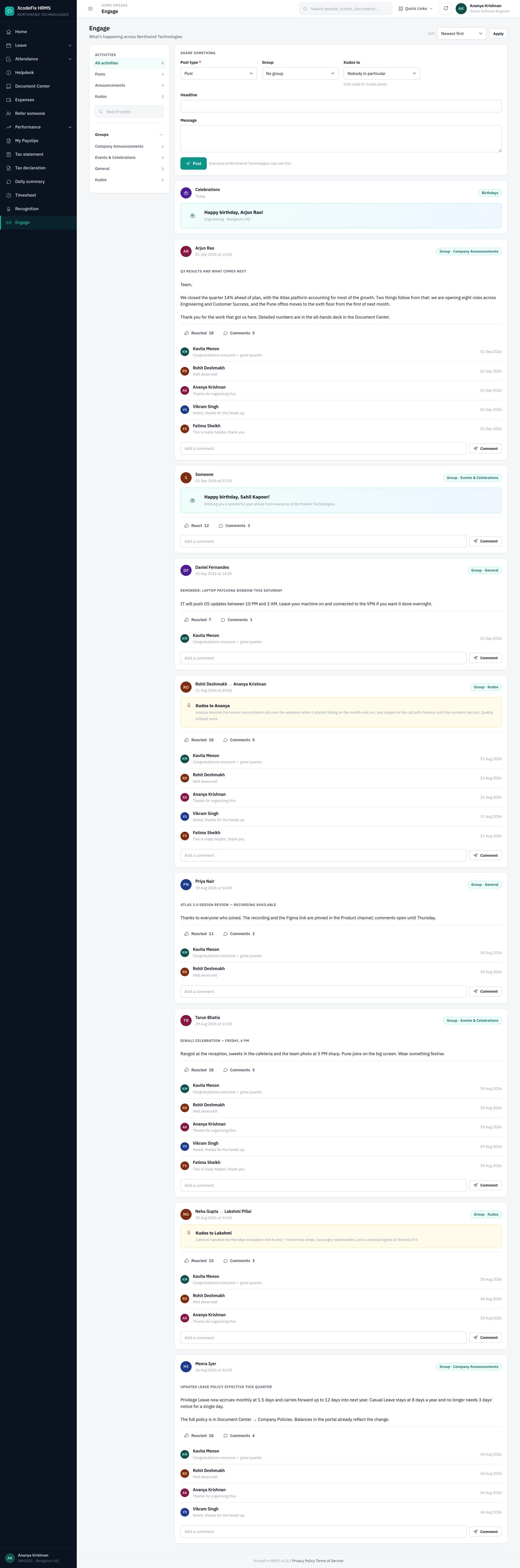
Groups come in four kinds — announcements, general, kudos and events. Set post permission to admins only for the announcements channel so official notices are not buried, and leave the rest open to everyone. Birthday posts are generated automatically each morning from the dates of birth on employee records.
22. Email and templates
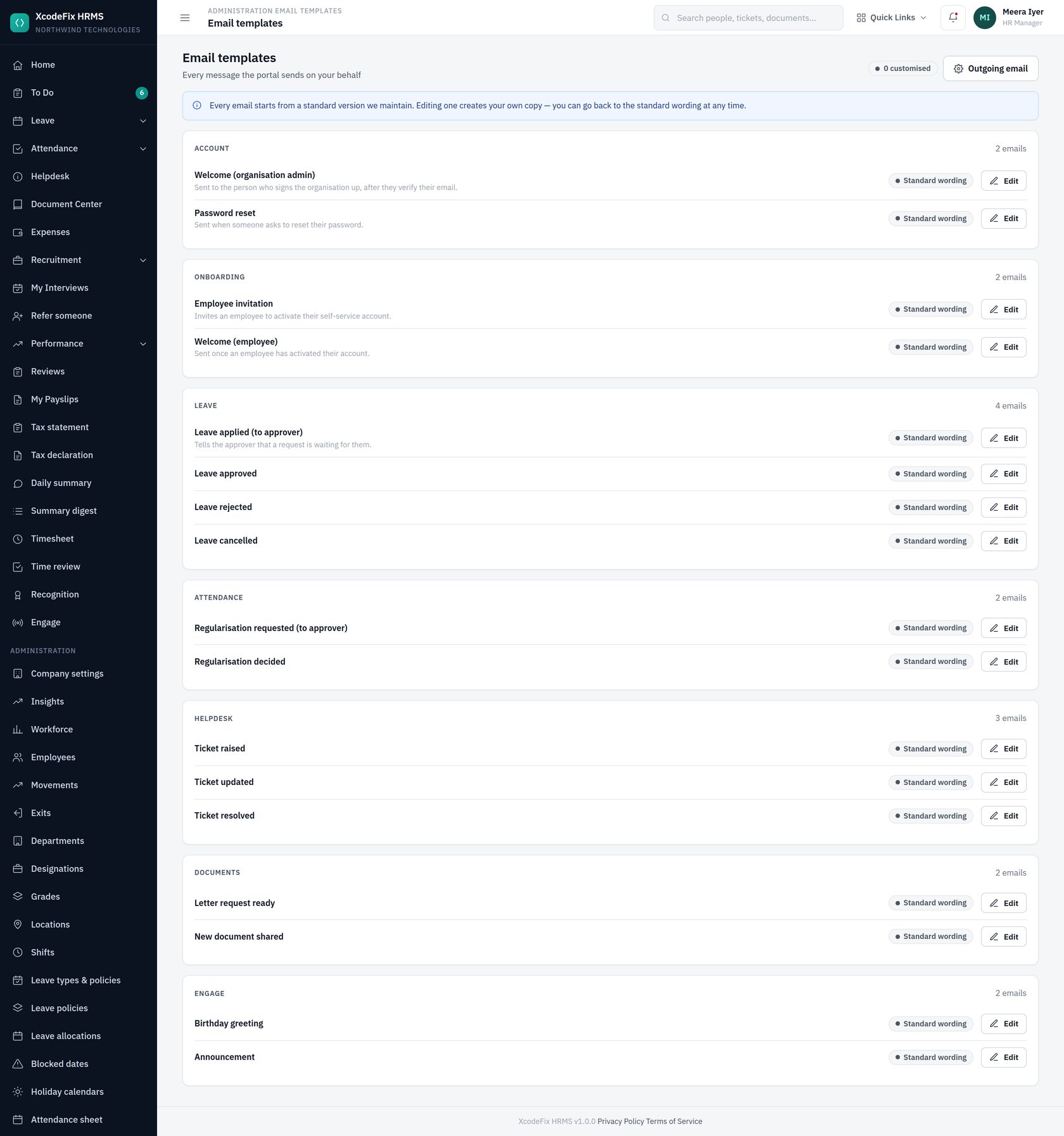
Nothing is sent inline. Every message is rendered at the moment it is queued — so editing a template later never rewrites mail already sent — then delivered by a background worker that retries on failure.
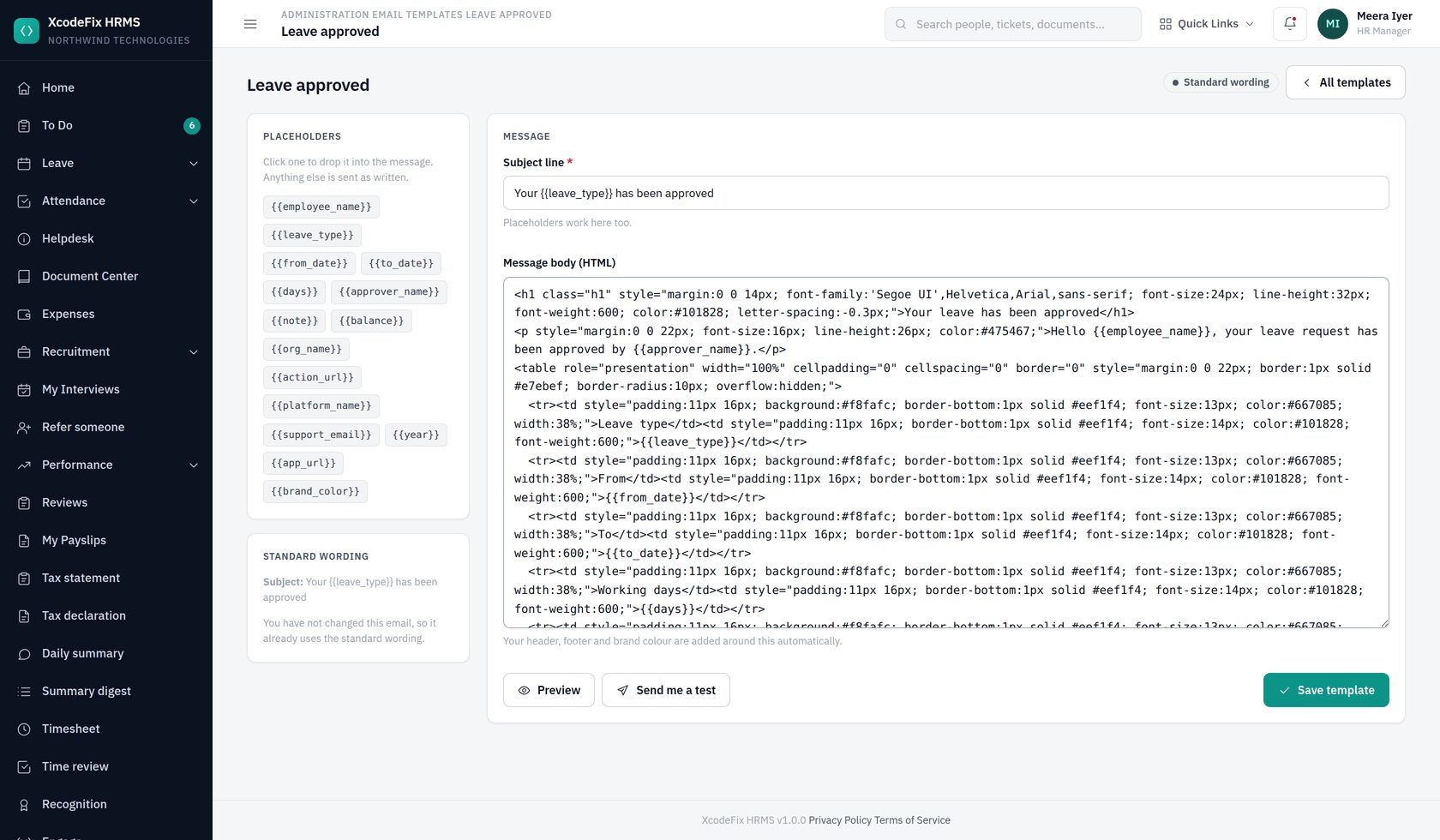
| Group | Messages |
|---|---|
| Account | Welcome (organisation admin), verify email, password reset |
| Onboarding | Employee invitation, welcome (employee) |
| Leave | Applied, approved, rejected, cancelled |
| Attendance | Regularisation applied, regularisation decided |
| Helpdesk | Created, updated, resolved |
| Documents | Letter ready, document shared |
| Engage | Birthday, announcement |
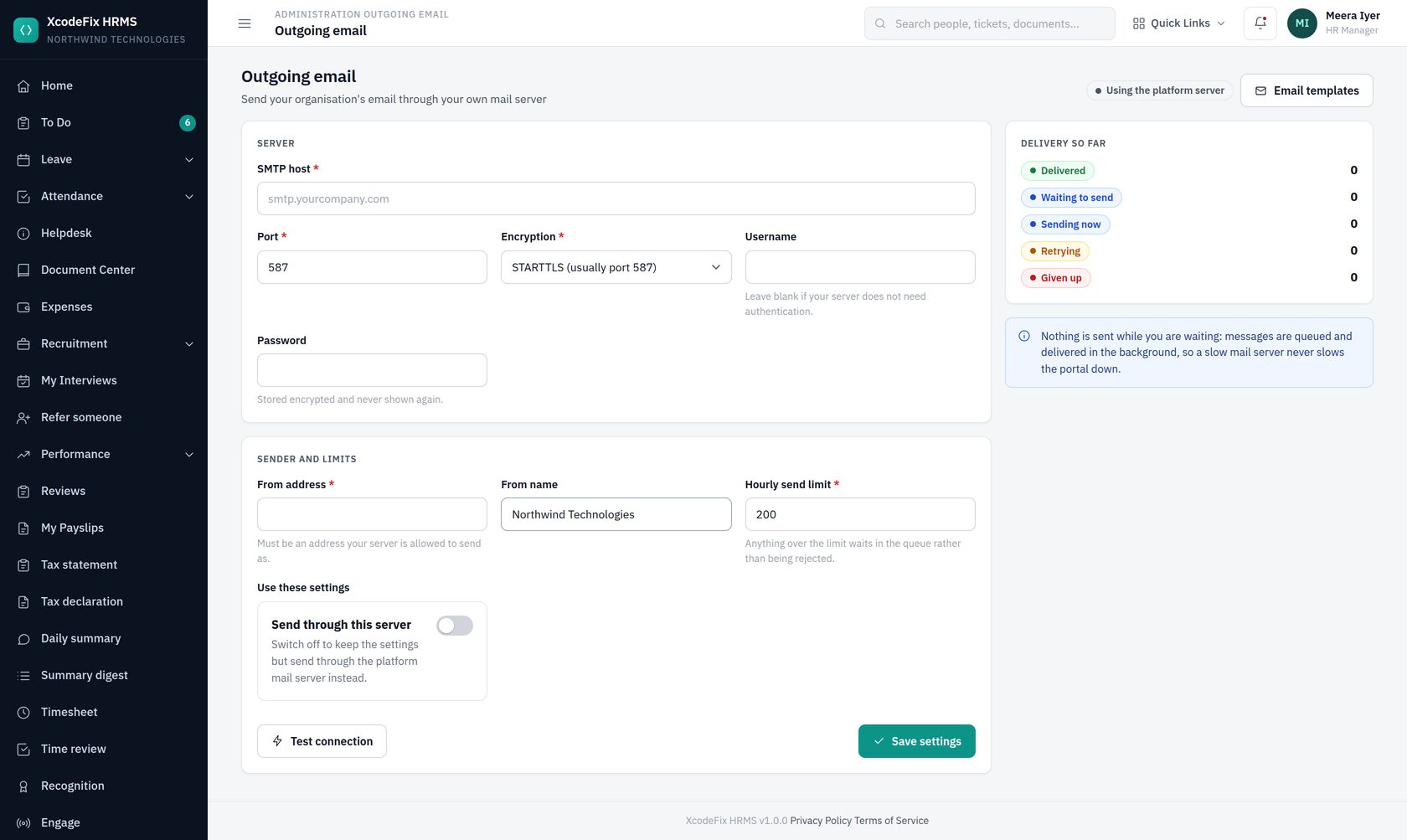
By default, mail goes out from the platform mailbox. Point it at your own SMTP server if you would rather mail arrive from your domain — credentials are encrypted, and a test message confirms the settings before you commit to them.
23. Your To Do inbox
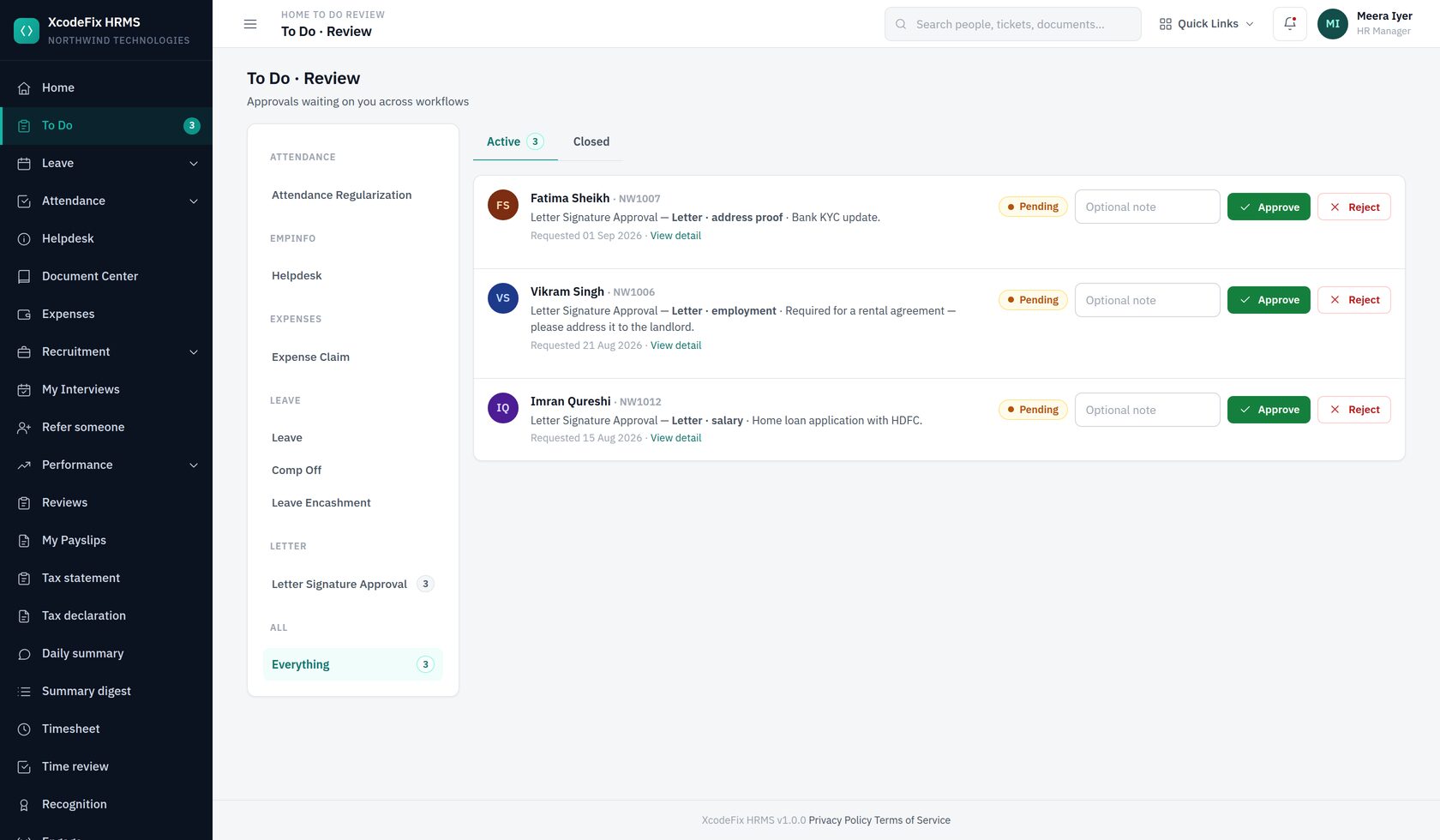
One inbox for every approval in the product — leave, restricted-holiday requests, attendance corrections, letter requests. The sidebar badge shows the outstanding count. Approve or reject in place with an optional note; the Closed tab keeps a record of what you decided and when.
What lands in your inbox depends on your role. Managers see requests from their direct reports. HR sees letter requests and anything from people with no manager mapped.
24. When someone leaves
Leaving is a process, not a flag. Somebody works a notice period, hands things over, gets cleared by three or four different people, is paid what they are owed, and only then does their access stop. Each of those is a record here, because each of them is something people ask about afterwards.
24.1 The clearance checklist
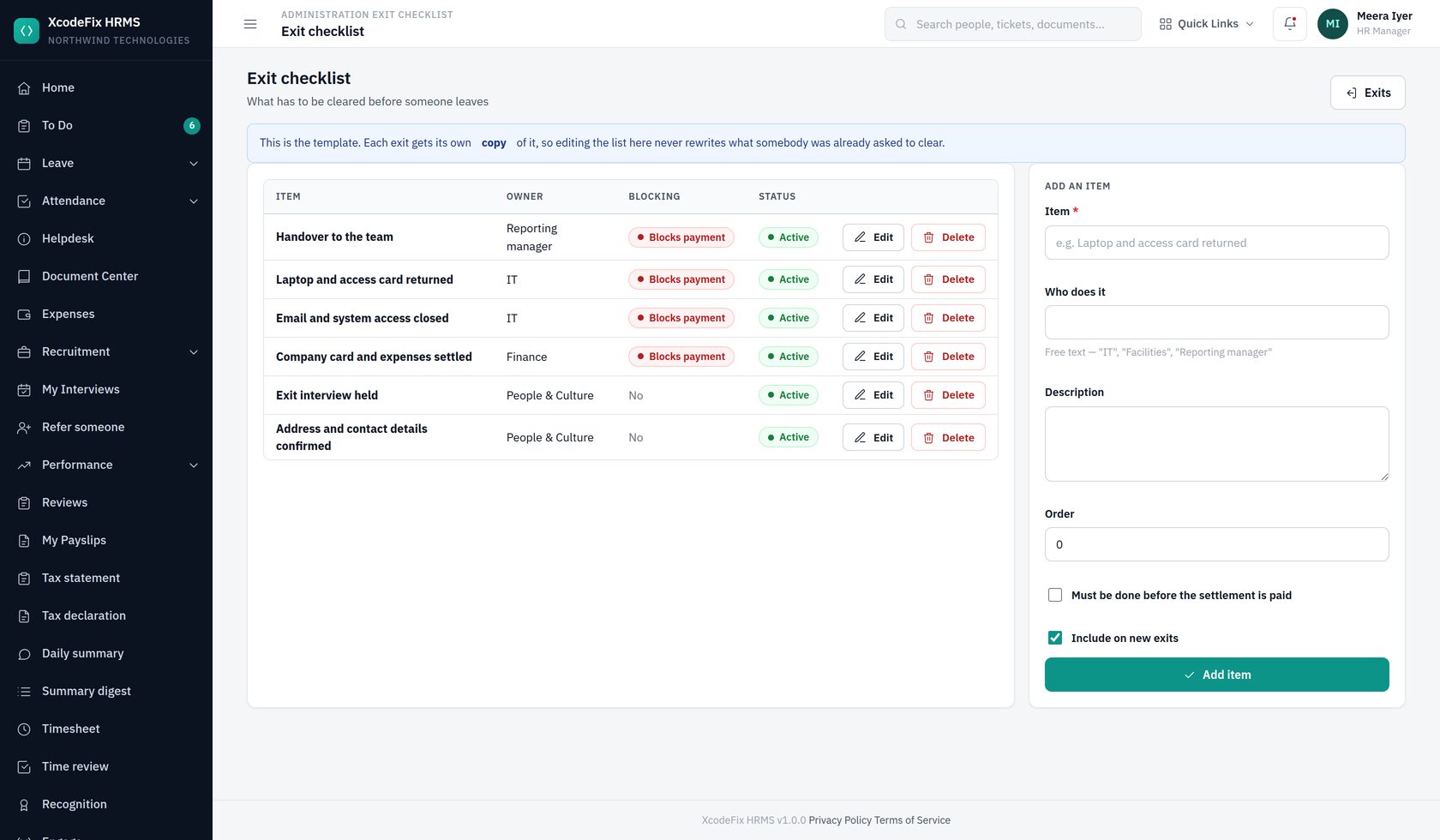
Write the list once. Each item has an owner — free text, because "IT", "Facilities" and "Reporting manager" are not roles the product knows about — and a switch marking it blocking.
Each exit gets its own copy of the list, so editing the template next month never rewrites what somebody was already asked to clear — and deleting an item here leaves clearances already under way exactly as they were.
24.2 Recording an exit
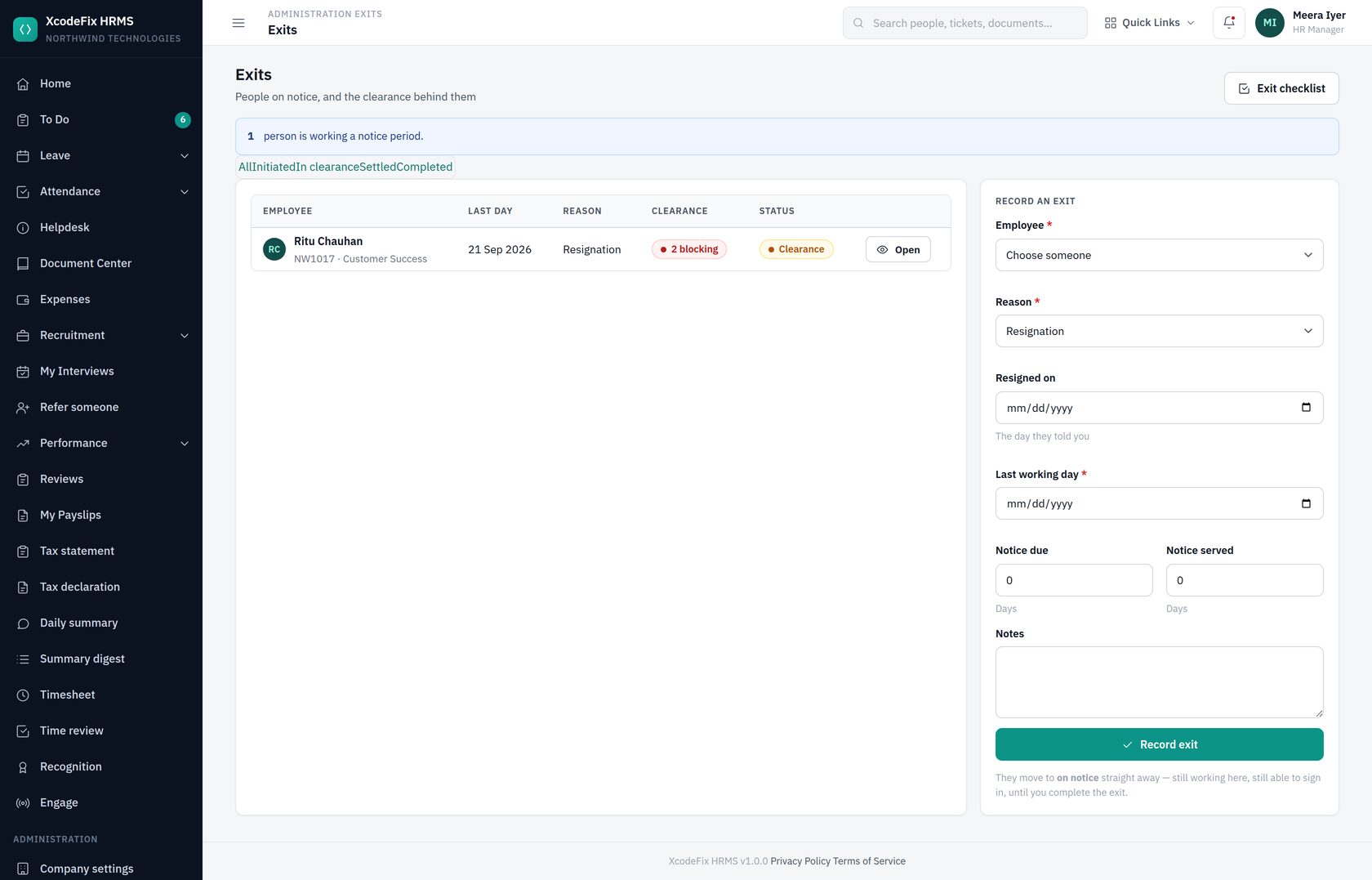
Record the reason, the day they told you, their last working day, and the notice due against the notice actually served. They move to on notice straight away: still employed, still able to sign in, still on the payroll. Nothing stops until you complete the exit.
24.3 Clearance
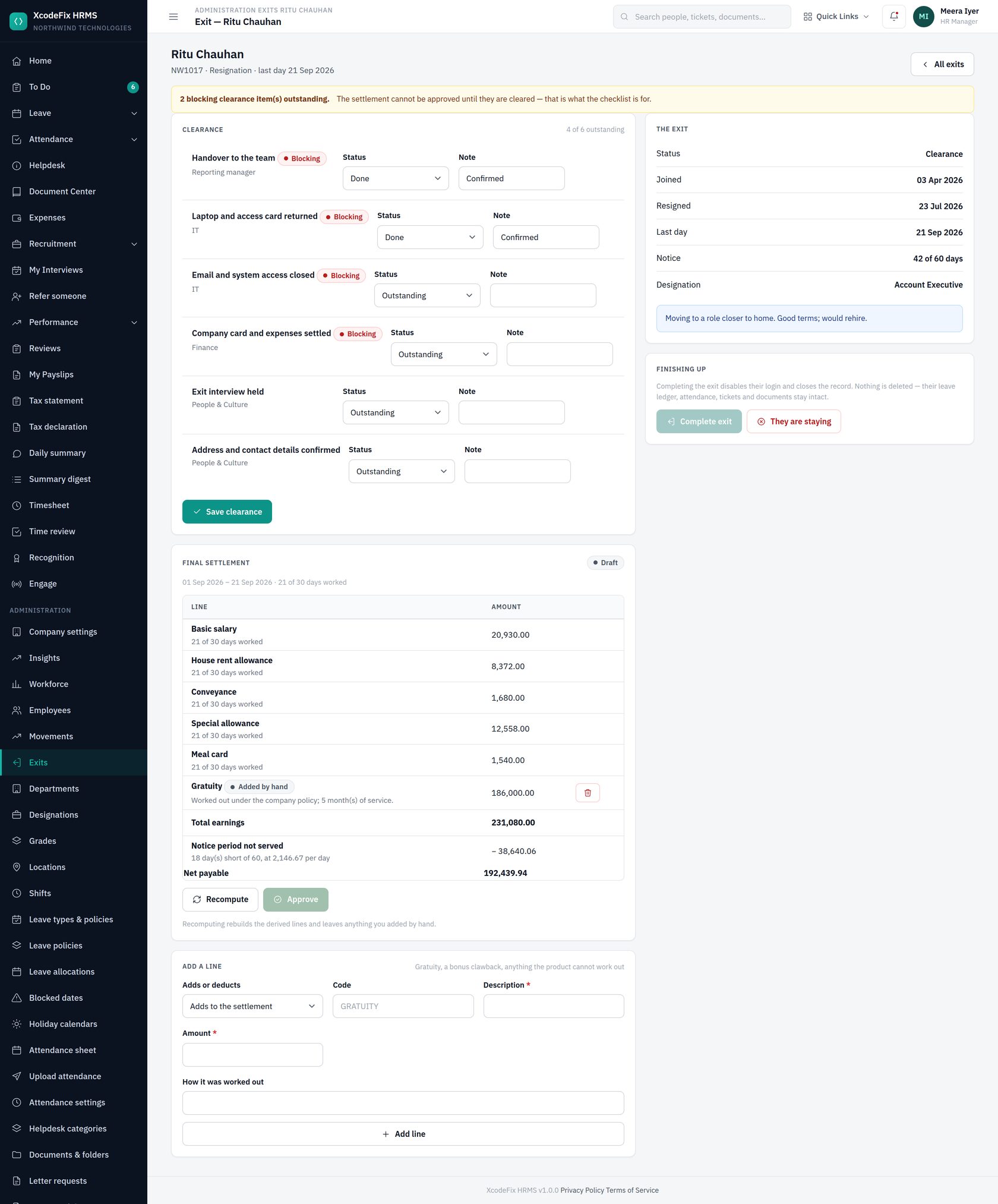
Each item can be marked done, left outstanding, or set to not applicable — which does not block, and is the honest answer for a laptop that was never issued. Notes are visible to whoever picks the exit up next, which is usually not you.
24.4 The final settlement
A settlement is one person on one date, which is why it is not a payroll run. Folding it into a run would mean either running payroll off-cycle for one leaver or holding their money until month end.
Build works out the part the product actually knows:
| Line | Where it comes from |
|---|---|
| Salary for the days worked | Their salary structure, pro-rated to the days of the final month they were here. Components marked as not pro-rating are paid in full |
| Leave encashment | Unused days on leave types you allow to be cashed in, at a day's pay — a month's gross over the days in the month. The line says so, so nobody has to reverse-engineer it |
| Notice not served | The shortfall between notice due and notice served, at the same day rate |
Everything else — gratuity, a retention clawback, a goodwill payment, an asset never returned — is a line you add by hand, with a note saying how you worked it out.
Approve, then record the payment with its reference. Approval is refused while a blocking clearance item is outstanding, and the button is disabled until it is cleared.
24.5 Completing the exit
The last step disables their login, ends their sessions, and closes the record.
People who have left appear in Workforce analytics under people who left, with their tenure, which is where an attrition conversation starts.
25. Reference
25.1 Permissions at a glance
| Capability | Org admin | HR manager | Manager | Employee |
|---|---|---|---|---|
| View and edit own profile | ✓ | ✓ | ✓ | ✓ |
| Apply for leave, raise tickets, request letters | ✓ | ✓ | ✓ | ✓ |
| Approve leave and attendance corrections | ✓ | ✓ | ✓ | — |
| View and manage all employees | ✓ | ✓ | team only | — |
| Invite employees | ✓ | ✓ | — | — |
| Leave types, policies, holiday calendars | ✓ | ✓ | — | — |
| Attendance settings | ✓ | ✓ | — | — |
| Helpdesk categories, documents, letters | ✓ | ✓ | — | — |
| Raise expense claims | ✓ | ✓ | ✓ | ✓ |
| Approve expense claims | ✓ | ✓ | ✓ | — |
| Expense types, mark claims paid | ✓ | ✓ | — | — |
| Refer a candidate | ✓ | ✓ | ✓ | ✓ |
| Conduct interviews, give feedback | ✓ | ✓ | ✓ | — |
| Manage openings, candidates and offers | ✓ | ✓ | — | — |
| Company settings, modules, roles, audit trail | ✓ | — | — | — |
| Email templates and outgoing mail | ✓ | — | — | — |
25.2 Employee import template
emp_code,first_name,last_name,email,department,designation,location,join_date,manager_email
NW1004,Rohit,Deshmukh,rohit.deshmukh@example.com,Engineering,Engineering Manager,Pune,2024-02-13,kavita.menon@example.com
NW1005,Ananya,Krishnan,ananya.krishnan@example.com,Engineering,Senior Software Engineer,Bengaluru HQ,2024-06-13,rohit.deshmukh@example.com
NW1006,Vikram,Singh,vikram.singh@example.com,Engineering,Software Engineer,Pune,2025-06-13,rohit.deshmukh@example.com
25.3 What runs automatically
| When | What happens |
|---|---|
| Every minute | Queued email is delivered, with retries and back-off |
| Just after midnight | Yesterday's attendance is rolled up, and the last week is backfilled |
| Just after midnight | Promotions and transfers whose effective date has arrived are applied |
| 1st of each month | Leave accrues; in January, carry-forward is applied |
| Nightly | Expired invitations and reset tokens are cleared out |
| Nightly | Database and uploads are backed up and kept for 14 days |
| Each morning | Birthday posts appear in Engage |
25.4 Glossary
- Accrual
- Leave being earned over time rather than granted in full on 1 January.
- Carry-forward
- Unused leave moved into next year, up to a cap.
- Grace period
- Minutes after shift start within which an arrival still counts as on time.
- Regularisation
- A request to correct an attendance day, approved by the manager.
- Leave policy
- A named band of extra days per leave type, granted to people through an allocation.
- Allocation
- The act of granting a policy to a grade, a person or everyone for a period.
- Comp off
- A day earned back for working a holiday or a weekly off.
- Encashment
- Unused leave paid out instead of taken.
- Movement
- A dated change of placement — promotion, transfer or confirmation.
- Claim line
- One receipt on an expense claim. The claim total is always the sum of its lines.
- Pipeline stage
- Where a candidate has got to: applied, screening, interview, offer or hired.
- Restricted holiday
- An optional holiday the employee chooses, subject to approval.
- Session
- Half of a working day. Session 1 is the first half, session 2 the second.
- Entitled vs enabled
- A module must be included in your plan (entitled) and switched on by you (enabled) before anyone can use it.